Tag Archives: SDR-Console

Part Three: A Beginner’s Guide to ALE

Many thanks to SWLing Post contributor Don Moore–noted author, traveler, and DXer–who shares the following post:


A Beginner’s Guide to ALE: Part Three

By Don Moore

Don’s traveling DX stories can be found in his book Tales of a Vagabond DXer [SWLing Post affiliate link]. If you’ve already read his book and enjoyed it, do Don a favor and leave a review on Amazon.

In the first two parts [Part 1 and Part 2] we looked at software used to decode ALE signals. Now let’s look at the stations and countries waiting to be logged.

If you’ve read the first two parts of this series then you know that there is no listening involved in ALE DXing. I know some traditionalists who would claim it’s not real DXing if you aren’t sitting next to the radio listening to a speaker or headphones. To me, DXing is having fun by logging new and interesting stuff. With ALE, the fun comes from researching the callsigns and frequencies to figure out what was logged. Every DX session produces numerous puzzles.

Identifying ALE stations may not sound hard. After all, one of the best things about monitoring ALE is that the stations are constantly identifying themselves. What could be easier? Unfortunately, it’s not always that easy to match up the callsign with what organization is behind it. Obvious location identifiers like ILLAPEL and VILLAVICENCIO2 are the exception, not the rule.

Around a third of the callsigns I decode stay complete mysteries as to who is behind them and where they are from. For about another third, the organization may be known (and, by extension, the country), but not the transmitter site. Only about a third of my ALE catches can be pinpointed exactly on a map as to where they came from. I wish it were more than that, but that doesn’t mean I haven’t logged some really interesting and unusual places.

Actually, it is surprising that I can pinpoint as many as I do. After all, every ALE network I’m aware of belongs to a government agency, a military, or some other government-affiliated organization. Bureaucracies like those are typically very careful about how they share information even when there is absolutely no security risk involved. Nevertheless, the utility DX community has gathered some excellent information over the years. While some of it is researched from public sources, I understand that some of it comes from inside sources that certain DXers have with people who install the networks. I don’t ask questions about where the information comes from and I’m glad to have the references and lists, which you can find in the links below.

Join the UDXF

The best source of ALE information is the Utility DXers Forum. The UDXF website has a lot of great utility resources that anyone can download. The best information, however, is the members’ loggings. To see those, you have to join the mailing list, where you can see member logs reported in the daily messages. But what you want to do is download the log compilations from the Files section (at Groups.io). Those go all the way back to the UDXF’s founding twenty years ago.

The first zip file is a compilation of all the logs from 2006 to 2019. After that, the logs are compiled into files for each year from 2020 to 2025. Download all of these and unzip them into a single folder. And periodically check back for newer files. At the beginning of each month, there will be a compilation for the previous month. Those will be compiled into a single file for 2026 at the beginning of next year. Finally, you need a way to search within the contents of an entire folder of files. A good text editor, such as Notepad++ for Windows, will do the job.

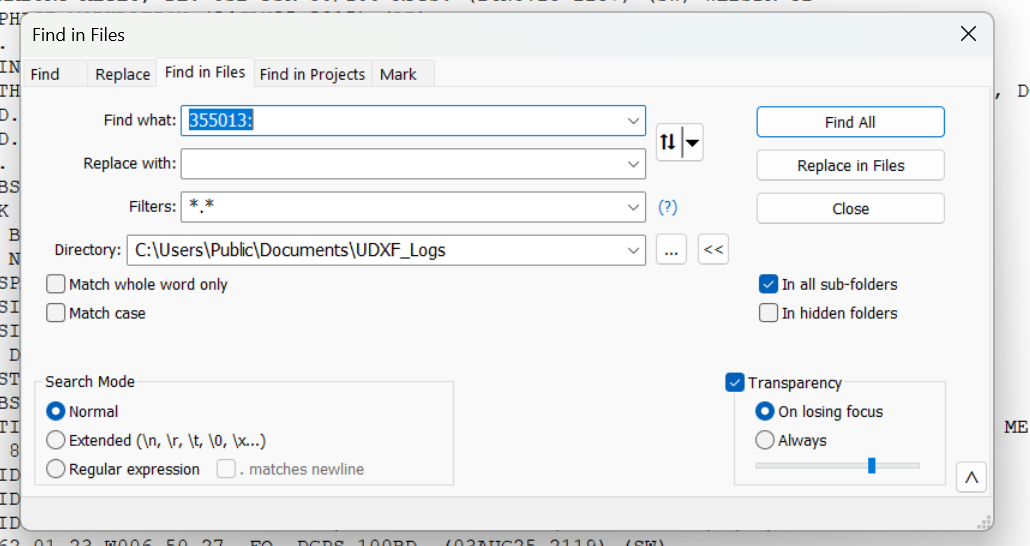
So let’s say I have a logging with the ID of 355013 on 8092 kHz. That really doesn’t tell me a thing about who could be behind the signal. Lots of organizations use six-digit strings as identifiers. I open up the Find in Files feature in Notepad++ and point it at the folder of UDXF logs. Now I type in the ID followed by a colon. Why a colon? Because in the UDXF logs, IDs are followed by a colon. By including the colon in my search term, I can eliminate any other random places that the same string of characters might be. (That’s more important when searching for shorter ID strings, such as three-digit numbers.)

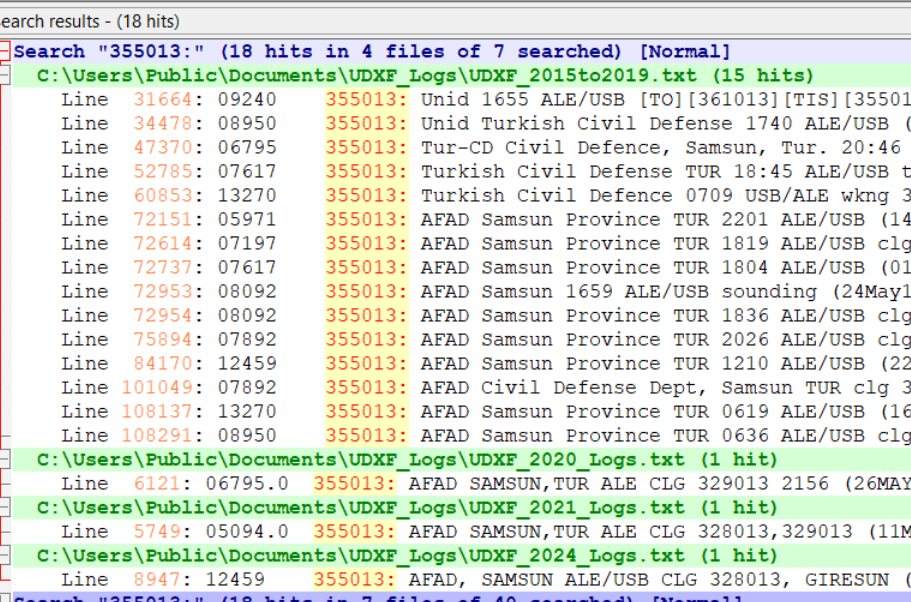
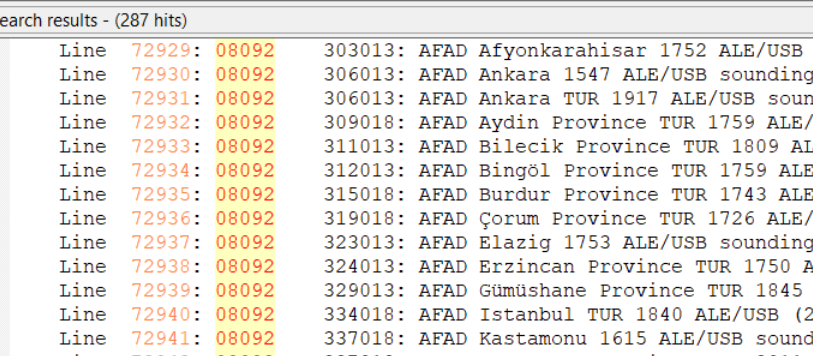
I click Find All and get back a listing of every line in those logs that contains my search string. I can click on any line to open that file at that point. In the frequency column here, I see two hits for this ID on 8092 kHz. I think I can be certain that this is the Turkish Civil Defense station in Samsun province.

But what if I got these same results, but without any reports on 8092 kHz? That wouldn’t prove that I had logged Samsun even though the six-digit ID is a match on other frequencies. There are other organizations that also use six-digit numbers as IDs, such as UN Peacekeepers in several African countries. What I would do then is run a search for the frequency of 08092 (no colon) to see what other stations have been reported there. That turns out to be an important frequency in the AFAD network, so I could still safely assume that I had logged Samsun.

If the identifier doesn’t show up in the UDXF logs then there are some other resources (listed below) that can be checked. Sometimes the UDXF has complete network lists that include stations not yet reported in the logs. Another thing to do is look to see just what has been reported on that frequency. If there are lots of logs from a particular organization and the IDs follow the same pattern as the one you logged (e.g., six digits beginning with a ‘3’), then you likely got an unknown station in the same network.

If I get this far and still have no idea who is behind the station, then I have two options. I can delete the log and forget about it. Or I can put it in a ‘check later’ list, which I go through every year or so. I’ve identified a number of stations that way, especially from new networks. To be honest, which one I choose to do depends on how I feel that day!

Now let’s take a look at some of the places that stations can be logged from.

North America

The US government heavily uses ALE and there is no question that you will log more stations from the USA than from any other country.

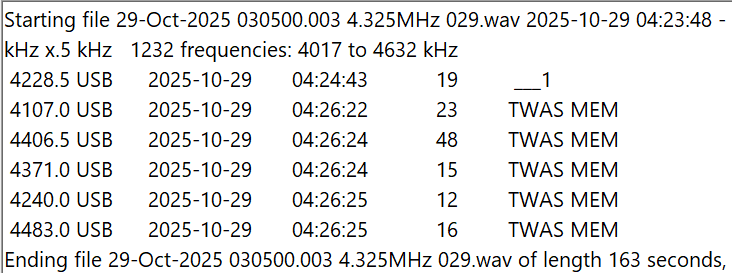
The most widely used set of frequencies by the US government includes 7527, 8912, 10242, 11494, 12222, and 15867 kHz. These frequencies are shared by several organizations, including the US Coast Guard, the FBI, the DEA (Drug Enforcement Agency), and the Customs and Border Patrol. The USCG is an especially heavy user, and it’s easy to log not only USCG bases but also USCG cutters at sea, as well as USCG aircraft. Another heavy user of these frequencies is the COTHEN network, or Cellular Over-The-Horizon Enforcement Network.  This is a network of various law enforcement agencies and includes stations in some unusual places such as Limestone, Florida, and Lovelock, Nevada. Here is a string of Black Cat loggings on five different frequencies by MEM, the COTHEN station in Senatobia, Mississippi.

Another large US government ALE network is run by FEMA (Federal Emergency Management Agency), which operates stations at each of its ten regional offices. The callsigns include the region number, e.g. FC4FEM1 from the region four office in Thomasville, Georgia. If you are in North America, it won’t take long to log all ten regions. Much rarer are the stations in individual state offices, such as SD8FEM in South Dakota and TN4FEM in Tennessee.

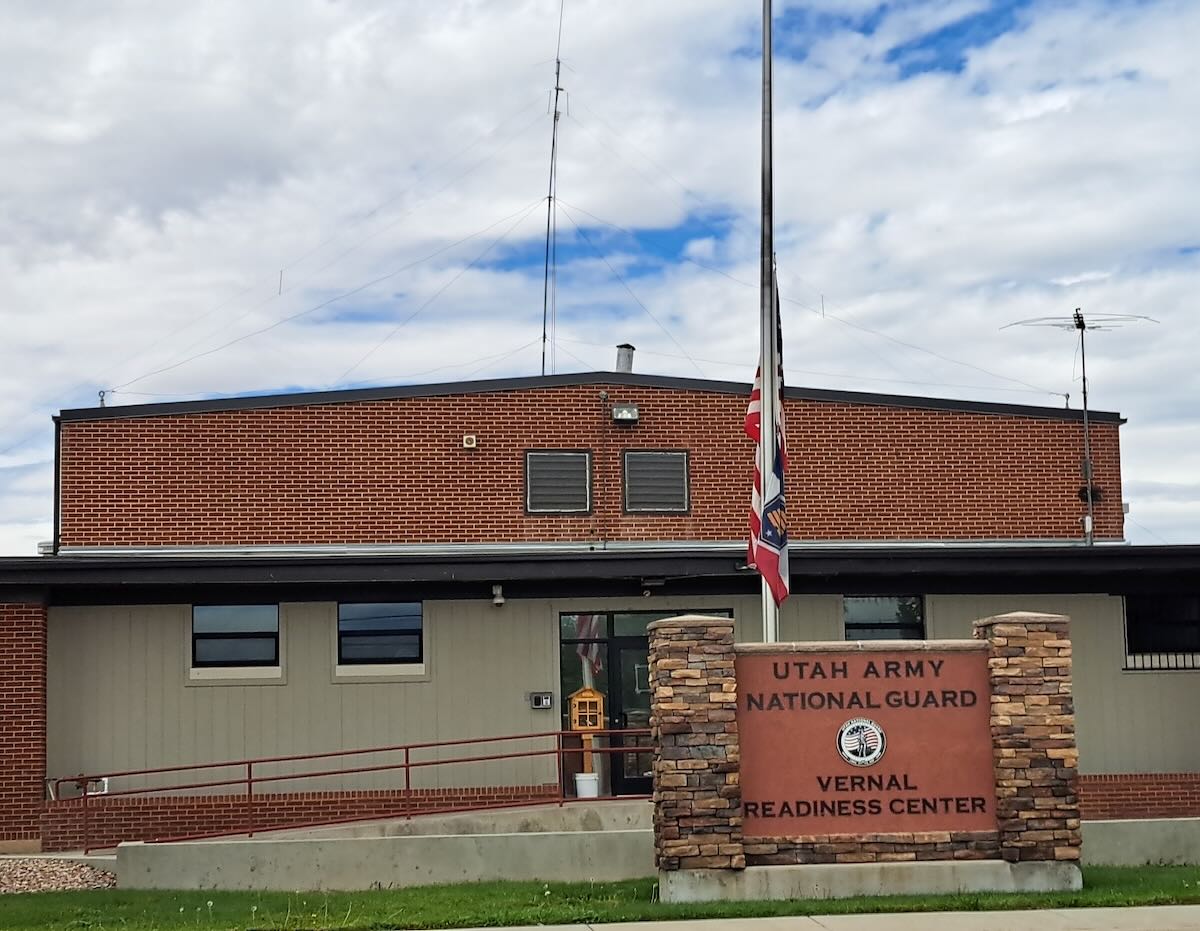
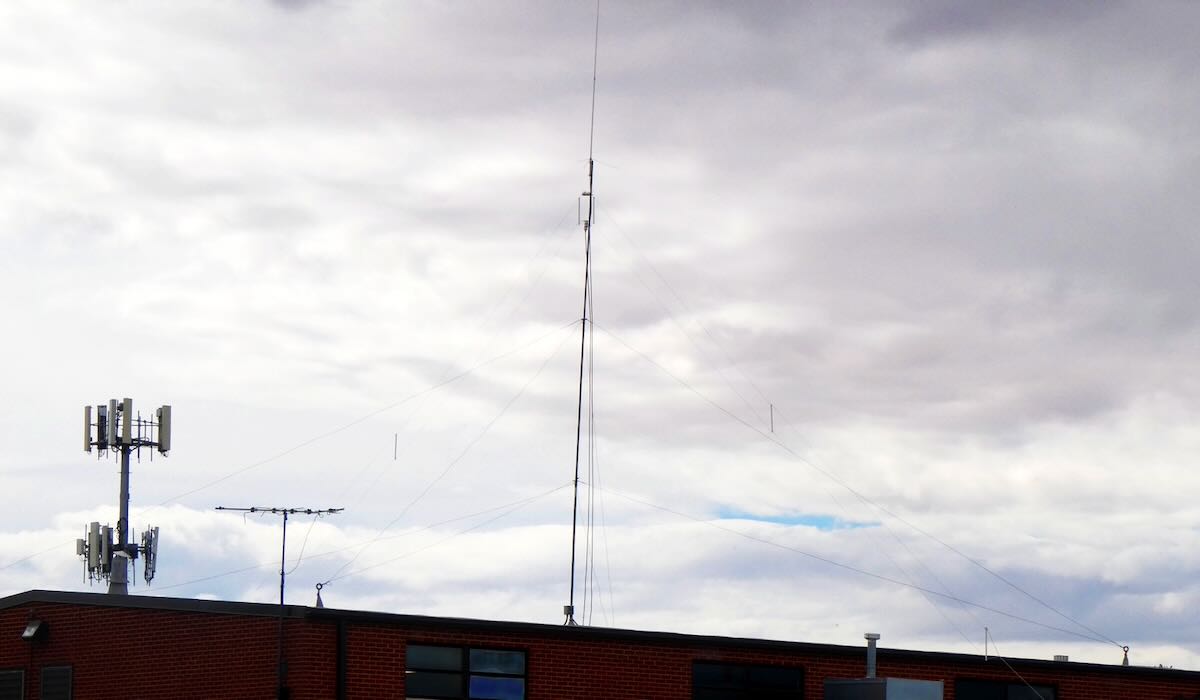
Some state National Guard units also operate on ALE, but by far the most active are the Wyoming and Utah National Guards. These can be logged on several frequencies, including 7805, 7932, and 8065. The Wyoming stations mostly identify by the full town name, e.g. LARAMIE or GILLETTE, while the Utah stations use the first three letters of the local base, e.g. AME for American Fork or TOO for Toole. In September, I passed through Vernal, Utah, and took these pictures of the Vernal National Guard center and the HF antennas on the roof.

Finally, there are several regional government and quasi-government organizations that can be logged. The most active network is probably the Bonneville Power Administration in the Pacific Northwest. It operates a handful of stations with calls including 1121BPA and 1351BPA. Unfortunately, there is no information as to where the individual stations are located.

US government ALE transmissions are not confined to the continental USA. As noted in part one of this series, the US Air Force operates from bases around the world. The US Coast Guard operates from Puerto Rico, Guam, Alaska, and Hawaii. The DEA has a station in Nassau, Bahamas. Finally, the US State Department operates from many consulates and embassies around the world.

The Canadian military has a few ALE stations on the air. Aside from that, to my knowledge, there is no ALE activity from Canada, Mexico, or any of the countries in Central America and the Caribbean, except for that done by the US government.

South America

The militaries of Brazil, Colombia, and Venezuela all operate ALE networks. The Brazilians seem to be particularly active. The police networks of Chile and Colombia, as mentioned in part one, are the most interesting as they identify with the station location. However, logging the Chileans in the northern hemisphere will require good conditions. I’ve only managed to get a few when DXing in the USA, although I have logged several more while DXing in South America.

Africa

Algeria is the heaviest user of ALE from Africa. The Algerian Air Force and Army operate from bases throughout this huge country, and in many cases, the exact locations of the stations are known. One of my favorite ALE logs is CM6 from Tamanrasset in the heart of the Sahara in southern Algeria. Sonatrach, the Algerian national oil company, also has a huge network of stations using four-digit numbers as identifiers. Unfortunately, there is no information as to the exact location of any of those stations.

Morocco, Mauritania, and Tunisia are three other countries with large ALE networks operated by their militaries and/or national police. Finally, United Nations Peacekeepers operate from several countries, including Mali, the Central African Republic, and South Sudan.

Europe and the Middle East

The United States may have the most ALE stations, but without a doubt, the most active ALE callsign is XSS from Forest Moor, England. Operated by the British military, this station pops up on dozens of frequencies throughout the shortwave spectrum. The previously mentioned Turkish AFAD operates what is probably the largest ALE network in this region. Another large network is Italy’s Guardia di Finanza, a sort of combination coast guard and tax enforcement agency. It’s hard to receive in North America, but I did once get one of their patrol boats. ALE is used by the militaries and border patrols of several other countries in this region. My best ALE catch from Europe is getting the Polish UN Peacekeepers in Kosovo. That’s my only logging of any type in that small country.

Asia and Pacific

Australian state police run an ALE network with 10505 kHz being a favorite frequency. To my knowledge, there is no other significant ALE activity in the region aside from that of various US government organizations.

That’s just a general overview of the major users of ALE, but there is a lot more to be logged that I didn’t mention. Unlike a lot of things on HF, the use of ALE is expanding, not contracting. For example, the Colombian police network didn’t even exist two years ago. So, give ALE monitoring a shot. I think you’ll find it to be one more way to make the DX hobby challenging and fun. I do.

Links

Part Two: A Beginner’s Guide to ALE

Many thanks to SWLing Post contributor Don Moore–noted author, traveler, and DXer–who shares the following post:


A Beginner’s Guide to ALE: Part Two

By Don Moore

Don’s traveling DX stories can be found in his book Tales of a Vagabond DXer [SWLing Post affiliate link]. If you’ve already read his book and enjoyed it, do Don a favor and leave a review on Amazon.

In the first part of this series, I explained what the digital ALE mode is and looked at an easy way to get started monitoring ALE stations. In part three, I’ll look in detail at the dozens of countries and hundreds of stations that can be logged in ALE mode. But first, let’s look at a way to let software do the hard work in adding those hundreds of stations.

The Black Cat Approach

Run by longtime DXer Chris Smolinski, Black Cat Systems is a provider of over two dozen quality software programs for radio hobbyists. The one we’re interested in is the Black Cat ALE Vacuum Cleaner. The name describes exactly what it does. The user feeds it a large number of SDR spectrum recordings, and the Vacuum Cleaner sucks up the ALE DX and lists them in a file.

Let’s step through the basics of using the program. But first, you need at least an hour or two of SDR spectrum recordings covering frequencies with lots of ALE traffic. Some of my favorite ranges are 7500-9200 kHz, 10100-11500 kHz, and 15500-16500 kHz.

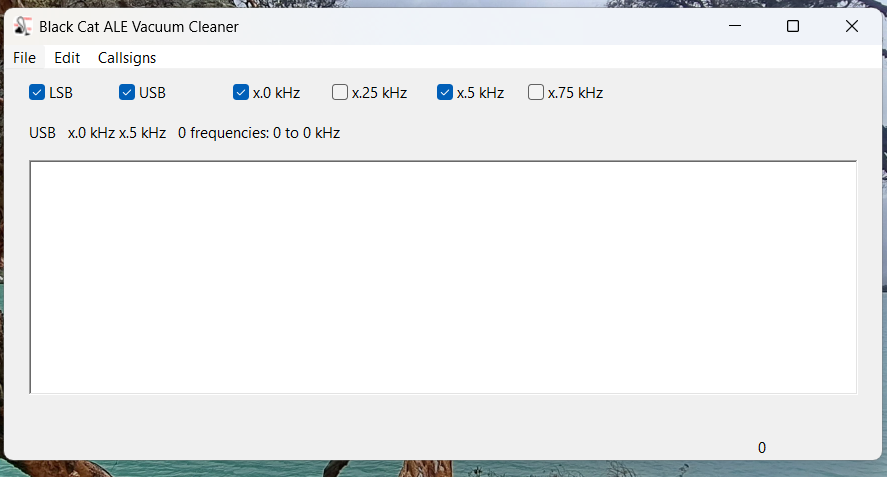
Here’s the main screen on the Vacuum Cleaner:

I recommend you check both USB and LSB. In the logs reported to the Utility DXers Forum, about 97% of all ALE transmissions are in USB mode. From my experience, if LSB is unchecked, the Vacuum Cleaner will step through the files about twenty percent faster, but you will miss a tiny number of stations.

The kHz settings determine how finely the application will tune in looking for ALE signals. I recommend just checking x.0kHz and x.5kHz. Almost all ALE signals on shortwave are transmitted on frequencies that end in either point-zero or point-five kilohertz. The main exception is the US Department of State, which uses frequencies ending in point-six kilohertz (e.g., 8058.6 kHz). Fortunately, the one-hundred Hertz difference from the point-five kilohertz setting isn’t enough to make a difference except maybe with the weakest of signals.

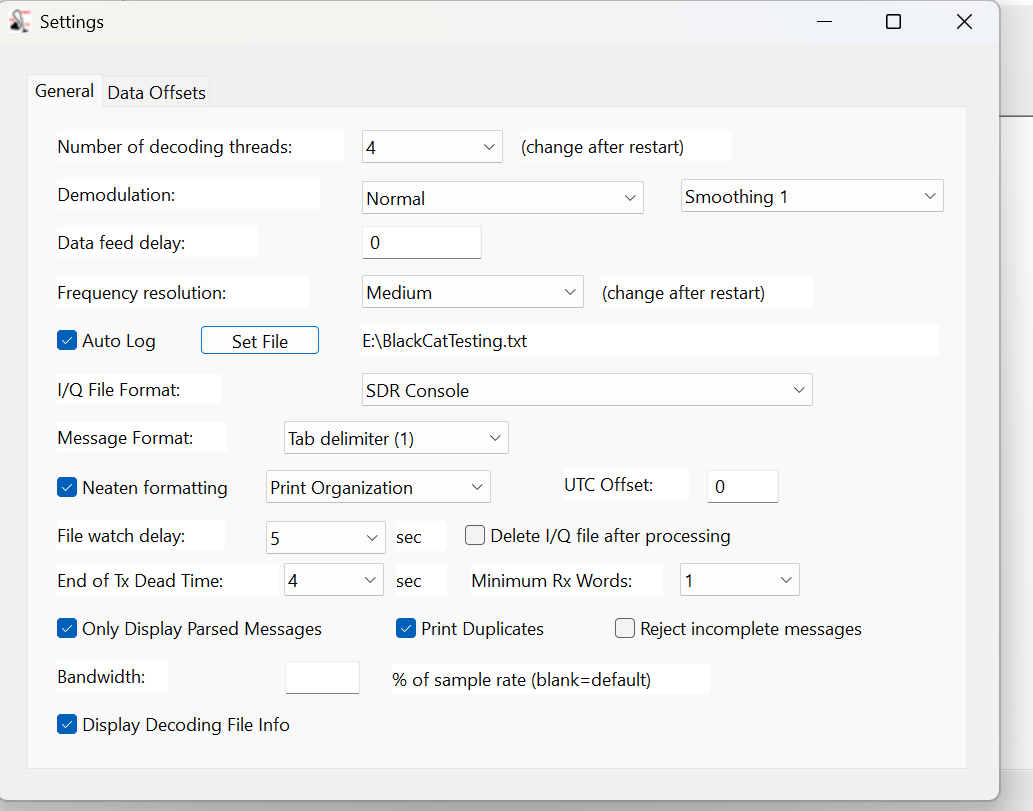
The next step is the Settings, which are found under the Edit menu. Most values can be left at the defaults.

At the top, the number of decoding threads should be no more than the number of cores that your CPU has. Check the Auto Log box, then enter a destination path to record logs to a file. (Otherwise, the logs that show up in the window will be gone when you close the program.) Next, select the file format of the SDR program used in making the I/Q recordings. Finally, set the file format for your logs. I prefer the single tab format so that I can later import the logs into Excel and sort by frequency.

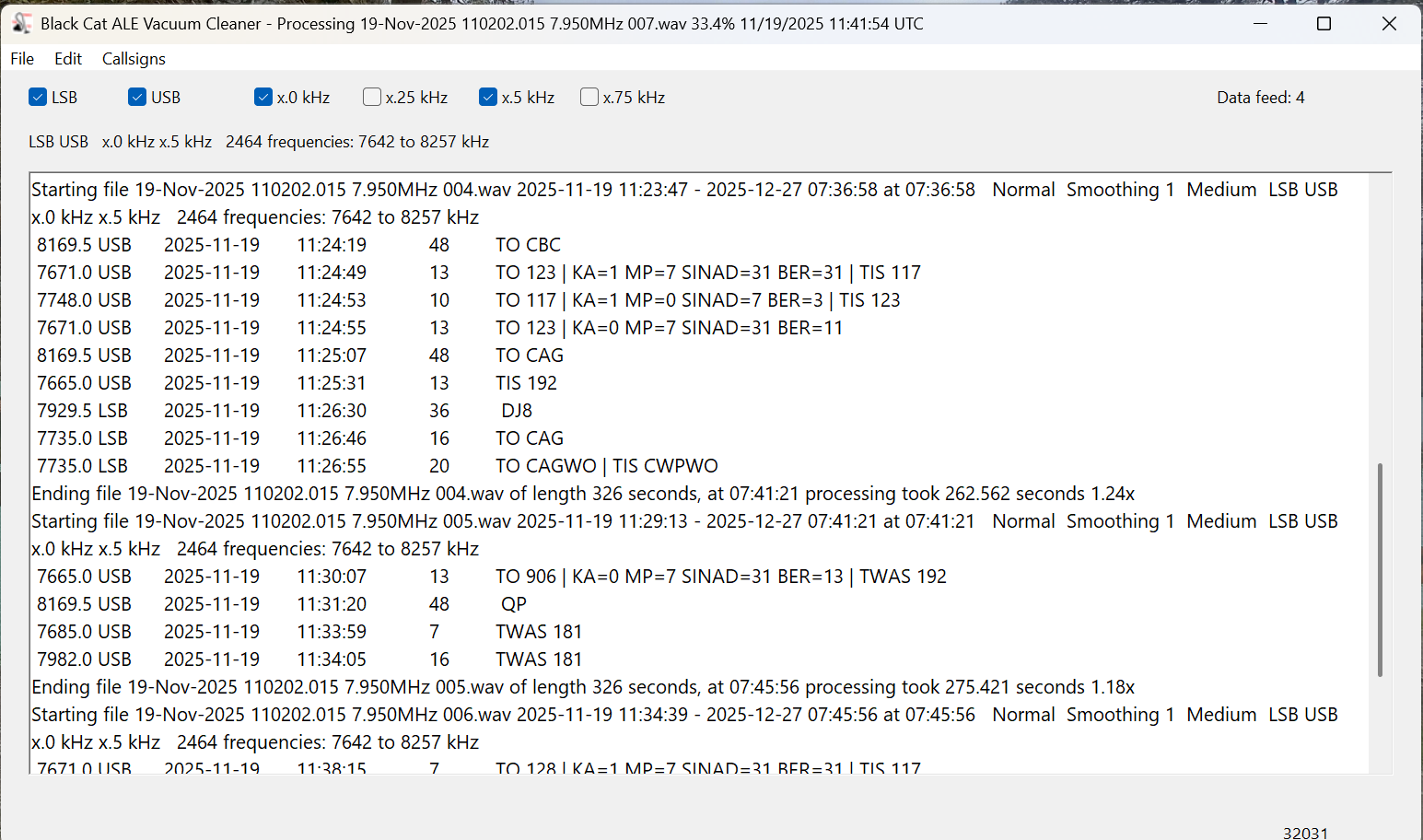
Now it’s time to decode. Under the File menu, select Open I/Q Files and browse to a folder of spectrum recordings to decode. Click on Open in the file selection box, and the Vacuum Cleaner will start decoding the files. Now take a break and come back in fifteen or twenty minutes. The main screen should look like this.

The current settings and the frequencies being scanned are displayed at the top, under the settings checkboxes. There are actually only 1232 distinct frequencies in that range, but the number is doubled as each one is being checked in both LSB and USB. Below that, the output window lists each file as it is being scanned and ALE logs as they are found. (But be sure you are also recording these to a text file.)

To see a list of files still in the queue, select File > Show I/Q Files Awaiting Processing. After a few files have been processed, this will also show an estimate of how much time is needed to complete the queue. To add additional files to the queue, select File > Pause Processing, add the files, and then select File > Resume Processing. Note that the Vacuum Cleaner processes files in date/time order. If you add files that were recorded earlier, they will go to the front of the queue.

How Long Does This Take?

In the above image, notice that after each file is finished, the time taken to decode it is displayed. These files were all exactly 326 seconds long, and the first one took 262 seconds to decode for a speed of 1.24x actual time. That may not seem important, but it depends on how much you have to decode. In a couple of days of serious DXing with my three Airspy receivers, I can easily accumulate a couple of terabytes of spectrum recordings.

Processing time depends on several factors. The first is the bandwidth/sampling rate. Those files above were recorded with SDR-Console at 768 kHz wide. All other things being equal, a narrower sample will process faster and a larger one more slowly. Depending on the band being monitored, I sometimes record with my Airspys at the 912 kHz bandwidth. Those typically take about 25% longer to decode than 768 kHz files.

Another factor is whether or not the Vacuum Cleaner has to share processing power with other running applications. That slows things down. I mostly decode overnight or at times when I’m not otherwise using the laptop. Under those conditions, my 768 kHz files decode at 1.75x and my 912 kHz ones at 1.45x. But those numbers are for my nearly four-year-old main laptop. An older laptop I have at home tops out at around 1.40x on 768 kHz files with nothing else running. If you have a high-performance gaming laptop, you should get much better numbers than I.

Then there are differences between the various SDR applications in how they store data. I won’t go into the technical details that Chris explained to me, but SDR-Console is more efficient in this regard. In my own testing, I found that files of similar bandwidth and time length recorded with SDR-Console decode at least fifty percent faster than those recorded with the default Elad and Perseus software. I’m satisfied with SDR-Console, so I haven’t tried any other programs. If you have other favorite SDR applications, I suggest doing some comparison tests to see what works best for you.

One application that you shouldn’t use is HDSDR. Chris didn’t have good documentation on the file format for this one and wasn’t fully successful in reverse-engineering it. The Vacuum Cleaner will work with HDSDR, but almost all the callsigns that it finds will be errors. And that brings us to an important question.

How Accurate Is It?

When I started using the Vacuum Cleaner, my main concern was whether it would miss valid signals. There was only one way to find out, so I ran several tests. I would give the Vacuum Cleaner a few hours of I/Q recordings to decode, and then I would process the same recordings manually using Sorcerer, as described in part one. Black Cat not only correctly identified every single ALE transmission that I found with my eyes but went way beyond that. It also found and decoded weak and noise-covered signals that I couldn’t see in the Data Analyzer window but were there when I played them back.

As Chris points out in his documentation, the emphasis on weak signal detection does cause the application to sometimes falsely report bogus callsigns. Some of these are produced by random noise, fooling the system. Others come from poorly received signals. He could have taken a ‘high confidence’ approach and only presented callsigns that had been clearly received. But that would have meant some valid callsigns not being reported. Instead, he went with displaying everything. It’s up to the user to weed those out.

If the decode doesn’t contain any of the keywords (TO, TIS, and TWAS) then it’s probably an error. But poorly received signals can cause partial and incorrect callsigns to be reported with a keyword. Spotting those just takes the knowledge and practice that comes from using the program and ALE reference materials. (That’s the topic of part three.)

Is It Worth the Price?

Black Cat ALE Vacuum Cleaner is a high-quality software available for Windows and macOS, and you can try it before buying. The cost is $99.99.

Is it worth it? If all you want to do is sample what ALE is all about, then probably not. But if you get serious about ALE monitoring and want to add hundreds of ALE stations to your logbook, this is the way to do it. I am 100% satisfied with the Black Cat ALE Vacuum Cleaner. I’ve decoded several thousand hours of I/Q files with it over the past few years. (When running multiple SDRs at a DXpedition, it’s easy to accumulate seventy or eighty hours per day.) The program also has a few other tricks I haven’t covered. For example, it is possible to actively monitor a folder and decode I/Q recordings as they are created.

In part three of this series, I’m going to take an in-depth look at the countries and stations that can be logged in ALE mode. Once you’ve seen how much DX there is to log, you might just be convinced, like me, that the program is worth the price. And you married guys can tell the wife that you’re buying a new vacuum cleaner that only you will use, hi!

The Vacuum Cleaner isn’t the only program that Chris has for ALE monitoring. Black Cat ALE is a different program that does live monitoring of up to twenty-four ALE frequencies simultaneously with SDR-Console, assuming your laptop has the resources to handle that.

Finally, Chris tells me that he’s been experimenting with using the Vacuum Cleaner with wide-bandwidth I/Q recordings on high-end laptops. On his M4 Max MacBook Pro, he’s able to process 32-MHz wide recordings at about 0.50X real time and 16-MHz wide recordings at about 0.97X real time. As he says, it won’t be long until it will be possible with the right equipment to monitor the entire HF spectrum for ALE signals in real time. And that will be fun!

Links

Part One: A Beginner’s Guide to ALE

Many thanks to SWLing Post contributor Don Moore–noted author, traveler, and DXer–who shares the following post:


A Beginner’s Guide to ALE: Part One

By Don Moore

Don’s traveling DX stories can be found in his book Tales of a Vagabond DXer [SWLing Post affiliate link]. If you’ve already read his book and enjoyed it, do Don a favor and leave a review on Amazon.

To me, part of the excitement of DXing has always been logging new stations. From the very beginning (over fifty years ago), I went after shortwave broadcast (SWBC), medium wave, and voice utility DX. Up until the mid-90s, I usually averaged logging one new SWBC station per week. Today, it’s hard to add more than one or two each year. There are also far fewer voice utility stations on the air today. At least medium wave is still going strong. Several years ago, my quest for logging new stations on the shortwave frequencies got me involved in DXing digital utility stations. I wrote an article here on monitoring DSC stations: https://swling.com/blog/2022/11/guest-post-monitoring-digital-selective-calling-dcs-with-yadd/).

But DSC is just one of several digital modes that I’ve been playing around with. The one that I’ve found most interesting – and the one that has yielded hundreds of new stations in numerous countries – is ALE.

Now, I am not an expert at monitoring ALE. I’m just an advanced beginner. But I think I know enough to help other beginners get started. And if you are an ALE expert reading this, I welcome your additions, corrections, and even criticisms to the comments section. I still have a lot to learn, too.

What is ALE?

Ever since the early days of radio, one of the most important uses of the shortwave spectrum has been two-way communication. It provides a means for an organization’s far-flung offices or bases to communicate without relying on external infrastructure. That remains true even today because satellites can malfunction and evil powers can cut undersea cables.

But shortwave isn’t consistent. The frequencies that work best between any two points will vary by time of day, time of year, solar conditions, and a host of other factors. In the old days, radio operators had to understand radio propagation to make an educated guess as to the best frequency to use to reach a particular distant station. Sometimes they guessed wrong, and stations would struggle to communicate or maybe not even connect. ALE, or Automatic Link Establishment, was designed to make two-way shortwave communication as simple as making a telephone call. Depending on your point of view, it has taken the guesswork out of frequency selection … or made it so easy that any dummy can be a radio operator.

In an ALE system, each station is assigned a unique identifier and the network has a set of preconfigured frequencies spaced throughout the shortwave spectrum. For example, here’s a partial list of frequencies and stations for the United States Air Force, one of the most active ALE networks.

USAF Common Frequencies: 4721, 5684, 5702, 6715, 6721, 8968, 9025, 11181, 11226, 13215, 15043, 17976, 18003, 23337, 27870 kHz

Most Active USAF Stations

  • ADW Andrews Air Force Base, Maryland, USA
  • AED Elmendorf Air Force Base, Alaska
  • CRO Croughton Air Base, United Kingdom
  • GUA US Air Force Base, Guam
  • HAW Hawthorn Air Force Base, Ascencion Island
  • HIK Hickman Air Force Base, Hawaii
  • ICZ US Air Force Base, Sigonella, Sicily, Italy
  • JDG US Air Force Base, Diego Garcia Island
  • JNR US Air Force Base, Salinas, Puerto Rico
  • JTY US Air Force Base, Tokyo, Japan
  • MCC Beale Air Force Base, California, USA
  • OFF Offutt Air Force Base, Nebraska, USA
  • PLA Lajes Field, Azores

The key to the system is a piece of software called the ALE controller. At periodic intervals, the ALE controller at a particular station, say PLA, will loop through the frequencies and send a “sounding” out on each one. That’s just a short digital identification burst saying “This is PLA!” Here’s a recording of an ALE sounding.

That’s not the kind of signal that anyone would enjoy listening to all day. Fortunately, no human being has to do that. Instead, all the other controllers in the network are monitoring every frequency and automatically make note of how well PLA is received (or not) on each channel. Now, if someone at Offutt Air Force Base needs to send a message to Lajes, they just go to their ALE controller and enter “PLA.” The system will select the best frequency to use based on the most recent observations. That’s the basic explanation. If you want to understand more, see the links at the bottom.

Monitoring ALE

You can’t DX ALE with your ears. A computer program has to do it for you. There are several hobby programs that do the job, and I’m going to look at two of them. The first one will get you started, and the second one will take your ALE DXing to the top.

I began with Sorcerer, a free program that decodes several dozen digital modes. See the links below for downloading. The program doesn’t need to be installed. Just unzip the file and place the executable in a suitable location. Next, you need an SDR and an SDR application. I prefer SDR-Console for digital work, but any SDR program will work if you can feed the audio into a virtual audio cable. And that’s the other thing you need – a direct audio connection from the audio output of your SDR application to Sorcerer. There are several similar products available, but I recommend VB-Cable. Your first VB-Cable is free, and you only need one to run Sorcerer. If you want to expand, you can buy more VB-Cables later.

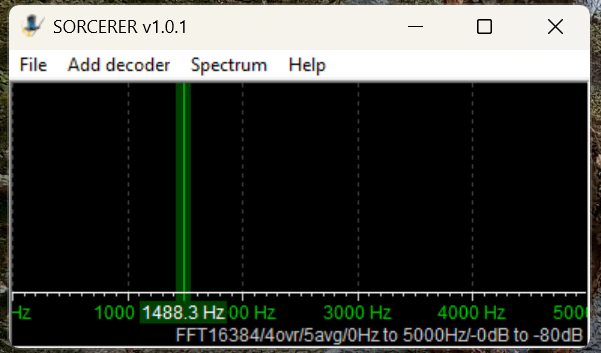
Here’s the main window that opens when you start Sorcerer.

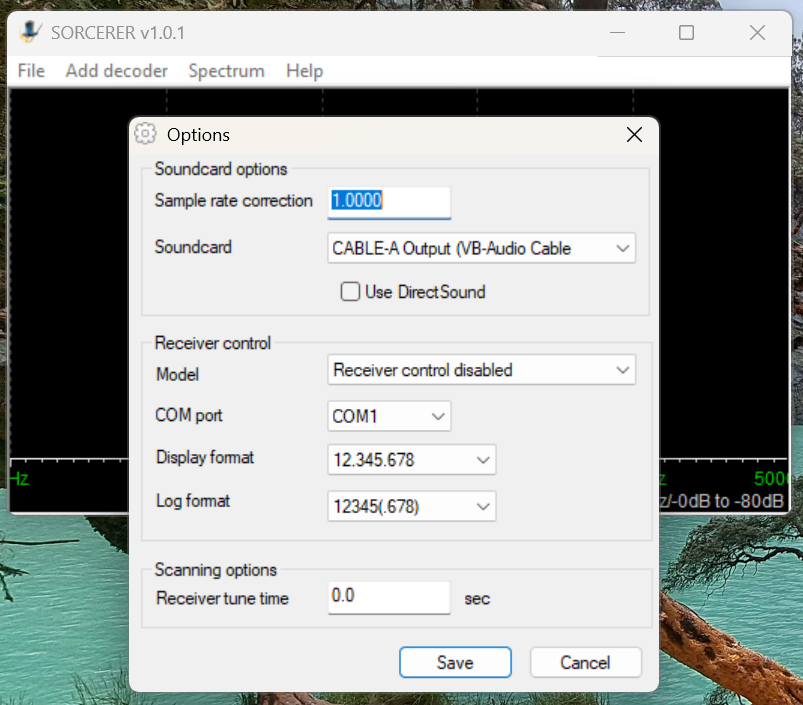
The first time you use Sorcerer you will need to connect it to your VB-Cable. On the menu select File then Options. Find the cable under the Soundcard list and save.

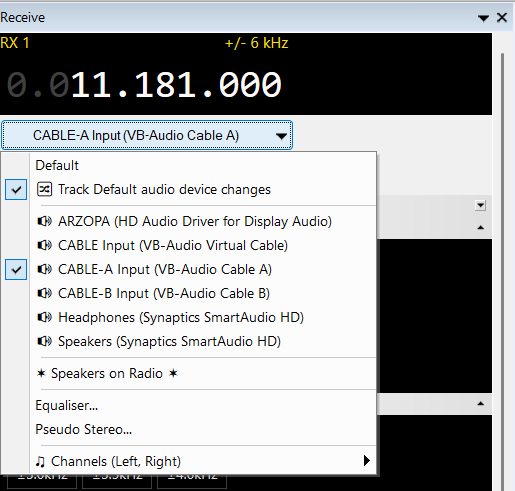
Open your SDR application and tune it to 11181 kHz. Set to USB mode with a filter value of around 2.8 kHz. That is one of the most heavily used frequencies by US Air Force bases around the world. Wherever you are, something should be received. Next, set the audio output of your SDR application to go to VB-Cable. In SDR-Console that’s done by a drop-down box under the current frequency. Next, slide the volume level all the way up.

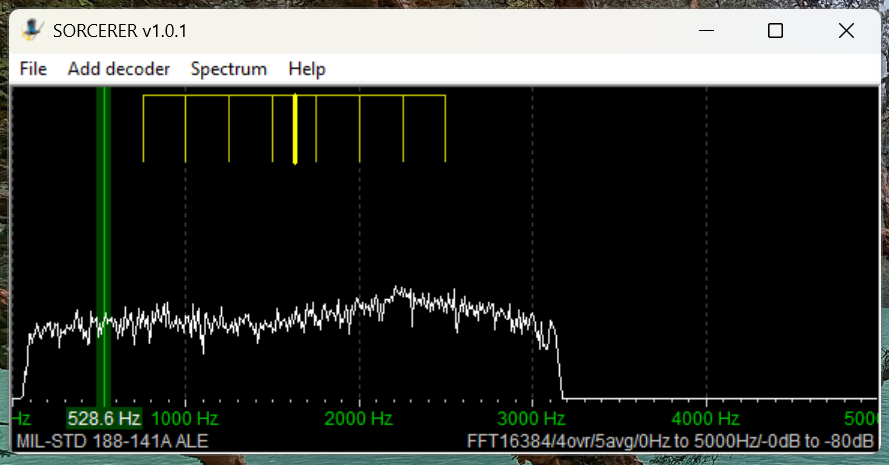
Now go back to Sorcerer and confirm you are getting audio from the SDR application.

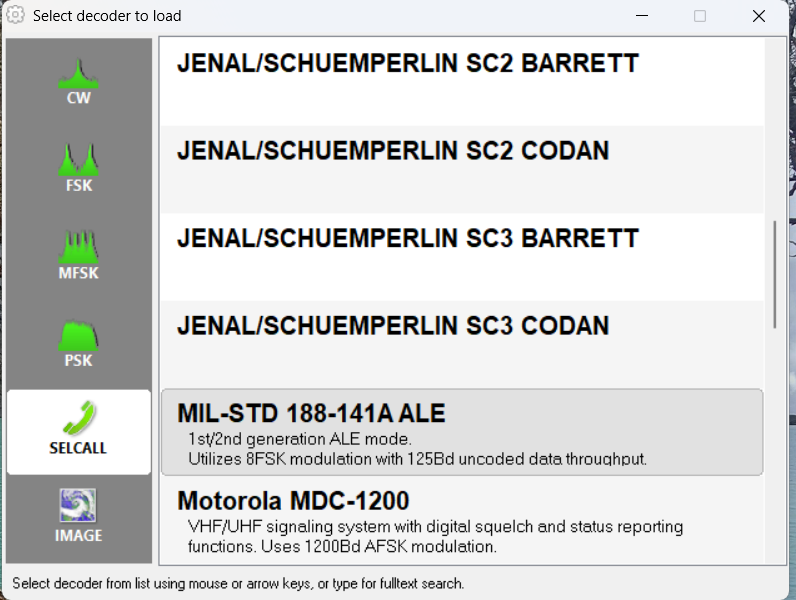
Now select Add Decoder from the top menu in Sorcerer. Then select SELCALL on the left side and scroll down and double-click to select MID-STD 188-141A ALE from the options.

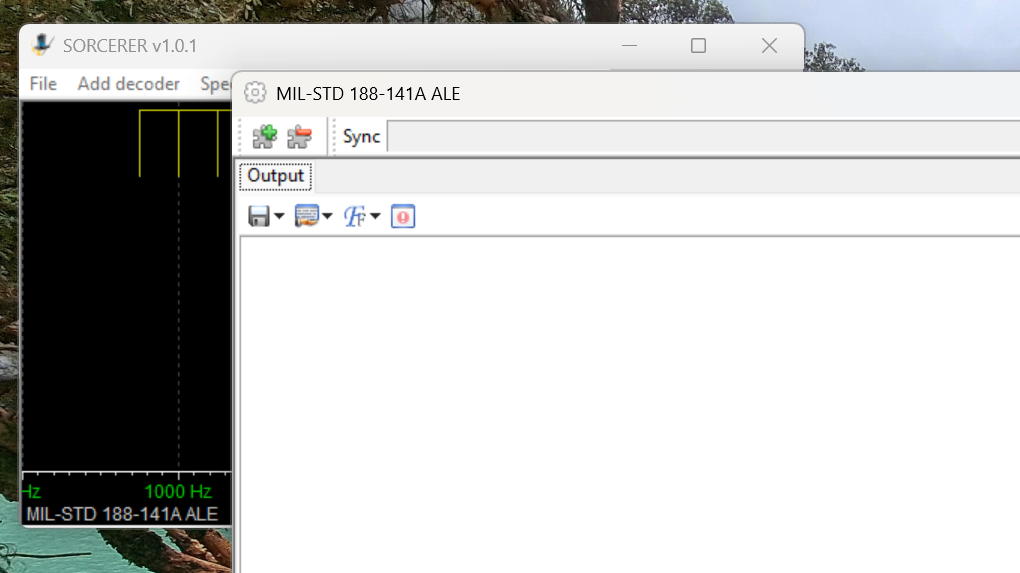
That will open a large decoder window, which you can resize as needed.

Now, go get a cup of coffee and come back in about thirty minutes.

Sample Sorcerer Output

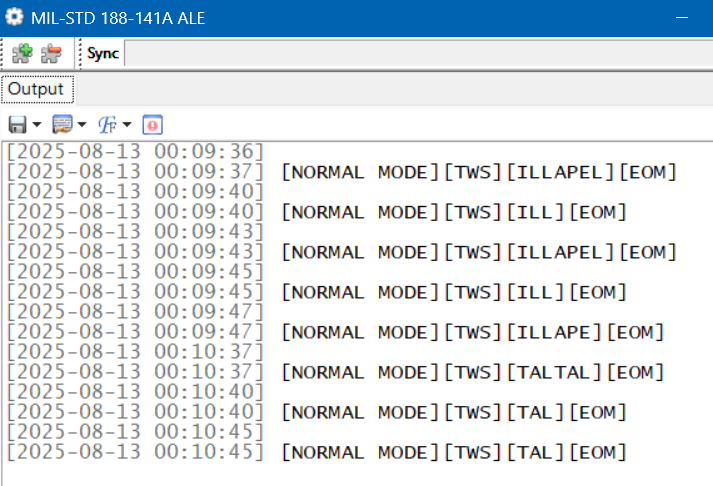
Let’s take a look at some sample output from Sorcerer. These loggings were made on 7915 kHz, a frequency used by the Carabineros (National Police) in Chile. First, Sorcerer shows the time and date the decoding was done per the current time on the laptop. If you are monitoring live, those are the correct date and time of the reception.  For the record, I was decoding from SDR spectrum recordings in these examples, so the times and dates are not the real ones. (I got the real ones from the spectrum recordings.) TWS stands for “This Was” and EOM for “End Of Message.” ILLAPEL and TALTAL are the station identifications, which in this case correspond to two Chilean cities. Note that sometimes the end of the ID can be cut off if reception isn’t clear.

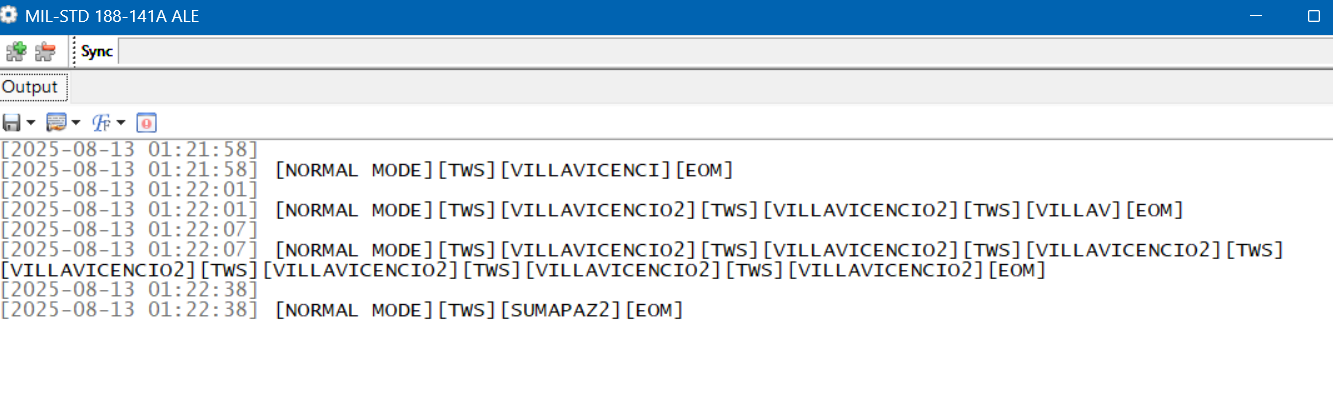
These next loggings are from the national police of Colombia on 7560 kHz. Villavicencio is a city east of the Andes, and Sumapaz is a national park in the remote mountains south of Bogotá.

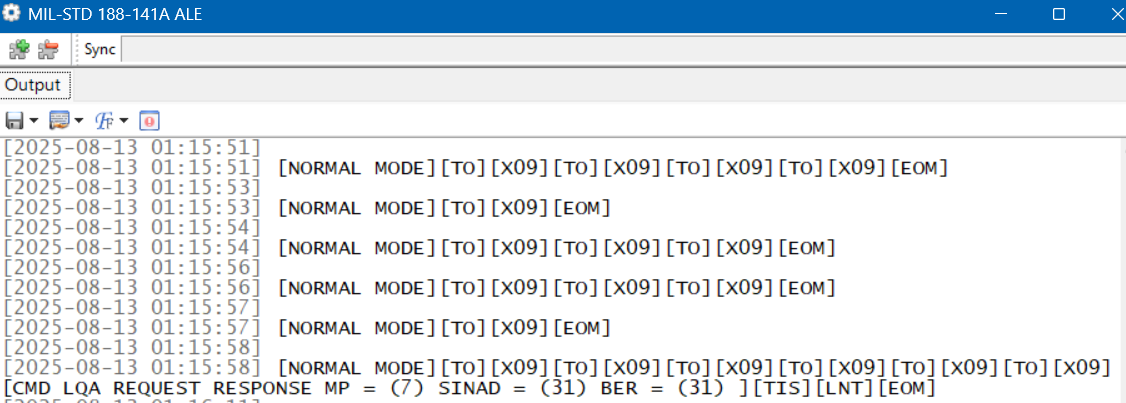
Here is a string of loggings on 7527 kHz, a frequency used by the US Coast Guard and other US government agencies. But here we have a TO, which means someone is trying to call X09. That happens to be a C-27J Spartan, a medium-range surveillance aircraft used by the US Coast Guard. Who’s doing the calling shows up in the final line. TIS (“This Is”) is a variation on TWS. LNT is the identification for CAMSLANT, the big US Coast Guard station in Portsmouth, Virginia.

The Limits of Single Frequency Monitoring

DXing live and monitoring one highly active frequency at a time with Sorcerer makes for a good introduction to ALE. However, if you just stick to monitoring easy frequencies like the USAF ones, you’ll get a lot of logs, but it won’t take long until you feel as if you’ve gotten everything. There are hundreds more ALE frequencies out there, such as the Chilean and Colombian police ones. But those are less active and might only be received at your location when conditions are just right. If you go after those by live monitoring with your SDR parked on a single frequency, you’ll spend a lot of days without getting a single hit.

What is needed is a way to cast a wide net to catch all the activity in a particular band. The idea I came up with was to use the Spectrum Analyzer feature of the SDR-Console program. See my article on this highly useful feature for an understanding of how this works.

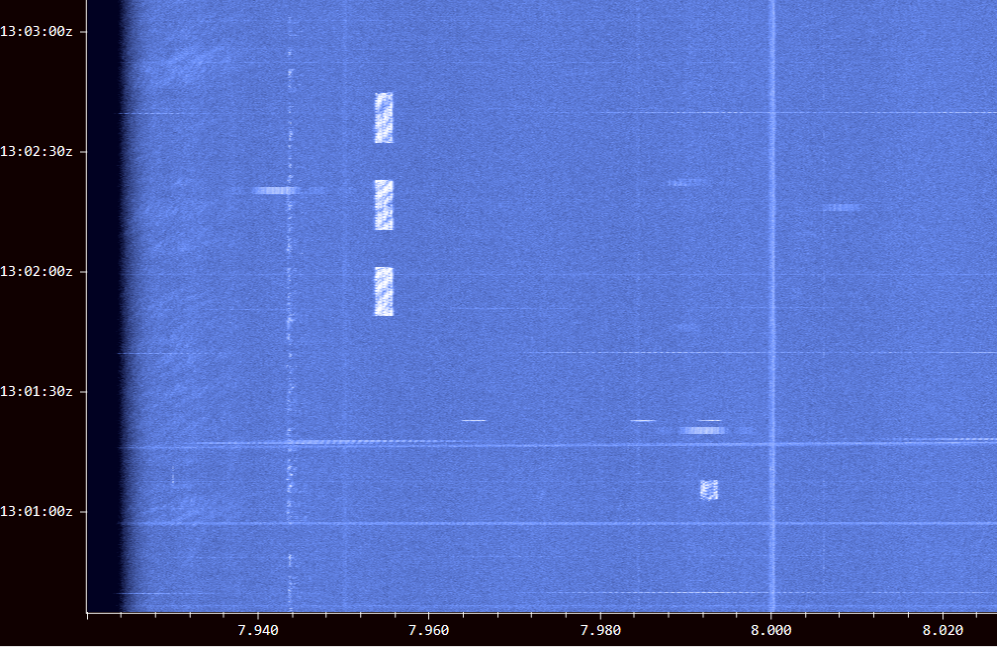
Using an Airspy HF+ Discovery, I would make several hours of spectrum recordings and then use the Spectrum Analyzer to visually find the ALE signals. Here’s a string of three long ALE bursts on 7953 kHz and a single weaker one on 7991 kHz. (Some other digital modes look the same on screen.)

I just had to click on a signal to play it into Sorcerer to get the ID. The process worked really well, and I found a lot of stations this way. But it was also tedious and time-consuming. I wanted something better … something that did the hard work for me. That’s what technology is for, right?

Stay tuned for Part Two … 

Links

Unlocking Rare DX Treasures with SDR-Console’s Powerful Data File Analyzer Tool

Finding Rare DX with the Data File Analyzer

By Don Moore

Don’s DX traveling stories can be found in his book Tales of a Vagabond DXer

I’ve been a real jack-of-all-trades in my over five decades of DXing. I began with SWBC (shortwave broadcast) but soon branched out to medium wave and voice utility. Later I added longwave beacons and more recently I’ve gotten into digital utility stations. My goal has always been to log lots of different stations from lots of different places. And the rarer they are, the better.

For SWBC and medium wave stations, as well as scheduled utility broadcasts such as marine and aeronautical weather reports, the DXing process is simple. You tune to a frequency at a time when a station is scheduled to be on the air. It’s either there or it’s not there. If it’s not there then maybe propagation isn’t right or maybe your antenna/receiver setup isn’t the best for that frequency band or the station’s power level. You tune away to find something else with plans to try again another day.

But it’s not always that easy. Most utility stations do not have fixed schedules and only come on as needed. The best example of that is two-way marine, aeronautical, and military voice communications.

In eastern North America, tune to 8906 kHz anytime from late afternoon until morning and set your receiver to USB mode. You’ll probably hear empty static at first but it’s unlikely that more than ten or fifteen minutes will pass before you’ve heard some aeronautical traffic. The frequency is assigned for communication on the North Atlantic and is heavily used by aircraft communicating with New York Radio, Gander Radio (Newfoundland, Canada), and Shanwick Radio (Shannon, Ireland). If you keep listening, the frequency will probably be occupied around 25% of the time. Wherever you are in the world, there are a few heavily used air frequencies like 8906 kHz and listening to them can be fascinating. But I want to log more than just a few easily heard stations.

Sticking to aeronautical DX, there are many assigned frequencies for different regions and air routes around the world. But propagation to those distant areas is unpredictable and less-used routes have fewer flights. Fewer flights mean less radio communication and more empty static. The most interesting frequencies may only see traffic a few times a week.

Hearing the rarest voice utility DX requires listening to lots of empty static just to get a brief DX catch. For years my process was simple. I would set my receiver to an interesting frequency and leave the tape recorder running while I sat nearby listening and doing something productive. I got some very good DX over the years that way. But I don’t want to think about how many long hours of empty static I listened to in order to get that DX.


SDRs offered some improvement. Instead of audibly monitoring a specific frequency I could now make a spectrum recording that included a band of interest, say the 8815 to 9040 aeronautical band. During playback I could visually monitor the SDR waterfall for interesting signals. That works. But watching an SDR waterfall scroll by for three or four hours gets tedious quickly.

(When I refer to SDRs, I mean ones consisting of a small box that is connected to and controlled from a computer using a software program. None of this applies to models such as the Malachite line or the Icom IC-R8600, which use SDR technology inside but mostly function as a traditional receiver.)

Finding a Better Way

That better way is, I think, one of the most exciting DX tools out there – the Data File Analyzer in the SDR-Console program. Since I learned about it a few years ago, the Analyzer has gotten me all kinds of catches that I probably wouldn’t have gotten otherwise. Let’s start with an overview and then dig into the how-to.

SDR-Console is one of the better-known SDR programs and it works well with most of the common SDR radios on the market, including the Airspy, Elad, Perseus, and SDR-Play models. Here’s what the main window looks like:

The Data File Analyzer is a second window that produces a scrollable waterfall display for the entire length of an SDR spectrum recording. The display is similar to a standard waterfall with frequencies along the bottom and times along the side. However, there is also a scroll bar on the right side for browsing through the entire length of the recording. Instead of watching a four-hour spectrum recording slowly roll by in real time, I can scroll through the window looking for DX.

And this is what makes the Data Analyzer really useful. When I spot an interesting signal, I click on it and that causes the main window to start playing at that time and frequency. Now going through a four-hour spectrum recording takes from a few minutes to around half an hour, depending on how much DX I find.

Here’s a closeup of part of that same screen of spectrum recording made on 24 October 2024 at a DXpedition in western Pennsylvania, USA.

“A” marks a short exchange between an aircraft and Ndjamena Radio in Chad on 8894 kHz. “B” is Niamey Radio in Niger on 8903 kHz. “C” is Gander Radio on 8891 kHz. Just to the left of that is a string of digital signals. “D” is New York Radio on 8918 kHz. Again, there is a string of digital signals just to the left. Finally, “E” is communication from Dakar Radio in Senegal and Sal Radio in the Cape Verde Islands on 8861 kHz. I caught four African aero stations in just four-and-a-half minutes. I could also show you long stretches of time when there was nothing interesting coming in. With the Data File Analyzer I was able to visually find and focus on the DX and not waste my time with the empty static.

Here’s another image taken at the same DXpedition. Notice the three transmissions between 8820 to 8845 that seem to be mirroring one other.

That turned out to be Flightwatch Brisbane, the Australian regional aeronautical network. It uses multiple transmitter sites on 8822, 8831, and 8843 kHz to cover the entire country. I had never logged it before and I doubt I would have found it if DXing in the traditional manner.

The How-To

Here I’m going to assume that you already have SDR-Console installed and know the basics of how to use it, including making spectrum recordings. (If not, see the links at the end.) This article was written using version 3.4 of SDR-Console. Some of the functionalities described are not in earlier versions, so upgrade if you are not up to date. And I should point out that while you can do this on a single monitor, it works more smoothly if you have a dual monitor setup and can put each window on a different screen. Continue reading

Audio Plugins For Radios, Part 3 – VST Technical Setup

Many thanks to SWLing Post contributor, TomL, who shares the following guest post. Click here to check out all of the posts in this Audio Plugin series:


Audio Plugins For Radios, Part 3 – VST Technical Setup

by TomL

Processing legacy audio still has a place in an increasingly digital world for the time being.  The first article on this topic was strictly using the speaker jack output from an old Kenwood transceiver using a simple Behringer UCA-202 RCA-to-USB converter.  However, my main receive radio is the SDR based AirSpy HF+.  Either type of radio should work with the apps discussed below as long as the audio gets to your Windows computer unmolested.  There are VST apps for Mac and Linux, too.

VST apps: VST3/VST2/DLL files

Also mentioned was how to install VST Host and the VST apps run inside it.  A simple reminder is that VST Host does not really install.  It just resides in any one Directory/Folder you want and you create a shortcut to run VSTHOST.EXE.  All the .XML files and profiles will be stored there.

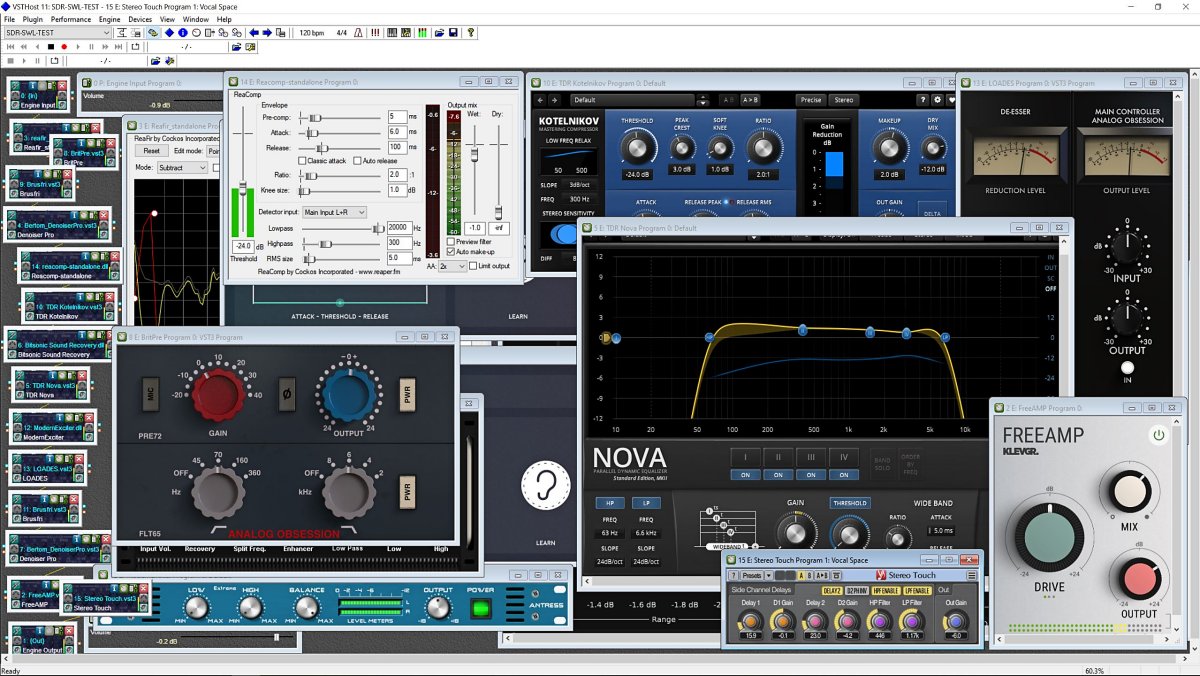
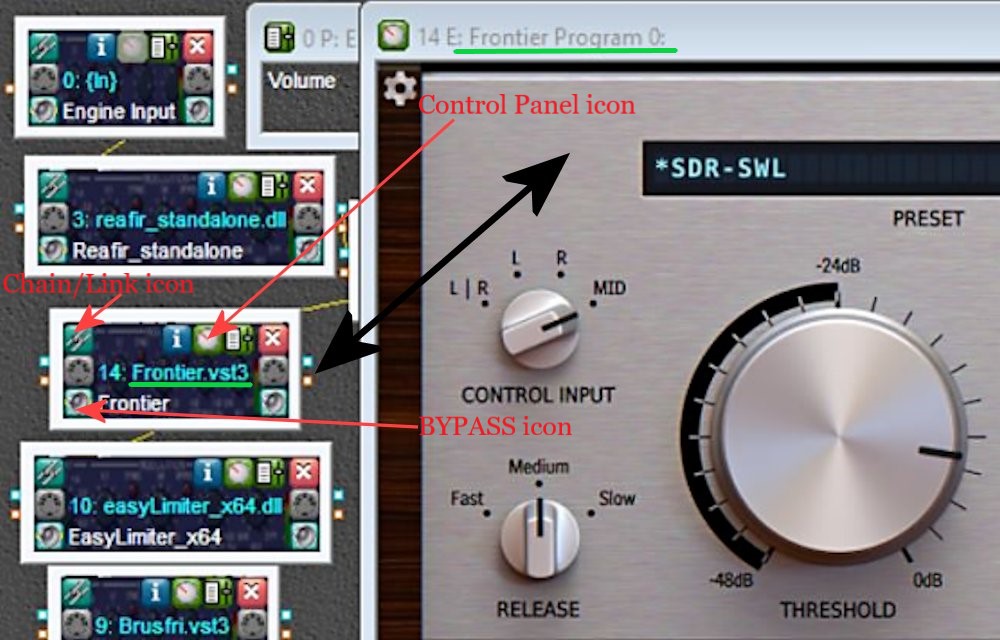
I like tinkering with many apps but you may prefer things a lot simpler.  I use 64-bit versions when possible, like VST3 and x64 DLL files.  Because of the myriad settings involved, I will just list the apps in order of processing with brief comments.  The second icon on the top of each app opens up its control panel and the bottom left icon will Bypass the app as if it is not in the audio chain.  The top-left icon Links to the Preceding app in the audio chain.  Most controls inside the apps let you double-click on that control to reset to a default.

The general functional order of these apps is:

  • Limiting/Compressing volume – dealing with shortwave signal volume spikes plus judiciously squeezing high & low volumes for a more even sound.
  • High Pass & Low Pass Filters – limit the frequency range apps will need to work on.
  • De-noising – the biggest challenge in shortwave is to reduce static and local noise without damaging the wanted audio.
  • EQ adjustments – frequency tweaks.
  • De-essing – getting rid of screechy “sss”, “shhh”, and “squeak” noises as well as fading distortion, perhaps the second hardest thing to do.
  • Then a final Drive/Gain control to feed into the Windows mixer.
  • Special Effects apps, like adding stereo, or reverb, etc.

I would suggest not to spend any money until you get to use apps from each of these broad categories to understand how they work.  It is very easy to destroy the audio with a couple of offending settings.  If you need help with understanding how plugins work, there are plenty of YouTube videos available.  One channel I like is “In The Mix” from a Scottish music production engineer, Michael Wynne (over 1 million subs!).  He gives simple to understand instruction videos (especially EQ and Compressors), among other topics.

Check out: YouTube – In The Mix

Welcome to the world of Audio Production.  Here are some plugins (most are FREE!):

Reaper ReaComp – A Compressor which I am using to limit volume spikes in the <300 Hz range.

Kotelnikov – A great dynamic Compressor that helps compress volume peaks in both Peak and RMS (average) levels.  Useful for highly variable signals and highly recommended.

Reaper ReaFir – A dynamic processor, the Subtract feature is a special “negative EQ” which only reduces specified frequency “Points”.  It is also used as a brick filter for low & high frequency limits.

Klevgrand Brusfri Denoiser –  In Swedish, “brusfri” means “noise free”, and is a Denoiser app that functions similarly to Audacity’s Noise Reduction feature but works in real time.  I move to a blank frequency on the same shortwave band, have Brusfri “Learn” for about 5 seconds, and it starts working.

Bertom Denoiser Pro –  A good Denoiser app but on noisy shortwave it can have digital artifacts that get very loud.  I use it sparingly immediately after Brusfri.

Bitsonic Sound Recovery –  This app beings midrange more forward and can brighten up dull audio.  However, it can lead to increased sibilances, accentuated fading distortion, and “boxy” sounding voices.

TDR Nova – A clean sounding parametric EQ; my settings are a work-in-progress for best settings.  I am experimenting with having the Wideband setting do most of the work with a slight expansion of the audio coming from the SDR.  Also used as a better Gain control for Bitsonic.

Modern Exciter – Set to MIN for shortwave, this app can enhance the extreme low and extreme high frequencies without increasing noise.

LOADES – A DeEsser from Analog Obsession, controls sibilance and squeaks  (beware of wonky controls!).

Klevgrand Brusfri Denoiser & Bertom Denoiser Pro run a second time.  More Denoising is needed after the processing done by Bitsound, TDR Nova, and Modern Exciter.

Klevgrand FreeAmp – A simple Drive and Gain control that was free when I purchased Brusfri.  It makes sure audio is driven correctly into Voicemeeter AUX Input.

Voxengo Stereo Touch – Allows adding “stereo” to a mono signal.  Various Presets are available, from narrow (Voice or Guitar) to wide soundspaces (Stage, Surround, and Wide).  Very interesting!

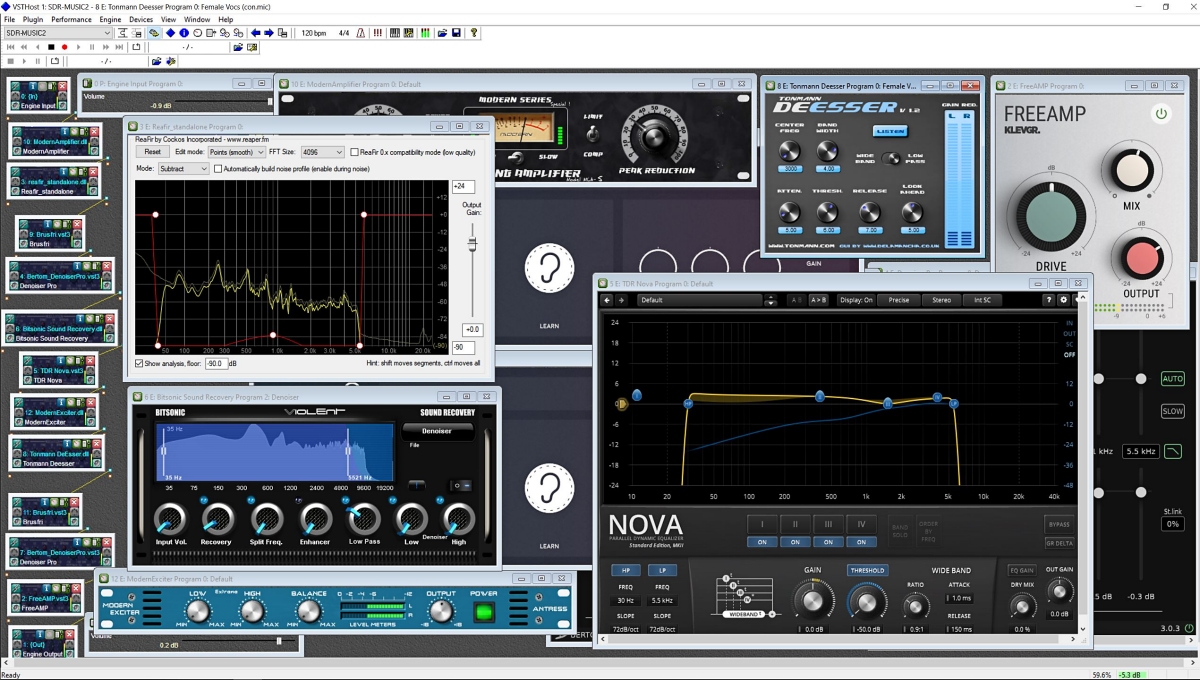
Here are three VST Host processed .MP3 files from an IQ recording of Radio Amazonia using 5.3 kHz & 7kHz filters in SDR Console 3.2 (Noise Reduction 4 was used but only 1dB Reduction).  The third one is using the Stereo Touch app using just the lowest setting (Voice).  I like it!  🙂 :

VST processed 5.3k:

VST processed 7 kHz:

VST processed 7 kHz with Stereo Touch:

Click here to download all VST processed 5.3k & 7k .MP3 files

Happy Listening & 73’s,

TomL

TomL’s Guide to Audio Plugins For Radios: Part 2 – SDR Recording

Many thanks to SWLing Post contributor, TomL, who shares the following guest post. Click here to check out all of the posts in this Audio Plugin series:


Audio Plugins For Radios, Part 2 – SDR Recording

by TomL

I started investigating using the old Kenwood transceiver to send audio to my laptop and process the receive audio using VST Host for a number of functions: Noise reduction, Equalization, reduce Sibilances and fading distortion, increase presence of vocals without sounding boxy, etc.  It was a qualified success depending on what VST apps I used, in what order they were used, and what settings each of them were set to.  In this episode of ongoing discovery, I will attempt to show how easy it is to OVER-process the shortwave broadcast audio plus comparisons to my regular Audacity post-recording treatment.

Audio Examples

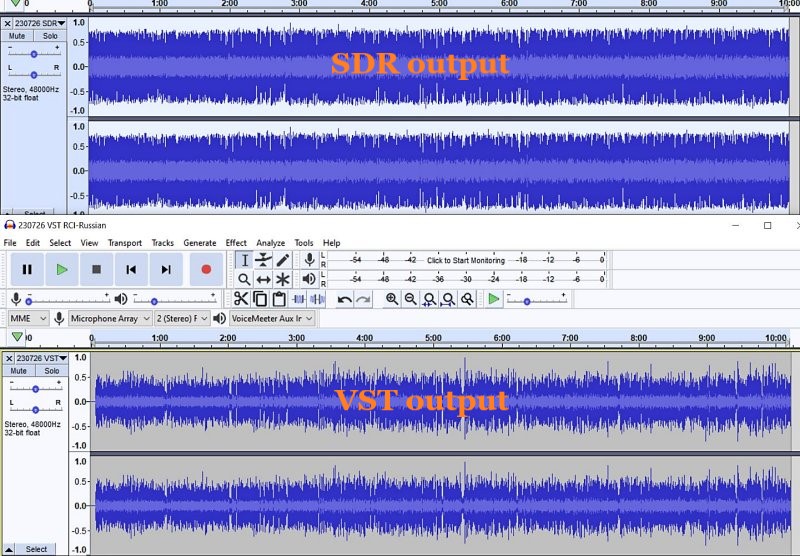
I noticed for the first time that the SDR creates a somewhat compressed file which can be seen when comparing the Waveforms of SDR vs. VST Host output files.  This means that the unprocessed SDR file will always appear to sound louder because of this compression.  This loss of Dynamic Range makes it harder to do the comparison.  Therefore, the Audacity-only examples below are reduced 3dB or 5dB to maintain apparent loudness.

Example 1:  KBS Weekend Playlist – S6-S9 signal, somewhat severe fading and moderate polar flutter.

SDR Console 3.2 using my usual NR4 set to 2dB Reduction, 30% Smoothing, and 3dB Rescale plus a Blackman-Harris-7, 5.3 kHz filter.

AUDACITY file is using my usual Audacity noise reduction:

VST version 2: Used my first set of VST apps.  Sounds harsh with hash-noise and overdriven:

VST version 3: Used way too much bass, too much grunge, attenuated highs, still overdriven:

VST version 4: Using a different order to the Denoiser apps, added in Modern Exciter app, cut back on some bass but still too much, and overly forward sounding midrange:

VST version 5: My current Baseline setup.  Adjusted the Denoiser apps, less extreme bass & treble, adjusted the De-Esser app, set the midrange to be less forward with just a single setting:

To my ears, Audacity processing is nice but as discovered before, sounds compressed and does not reduce some of the other problems inherent in shortwave signal fading and loss of musicality.  It sounds utilitarian.  Also, the noise is a bit more gnarly.

Versions 2-5 go through iterations of listening to the exact same segment over and over (and over) and trying different VST apps and settings.  I think my comments are mostly accurate next to each version.  However, you may think differently and perhaps prefer the sound of one of the other versions?

Example 2: Encore Classical Music, WRMI (fading S9 signal) – Audacity vs. Version 5 VST settings.  VST is quieter and sounds less harsh than the Audacity version.  A generally more smooth sound.


Example 3: RCI in Russian, S7-S9 with moderate polar flutter – 7kHz filter in SDR Console but VST Host is using BritPre, an analog preamp using a 6 kHz low pass filter to try to reduce DSP filter “ringing”.  It shows some interesting possibilities.

Example 4: RCI in Russian – Music from the same broadcast and VST Host setup in Example 3.  The screeching flute is under more control and strings more defined in the VST version.

Conclusions

I like the results of the audio processing that eventually ended up with “version 5” (plus the possibilities at 7kHz, too).  It is not Earth-shattering but is an incremental improvement in my opinion (there is always room for improvement).  I can use it in a simple Workflow anytime I want to record something off of the SDR.  Also, I had already been using Voicemeeter Pro, a software audio mixer.  It is setup with different profiles to do SDR, Ham, FM Broadcast, and now, VST Host audio routing.  This process took a long time but seems satisfactory to use as a Baseline setup, which then can be tweaked slightly depending on various types of audio coming from the SDR.  These changes in VST Host can be stored as their own unique profiles for audio processing.

However, a word of warning!  Messing with Windows audio Sound settings and mixer software is potentially a confusing process and one can easily end up with a spaghetti-pile of conflicting connections, no audio output, doubled echo output, distortion, way too loud, way too soft, etc.  If you start this experimentation, make sure to write down your current Windows Sound settings, both the Playback and the Recording settings for each item listed.

Having an SDR radio + Voicemeeter + VST Host is a very flexible setup.  I can now safely say that the only thing I need Audacity for is to Normalize the peak audio to the -1 dB broadcast standard volume, which is a HUGE time saver.  The SDR Console IQ files can be scheduled and processed from there at a later time.  Also, the use of Voicemeeter Pro allows me to switch when to use VST Host anytime I feel like it, and Voicemeeter Pro comes with its own (manually engaged) Recorder.

Part 3 of this series will discuss Technical details for my setup.  Your setup may need different settings or you may find a better way than I did.  This will take some dedicated time.

Happy Listening and 73’s,

TomL

Click here to follow all of the articles in TomL’s audio plugin series.

Guest Post: Using Carrier Sleuth to Find the Fine Details of DX

Many thanks to SWLing Post contributor, Nick Hall-Patch, for sharing the following guest post:


Using Carrier Sleuth to Find the Fine Details of DX

by Nick Hall-Patch

Introduction 

Medium wave DXers are not all technical experts, but most of us understand that the amplitude modulated signals that we listen to are defined by a strong carrier frequency, surrounded on either side by a band of mirror image sideband frequencies, containing the audio information in the broadcast.

Most DXers’ traditional  experience of carriers has been in using the BFO of a receiver, using USB or LSB mode, and hearing the  decreasing audio tone approaching “zero beat” of the receiver’s internal carrier compared with the DX’s carrier frequency as one tuned past it.  This was often used as a way of detecting that a signal was on the channel, but otherwise wasn’t strong enough to deliver audio.  Subaudible heterodynes,  regular pulsations imposed on the received audio from a DX station, could indicate that there was a second station hiding there, with a slightly different carrier frequency,  And, complex pulsations, or even outright low-pitched tones could indicate three or more stations potentially available on a single channel.

With the advent of software defined radio (SDR) within the last 10 years or so, the DXer has also been able to see a graphical representation of the frequency spectrum of the carrier and its associated sidebands.  (Figure 1)  Note that the carrier usually remains stable in amplitude and frequency, unless there are variations introduced by propagation, but that the sidebands are extremely variable.

Figure 1
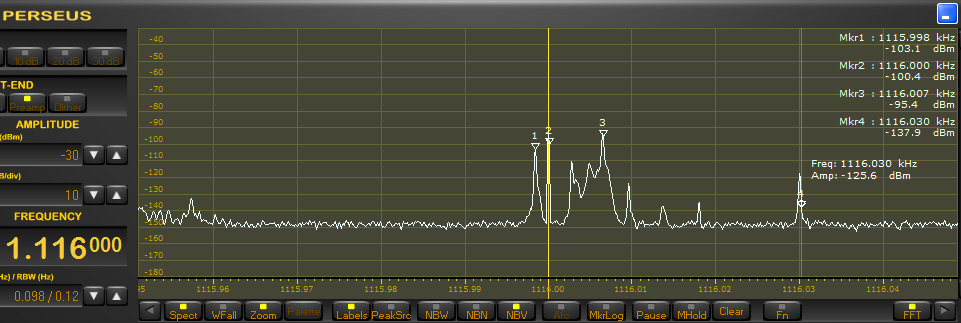
Figure 2

In addition, by looking at a finer resolution of the SDR’s waterfall display, one might see additional carriers on a channel that are producing heterodynes (audible or sub-audible) in the received audio (Figure 2).  Generally speaking, a DX signal with a stronger carrier will be more likely to produce readable audio, although there are exceptions to that rule.

Initially, DXers wanted to discover the exact frequency of their DX, accurate to the nearest Hertz.  Although only a small group of enthusiasts were interested, they have produced a number of IRCA Reprints (https://www.ircaonline.org and click the “Free IRCA Reprints” button) over the years under the topic of “precision frequency measurement” (e.g. T-005, T-027, T-031, T-079, T-090) describing their use of some reasonably sophisticated equipment for the day, such as frequency counters.

So, why would this information be at all important?  In effect, the knowledge of the exact frequency of a carrier was used to provide a fingerprint for a specific radio station.    Usually, this detail was used by DXers who were trying to track down new DX, and wanted to determine whether a noisy signal was actually something that had been heard before, so would not waste any more time with it.  The process of finding this exact frequency has since been made much easier by being able to view the carrier graphically in SDR software, assuming that the SDR has been calibrated before being used to listen to and record the DX.   Playing back the recorded files will also contain the details of the exact frequency observed at the time of recording.  And, because the exact frequency of DX has become much easier to determine using SDRs, more and more DXers seem to be using this technique.

At present, Jaguar software for Perseus is the one being used by many to determine frequency resolution down to 0.1Hz, both in receiving and in playback.   But, if you have recorded SDR files from hardware other than Perseus, it is possible to get that resolution also, using software called Carrier Sleuth, from Black Cat Systems, available for both Mac and Windows, at a cost of US$20.

This software will presently take as input, sets of RF I/Q files generated by SpectraVue, SdrDx, Perseus (which includes files recorded by Jaguar), Studio One / SDRUno, Elad, SDR Console, and HDSDR.  It then outputs a single file with a .fft extension, that provides the user with a set of waterfalls, similar to those displayed by SDR programs.  The user decides ahead of time which frequency or set of frequencies (including all 9kHz or all 10kHz channels) will be output, and these will be displayed as individual waterfalls. one for each chosen frequency.  These waterfalls can be stepped through from low frequency to high frequency, or chosen individually from a drop down menu.

Let’s start by looking at a couple of output waterfalls and work out what can be done with them, then step back to find out how to generate them, and what other data is available from them.  Finally, we’ll do a quick comparison with two other programs that can produce similar output, and discuss the limitations in all three programs.

Example outputs from Carrier Sleuth

An example showing the original intent of Carrier Sleuth, determining precise carrier frequencies, is shown in Figure 3, a waterfall from 1287kHz on the morning of 28 November 2020.  At 1524UT, a woman mentions “HBC” and “Hokkaido” in the original recording, so, it’s JOHR, Sapporo.   Although there are a number of vertical lines representing carriers in this graphic, only one has a strong coloration, indicating at least 25dB more strength than any other carrier at the time of the ID, and about 50dB more than the background level.     The absolute values of time, signal strength, and carrier frequency precise to 0.1Hz, can be found by mousing over the desired point in the waterfall and then reading the numbers in the upper right corner of the display, (encircled in Figure 3).  In this case, the receiver’s reference oscillator had been locked to an accurate 10MHz clock, disciplined by GPS, so the frequency indicated in the software is not just precise, but should also be accurate.   Similar accuracy could be obtainable by the traditional method of calibrating the SDR to WWV on 10 or 15MHz.

Carrier Sleuth indicates 1287.0002kHz, within 0.1Hz of that observed by a contributor to the MWoffsets list about 7 weeks earlier (https://www.mwlist.org/mwoffset.php?khz=1287). If you look closely, there is a slight wobble on the frequency, but the display is precise enough that it can indicate that, despite the wobble, JOHR does not wander away from that frequency of 1287.0002kHz.

Figure 3

But let’s face it, tracking carriers to such accuracy is a specialist interest (though admittedly, the medium wave DXing hobby is full of specialist interests, and this one is becoming more mainstream, at least among Jaguar users).  However, if I played back a file from another morning, and found a strong carrier on a slightly different frequency from 1287.0002kHz, it might be an indication that some new Chinese DX was turning up, and that the recorded files would be worth a closer listen at that particular time.

Figure 4

In fact, I’ve found Carrier Sleuth to be useful in digging out long haul DX after it’s been recorded, as both trans-Arctic and trans-Pacific DX at my location in western Canada can be spotty at the best of times.  This means spotty as in a “zero to zero in 60 seconds” sort of spotty, because a signal can literally fade up 10 or 15dB to a readable level in 20 seconds, perhaps with identifiable material, then disappear just as quickly.   My best example so far this season was on 1593kHz, early in the UTC day of 16 November 2020, when a Romanian station on that channel paid a brief visit to my receiver in western Canada.  An initial inkling of that showed up in a Carrier Sleuth waterfall, a blotch of dark red at 0358UT, and indicated by the yellow arrow in Figure 4; that caused me to go back to the recorded SDR files that had generated these traces.

The dark blotch indicates a 10dB rise and fall in signal strength including about 60 seconds of rough audio, which turned out to be the choral version of the Romanian national anthem (RCluj1593.wav).  That one carrier and another one both started up at 0350UT, the listed sign-on time for Radio Cluj, which does indeed begin the broadcast day with that choral anthem.   Which one of the Radio Cluj transmitters was heard is still an open question, due to the lack of carrier sleuths (computerized or otherwise) on the ground in Romania,  but the more powerful one listed is a mere 15kw, so I will take either.

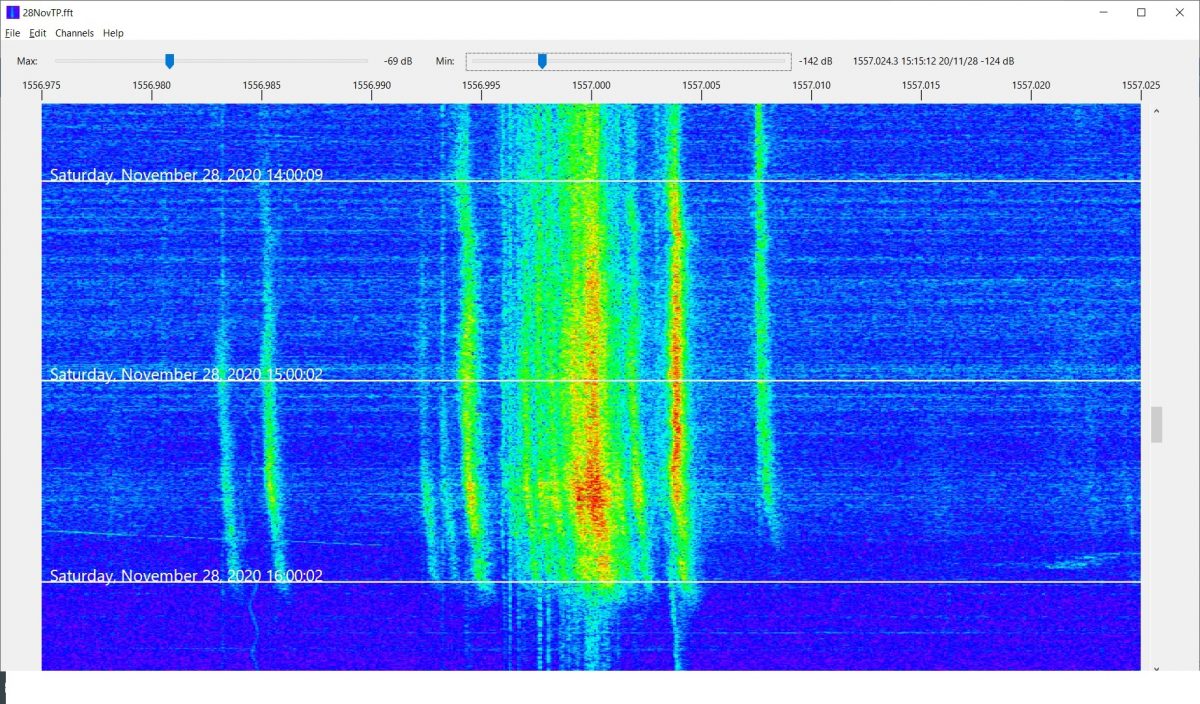
Finally, for those who have interest in radio propagation, the Carrier Sleuth displays can reveal some odd anomalies, for example, Figure 5 which displays both Radio Taiwan International (near 1557.000kHz on 28 November, but varies from day to day), and CNR2 (1557.004kHz)  carriers as local sunrise at 1542UT approached in Victoria, BC.

Figure 5

The diffuseness of the carriers is striking, as is their tendency to shift higher in frequency at local sunrise.  This doesn’t seem to be some strangeness in the original SDR recording, as there appear to be unaffected weak carriers on the channel.  For comparison, Figure 3 shows the same recorded time and date, but on 1287kHz, and JOHR’s carrier is pretty stable, but there are others on that channel that show the shift higher in frequency around local sunrise.  As one goes lower in frequency, these shifts became smaller and less common on each 9kHz channel, and disappear below about 1000kHz.    On later mornings, however, the shifts could be found right down to the bottom of the MW band.  Certainly, these observations are food for further thought.

Many of the parameters in Carrier Sleuth are adjustable by the user, for example, the sliders at the top of the screen can allow adjustment of the color palette to be more revealing of differences in signal strength.   The passband shown is also easily changed, and in fact, setting  the passband width to 400Hz, instead of my usual 50Hz , and creating another run of the program on 1557kHz, shows very clearly the sidebands of the “the Rumbler”, a possible jammer on the channel  (Figure 6).  Incidentally, a lot of the traces around 1557.000kHz in Figure 5 may well be part of “the Rumbler” signal as well, as filtering of the audio doesn’t seem to improve readability on the channel.

Although the examples here are taken from DXing overseas signals from western Canada, there is no reason why similar techniques may  not be applied to domestic DXing, particularly during the daytime, when signals can be weak, but can fade up unpredictable for brief periods.
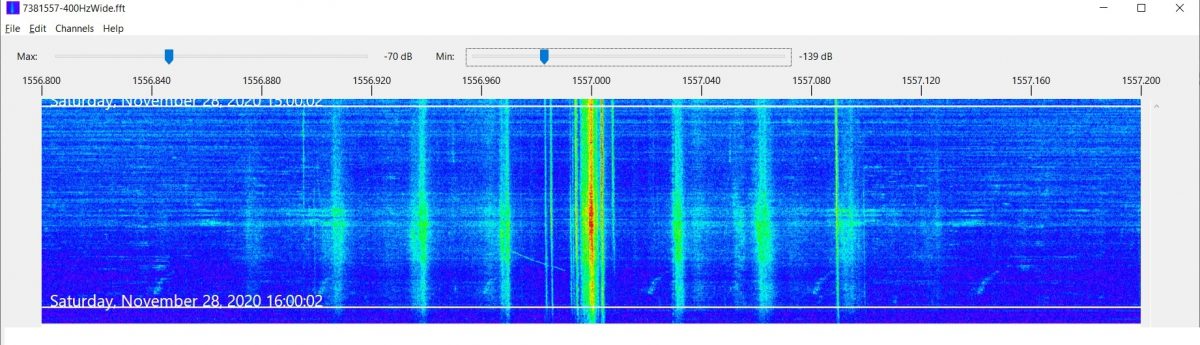
Figure 6

How to create these waterfall displays in Carrier Sleuth?

So, how can you get these displays for yourself?  A “try before you buy” version of the program is available at http://blackcatsystems.com/software/medium_wave_carrier_display_app.html  and both the website and the program itself contain a quite detailed set of instructions.    However, the 25 cent tour can be summarized this way:

You start with a group of supported SDR data files, previously recorded, and use “Open I/Q data files” in the File drop down menu. Figure 7 shows the window that will open to allow you to choose any number of the files from your stored SDR files, by clicking the Add Files button  circled in red.  Then choose one of the options inside the green circle in Figure 7.  They are explained in more detail in the help write up; note that the “Custom Channel” can be specified to considerably more precision than just integer kHz values, e.g. 1205.952     The rest of the settings you will probably adapt to your needs as you gain experience.   Finally, set an output file name using the Set Output File button, and hit the “Process” button at the bottom of the window. There are a couple of colored bars in the upper right hand corner of the display that indicate progress, along with number of seconds left, although these are not always visible.
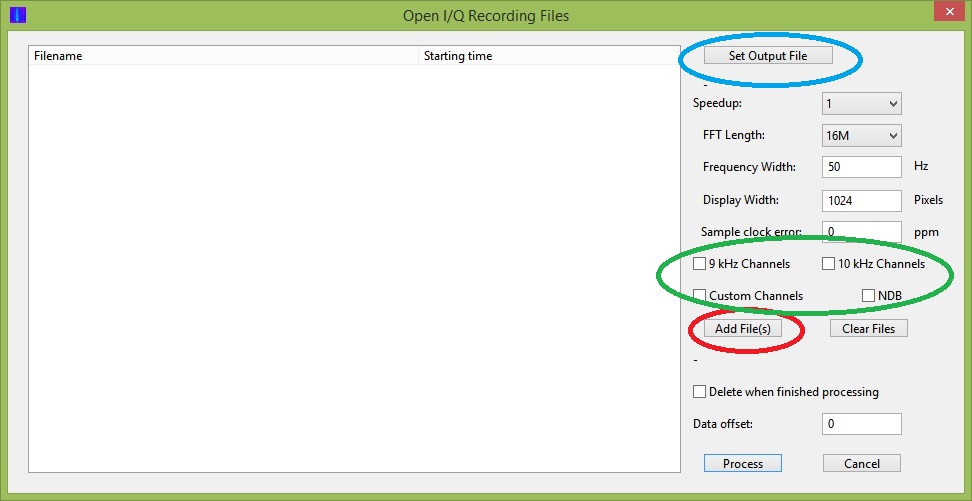
Figure 7

The generation of these waterfalls takes time.   A computer with a faster CPU and more memory will speed things up.  There is, however, an important limitation of the program.  It is specified for 32-bit systems, and although it will run with no problem on 64-bit systems, individual input I/Q files are therefore restricted to 2GB or less.   Many SDR users now choose to create larger files than this, and Carrier Sleuth will not handle them.  Another possible limitation can occur when processing 32M FFTs, which are useful for delivering very fine frequency resolution of the carriers displayed.   The program really requires in excess of 4GB of memory to handle the computation needed to deliver this fine a scale.  Unfortunately, both the 2GB file size limitation and insufficient memory limitation deliver generic error messages, followed by program termination, which leaves the inexperienced user none the wiser about the true problem.

This might be a good place for a word about FFT size and Resolution Bandwidth (RBW).  The FFT is a mathematical computation that takes as its input the samples of digital data that an SDR generates (or those samples that  have been saved in recorded files), and generates a set of “bins”, which are individual numbers representing signal strength at a defined number of consecutive frequencies spaced across the full bandwidth being monitored by the SDR. You could think of these bins as a series of tiny consecutive RF filters, spread across the band, each delivering its own signal strength.   As we are trying to look at fine scale differences in frequency when using a program like Carrier Sleuth, it is important that these little “RF filters”, or bins, each have a very narrow bandwidth.  This value is called “Resolution Band Width” (RBW), and preferably should be a fraction of a Hertz to get displays such as those shown in Figures 3 through 5.

The “FFT Length” is the number of bins that the FFT display contains, and is equal to the number of I/Q samples (either from the SDR or recorded file) that are used for the input to its computation.  The relationship between FFT Length, the bandwidth of the SDR or of the original recorded I/Q file, and the RBW is fairly simple:
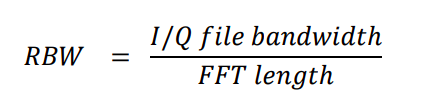
Because the MW DXer is usually looking at data with 1MHz or more bandwidth, this equation tells us that to get a smaller than 1Hz RBW, we will need to have an FFT length of well over  one million bins, so it would be wise to use an FFT length at least 8M(illion).   If you are looking at a recorded file that is from an SDR using a lower bandwidth, then a lower FFT length will do the job to get a smaller RBW.

A downside of using a long FFT length is that the time resolution of the FFT becomes poorer, resulting in a display in Carrier Sleuth that will appear to be compressed from top to bottom compared with what was seen when recording the SDR file, and with correspondingly less response to fast changes in signal strength.   However, using a 16M FFT Length on a recording of the MW band results in a time resolution of about 12 seconds, so it should not be a deal breaker for most.

Producing signal strength plots 

A further specialist activity for some DXers is recording signal strength on specific channels, and then displaying the progress of signal strength versus time, often to indicate when openings have occurred in the past  (say, at transmitter sunset),  and perhaps allowing one to predict such openings in the future.    But, the world has come a long way from the noting down of S-meter readings at regular time intervals, both in deriving signal strength and in plotting the results.  Read on for an example.

Figure 8

Carrier Sleuth recently added the capability of creating files containing signal strength versus time for specified frequencies, and, depending on the size of RBW, to deliver that signal strength as observed in a passband as narrow as 0.05Hz, or as wide as 10Hz.   The program extracts the signal strength information from one of the FFT files that it has already generated from a selection of SDR I/Q files.   In Figure 5, two stations’ signals, from Radio Taiwan International, and from CNR2, were featured in the display.   With roughly 4Hz difference between the two signals, it is easily possible with Carrier Sleuth to derive signal strength from each one, specifying a bandwidth of, say 1.2Hz, to account for the propagation induced drifts and smearing of the carriers, not to mention any drift in either the receiver or transmitter.

The program creates a .csv file (text with comma delimiters) of signal strength versus time for all the frequencies chosen from an individual FFT file, but does not plot them.  There are several programs that can create plots from CSV files   For example, an Excel plot generated from Figure 5 is in Figure 8, showing peaks in those signals that occurred both before and after local sunrise at 15:42UTC.   Note that the user is not restricted to the signals found on just one of the waterfalls that are found in the FFT file, but can pick and choose dozens of signals found anywhere in those waterfalls.    (Note also that one can choose locations on any waterfall where there is no signal trace, in order to provide a “background level versus time” in the finished plots, if desired)

The process used to generate this CSV file involves searching through the FFT waterfalls for signal traces that are likely candidates for adding to such a file.   On the first candidate found, the user right clicks the mouse on the trace, at the exact frequency desired; this will bring up an editable window.   The window will show the chosen frequency as well as any subsequent ones that will be chosen, then the overall selection is saved to a text file after editing, so that the user can move on to generating the CSV file.

That file is created by going to the File drop down menu, and choosing “Generate CSV File”, where the text file produced earlier can be chosen.  Once that file is selected, the CSV file is immediately generated, and can then be manipulated separately as the user chooses.

Are there comparable programs?

Displaying waterfalls in SDR programs playing back their own files is nothing new, though not that many can do it at as fine a scale as Carrier Sleuth does, and most programs are not optimized to handle such a variety of input I/Q files.

One that does read a fair number of different kinds of SDR files is the SDR Console program; this includes Data File Analyser (64-bit only) which also can display carrier tracks to a high resolution, so let’s take a quick look at what Analyser does.  If you are familiar with SDR Console, and are reasonably experienced with the way it handles your SDR or plays back files from your favored SDR software, then these online instructions https://www.sdr-radio.com/analyser will help you get started with Analyser

This program will input a group of SDR files, then display an equivalent to a single one of the waterfalls output by Carrier Sleuth, displaying the carrier traces in reverse order, with time running from bottom to top of the display. Figure 9 shows the equivalent of Carrier Sleuth’s display of the 1287kHz carrier traces shown in Figure 3.    Analyser has a convenient sliding cross hair arrangement (shown in the yellow oval) to reveal time and frequency at any point in the display, but the actual signal power available at that point must be derived from the rough RGB scale along the left hand border. Analyser is apparently capable of about 0.02Hz resolution when reading from full bandwidth medium wave SDR files, but the default is to display exact frequency only to the nearest Hertz. The “Crosshairs” ribbon item has a drop down of “High-Resolution”  which displays to the nearest milliHertz however, though that will be limited by the actual RBW of the generated display.   The graphic display can be saved as a project after the initial generation of the signal traces, which allows the user to return to the display without having to generate it all over again, equivalent to opening one of Carrier Sleuth’s FFT files.

A useful facility in Analyser is the ability to click “Start” in the Playback segment of the ribbon above an Analyser display, then mouse over and click on a signal trace; this action will play back the audio for that channel in SDR Console, at that point in time.

It is possible to generate a signal strength plot of signal strength versus time for any individual frequency in the waterfall display, and to save that plot as a CSV file (“Signal History”).   But, the signal strength is that found only in a +/- 0.5Hz passband around the chosen frequency, with no other possibilities.  If you want to generate a plot for another frequency on the same waterfall, then you will need to run the process again, and if you want a plot for another frequency in the SDR files, then you need to generate another waterfall, which, depending on your computer’s capability, could take some time.   On an i3 CPU-based netbook with 4GB of memory, it took 30 minutes to produce one frequency’s worth of traces from data files scanning three hours.  On the same machine, Carrier Sleuth could deliver all 9kHz channels in 1hr20min from the 3 hours of files.  However, it also took 1hr20min to play back just one channel in Carrier Sleuth, which is not so efficient. (further note:   Nils Schiffhauer has developed a technique to speed up Data Analyser processing, by first using Console’s Data File Editor on full bandwidth MW recorded files; details will likely appear at https://dk8ok.org)

To conclude then, SDR Console’s Analyser will produce a display of a single channel faster than Carrier Sleuth will, and will play back the audio associated with that channel, while also having the capability to plot and record signal strength for a single given frequency within that display, but only on 64-bit computers.  It can also handle SDR files larger than 2GB in size, and will run more quickly if a NVIDIA graphics card has been installed.   Analyser is also strict about sequence of files.  If there is the slightest gap between one file finishing, and the next file starting in time sequence, it regards that as a new set, that will need to be processed separately.

Where Carrier Sleuth is more useful is that once an FFT file has been generated, it is easy to quickly check multiple channels for interesting openings during the recorded time period. It can also provide very precise frequencies of carriers, and is able to generate a file of signal strengths versus time from multiple frequencies, including those frequencies that are separated by barely more than the RBW.  For the MW band, that can be near 0.1Hz, often beyond the capability of transmitters to be that stable.  See Figure 10, which shows signal strength traces from JOCB and HLQH both on 558kHz, and separated in frequency by 0.1Hz.    At 1324UTC, JOCR dominates with men in Japanese, and at 1356UTC, the familiar woman in Korean dominates, indicating HLQH.
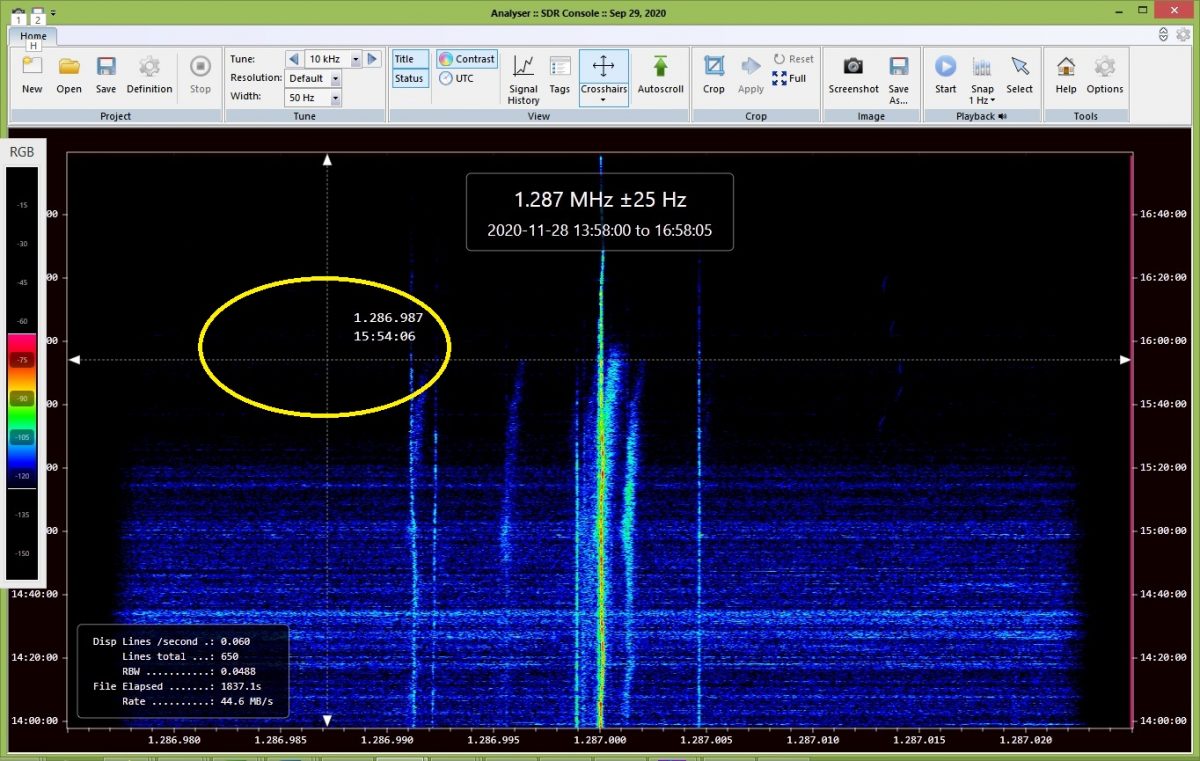
Figure 9
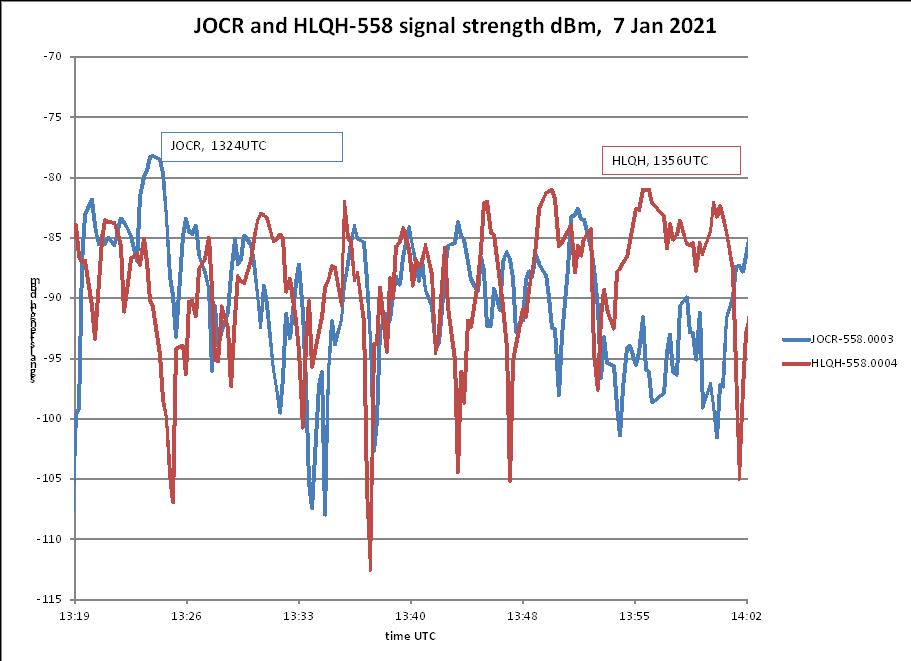
Figure 10

Incidentally, another program that seems to offer a similar functionality to Carrier Sleuth and SDR Console’s Analyser is, of course, Jaguar, which has made a point of displaying 0.1Hz readout resolution when using the Perseus SDR, and in playing back Perseus files, but…only Perseus.  There is a capability called Hi-Res in Jaguar Pro that can be applied when playing back files; this also displays fine scale traces of frequency versus the passage of time.  Steve VE6WZ, sent the example shown in Figure 11, zeroing in on his logging of DZAR-1026.  As with Analyser, clicking on a certain point in the display plays back the audio at that time, but it is unclear at this point whether the display can be saved, or whether it is generated only for one individual channel, and then is lost.
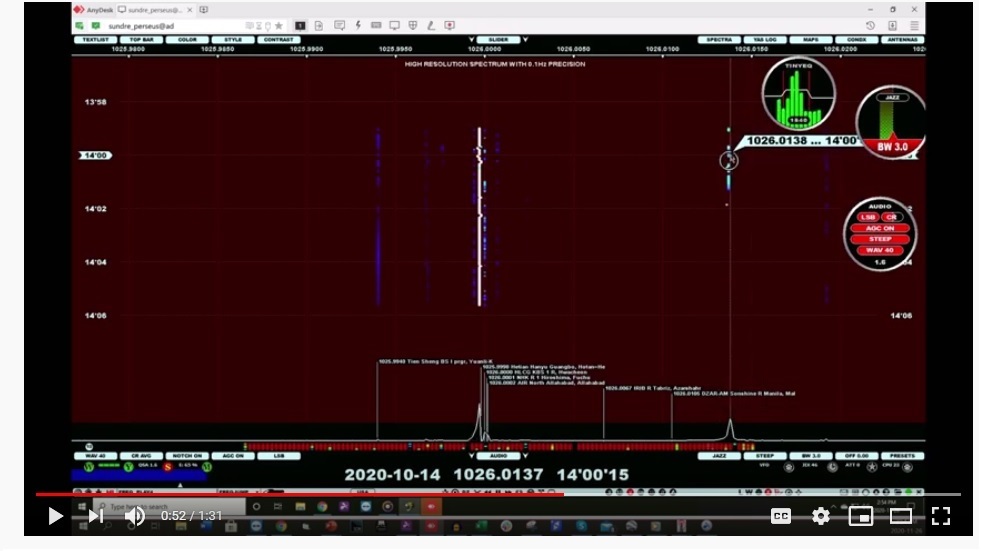
Figure 11

+   +   +   +   +   +   +   +   +   +   +   +

Availability

Carrier Sleuth  http://blackcatsystems.com/software/medium_wave_carrier_display_app.html

Analyser (SDR Console)   https://www.sdr-radio.com/download

Jaguar   http://jaguars.kapsi.fi/download/ (these are the Lite versions; to unlock the Pro version, purchase is needed)

(this article first appeared in International Radio Club of America’s DX Monitor)


Many thanks, Nick. This is amazing. What a brilliant tool to find nuances of a DX signal. I can’t help but marvel at the applications we enthusiasts have available today. Thank you for sharing!