Shortwave listening and everything radio including reviews, broadcasting, ham radio, field operation, DXing, maker kits, travel, emergency gear, events, and more
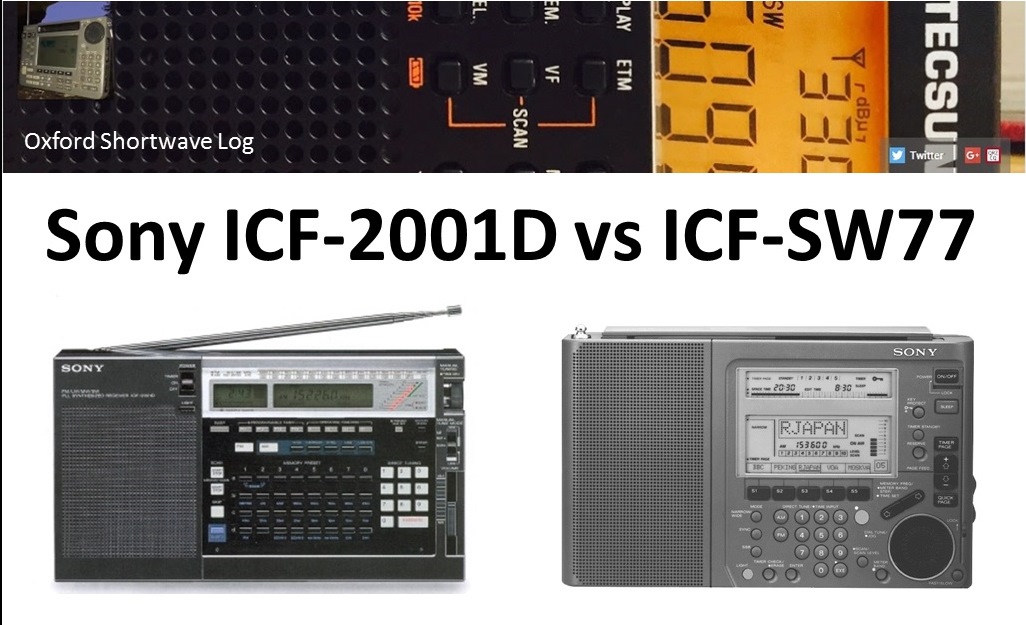
Hi there, subscribers to my YouTube channel Oxford Shortwave Log will be aware that I currently operate both of these wonderful vintage portables. I purchased the ICF-2001D only 18 months ago from eBay, based largely on its reputation as one of the best performing portables ever made. Previously I had been using my excellent ICF-SW55 as the mainstay receiver for my numerous DXpeditions, coupled with irregular appearances from my Sangean ATS-803A and the excellent value-for-money Tecsun PL-360. The ICF-2001D proved to be a revelation in terms of sensitivity, selectivity and contrary to popular belief, with careful planning (to avoid crowded bands), is able to cope pretty well with very large antennas. As regards audio bandwidth filtering, SSB and synchronous detection, in my experience, the ICF-2001D is as good as it gets in a portable – or a vintage portable at least. I have lost count of the number of personal-firsts I’ve achieved using this wonderful receiver and as someone who likes to push the envelope a little, I soon started to wonder whether it’s replacement, the ICF-SW77 might prove to be an even better performer. Subsequent online research confirmed there was no absolute consensus on this issue, with followers of these two great receivers firmly placed in both camps.
Sometime later, a good friend of mine, fellow radio hobbyist and subscriber to Oxford Shortwave Log very kindly offered to send me his cherished ICF-SW77 on long-term loan. Like me, he was intrigued to know how it compared to it’s venerable predecessor and thus the deal was done! Upon it’s arrival in July, I started planning a back-to-back series of comparison tests at the very quiet wood in Oxfordshire I used for my DX’peditions, using the same antenna for both recievers – the excellent Wellbrook ALA1530 active loop. In total, I made fourteen reception videos comparing the ICF-2001D and ICF-SW77 and posted them to Oxford Shortwave Log. Both receivers performed very well, delivering excellent reception on the Tropical Band and elsewhere on the shortwave spectrum from Bolivia, Brazil, Guatemala, amongst others. At the halfway stage, I generated a video to summarise the results to-date and this will follow in my next post to swling.com. In the meantime, I hope you enjoy the first half of the reception videos; which follow below:
Clint Gouveia is the author of this post and a regular contributor to the SWLing Post. Clint actively publishes videos of his shortwave radio excursions on his YouTube channel: Oxford Shortwave Log. Clint is based in Oxfordshire, England.
Capturing the shortwave spectrum out in the field.
Radio interference is a major problem in big cities when it comes to indoor shortwave reception. One effective solution I have found is to head for the local park and engage in scanning the bands there. However, since my time for making such outdoor trips is limited, I would always feel like I am missing out on a lot of radio action by monitoring a single frequency, which is all you can do with a standard shortwave radio. There are so many signals out there — which one should I go for? This inspired me to put together a lightweight, portable set-up that would let me capture large chunks of the shortwave radio spectrum out in the field, which I could later explore in detail. After two years of experimenting with various Software Defined Radio (SDR) technologies I am pleased to report that I finally have a solution that works well for this purpose.
A good SDR can give the user access to large portions of the radio spectrum via a graphical user interface. The user can then either process a specified part of it in realtime or record the chosen spectrum window in its entirety onto disk and analyse it later with the supplied software. Here is a short video showing the playback of one of such spectrum captures I made in a London park in September 2016. Note the final part where I zoom out to show the entire recorded frequency range (covering two broadcast bands with one ham band in the middle!):
When I got home from the park, I was able to replay that part of the spectrum capture many times over while scanning the frequency space, which is how I was able to identify a weak signal from a very distant ham radio operator that I might have otherwise missed.
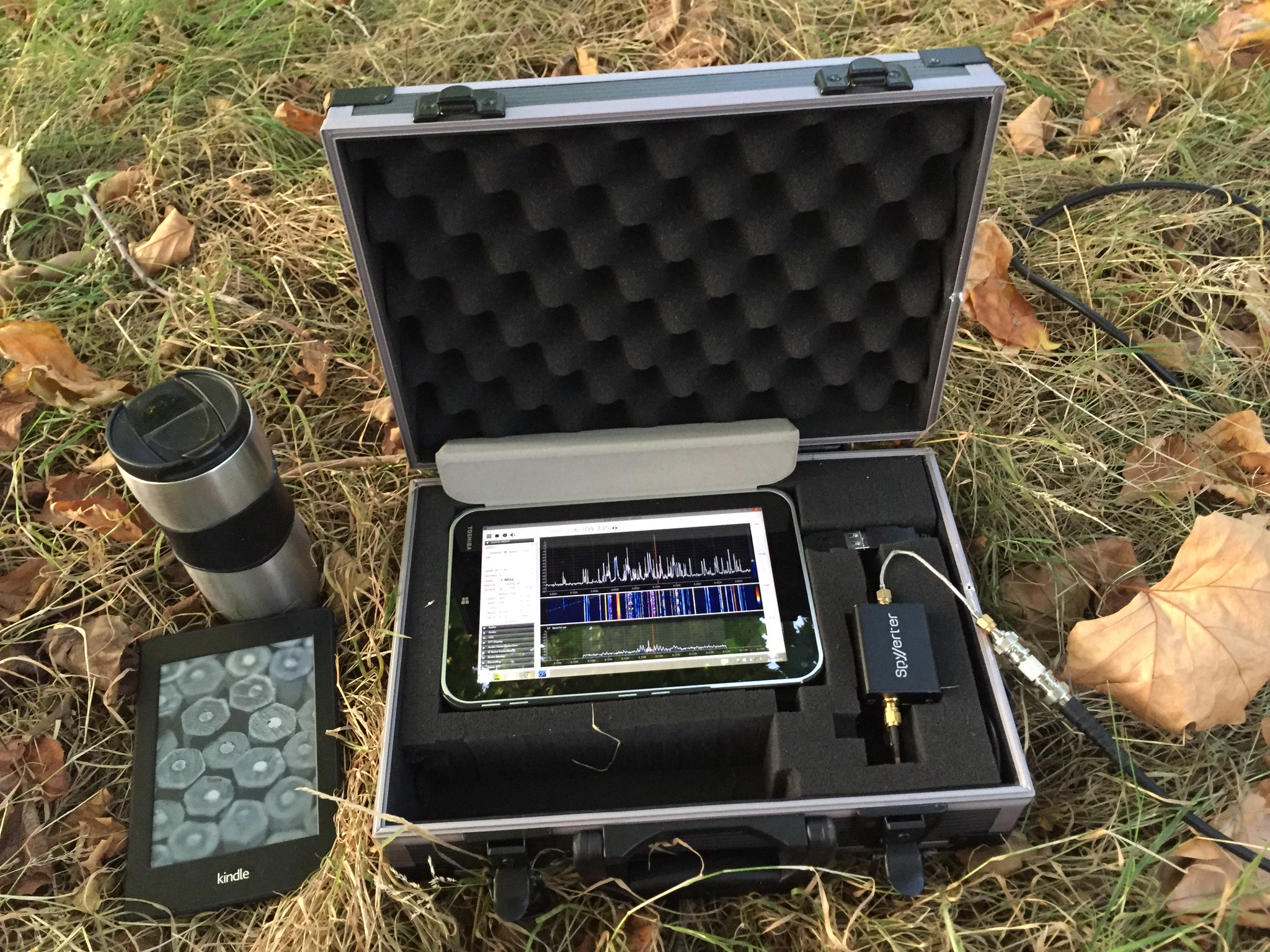
Below is the list of the components I have used to put together my “portable spectrum capture lab”.
I bought this tablet in July 2014, based on the following criteria: the device had to have a reasonably powerful Intel processor, running the Windows 8 operating system. I believe that there are currently models on the market that are at least as powerful and are substantially cheaper (<$100).
Owing to its unique hardware design, the AirSpy SDR can monitor large parts of the radio spectrum (up to 10 MHz in bandwidth) while offering a high dynamic range and robustness to overloading, with almost no mixing/imaging products.
This additional device enables AirSpy to cover the shortwave bands (in fact, the entire frequency range between 0 khz and 30 MHz) and must be connected in-line between the AirSpy’s front end and the antenna feed line, as follows:
Connection cables
Below is a small collection of cable accessories to connect the antenna to AirSpy/SpyVerter:
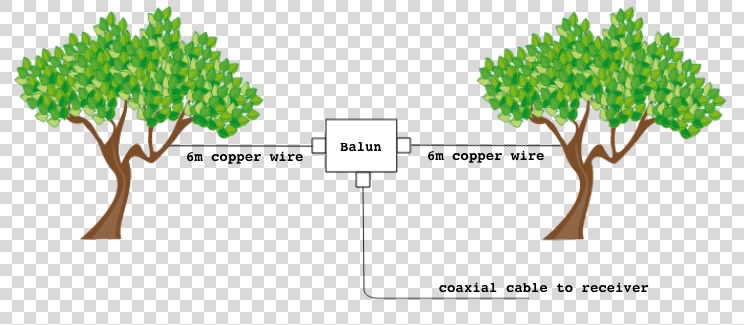
I use a three-terminal matched balun connected two 6 metre copper wires via its antenna terminals as a dipole antenna, and connect it to the SDR via the feed line terminal with the 3m BNC cable listed above. The balun (Wellbrook UMB130) is engineered in a way that prevents the radio noise current from the tablet (usually a significant source of interference) flowing into the receiving part of the antenna.
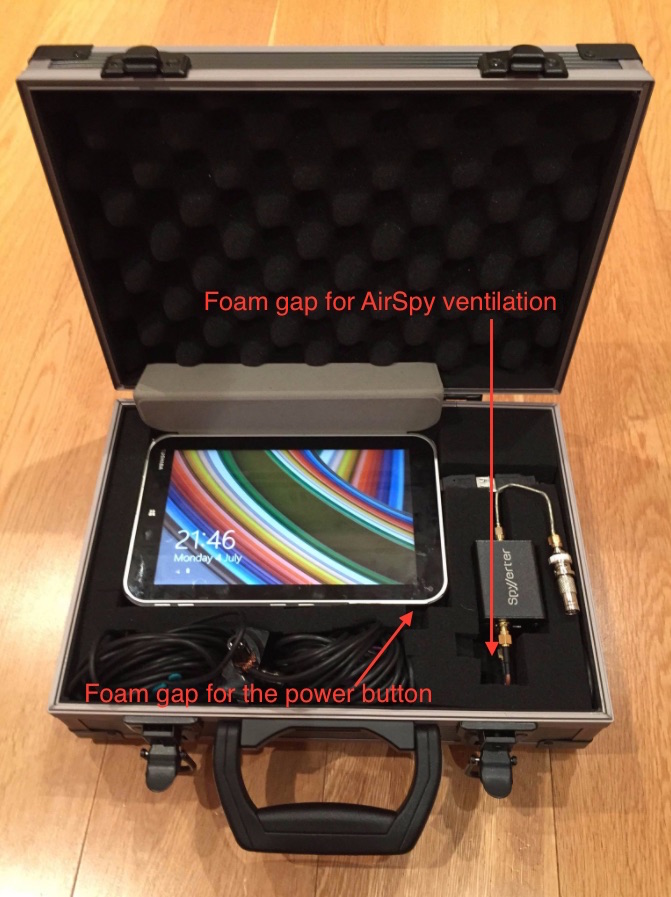
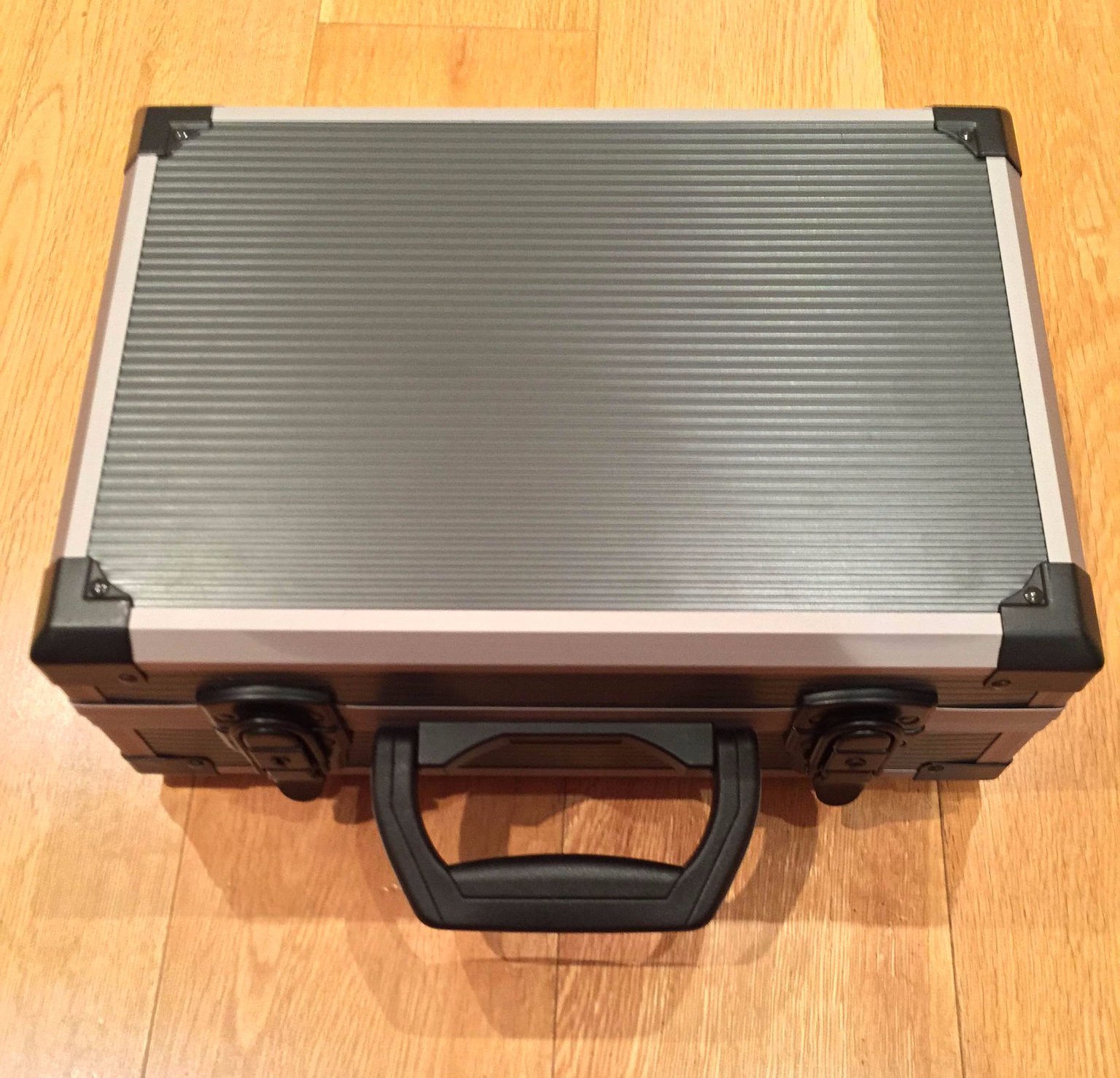
This foam-filled flight case comfortably houses all of the components. The parts 1 to 7 can remain assembled together, reducing the deployment time in the field.
I use this fast MicroSD card as the destination for my outdoor SDR recordings. The high transfer speed is critical – using slower MicroSD cards will result in large portions of the spectrum being dropped from the recordings. 64 Gigabytes can accommodate roughly one hour of spectrum data at 3 MHz bandwidth.
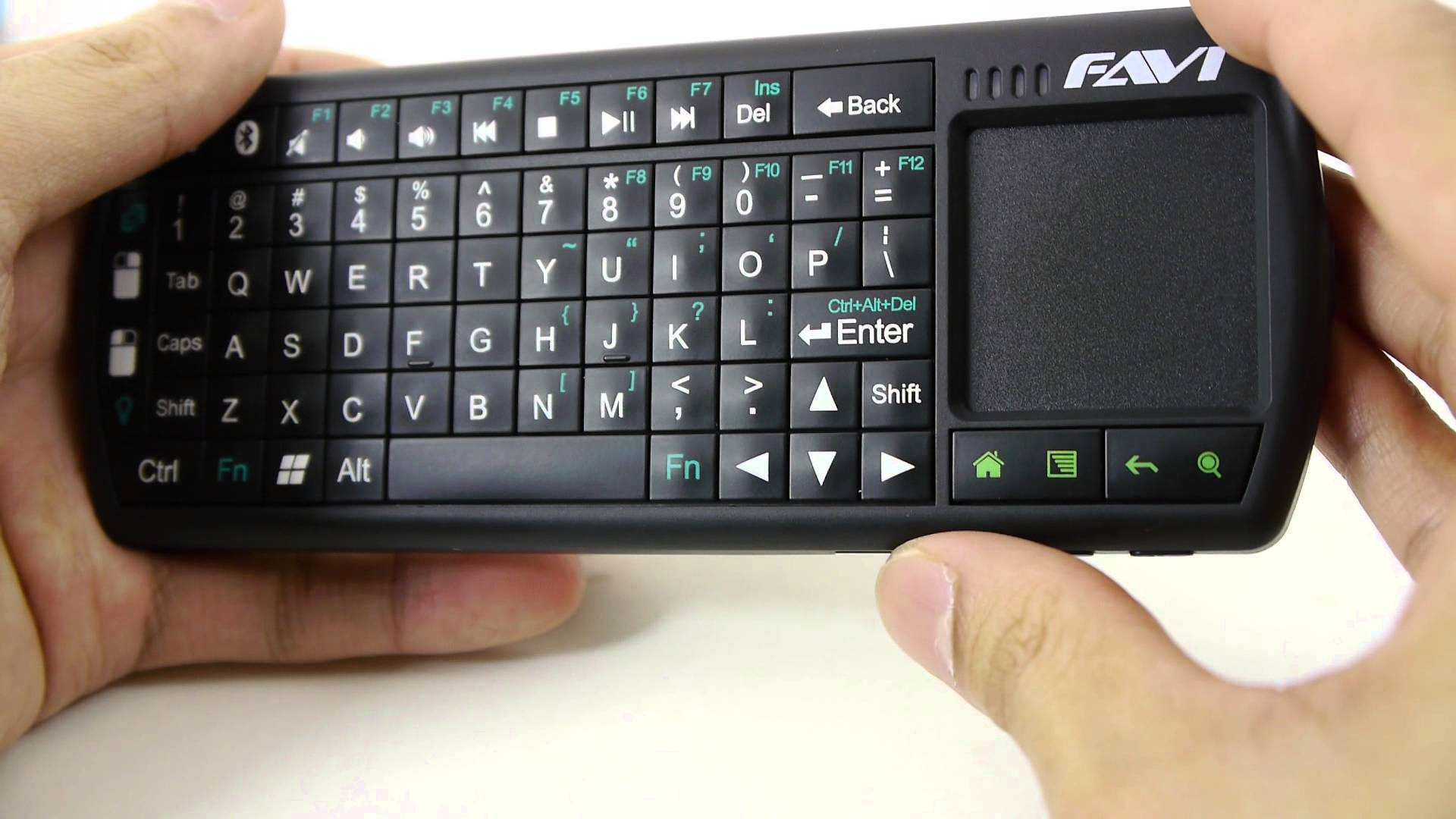
Windows tablets suffer from one major drawback: the touchscreen interface is usually inadequate for software that was designed for traditional computers with mice. A portable Bluetooth keyboard with a built-in trackpad solves this problem.
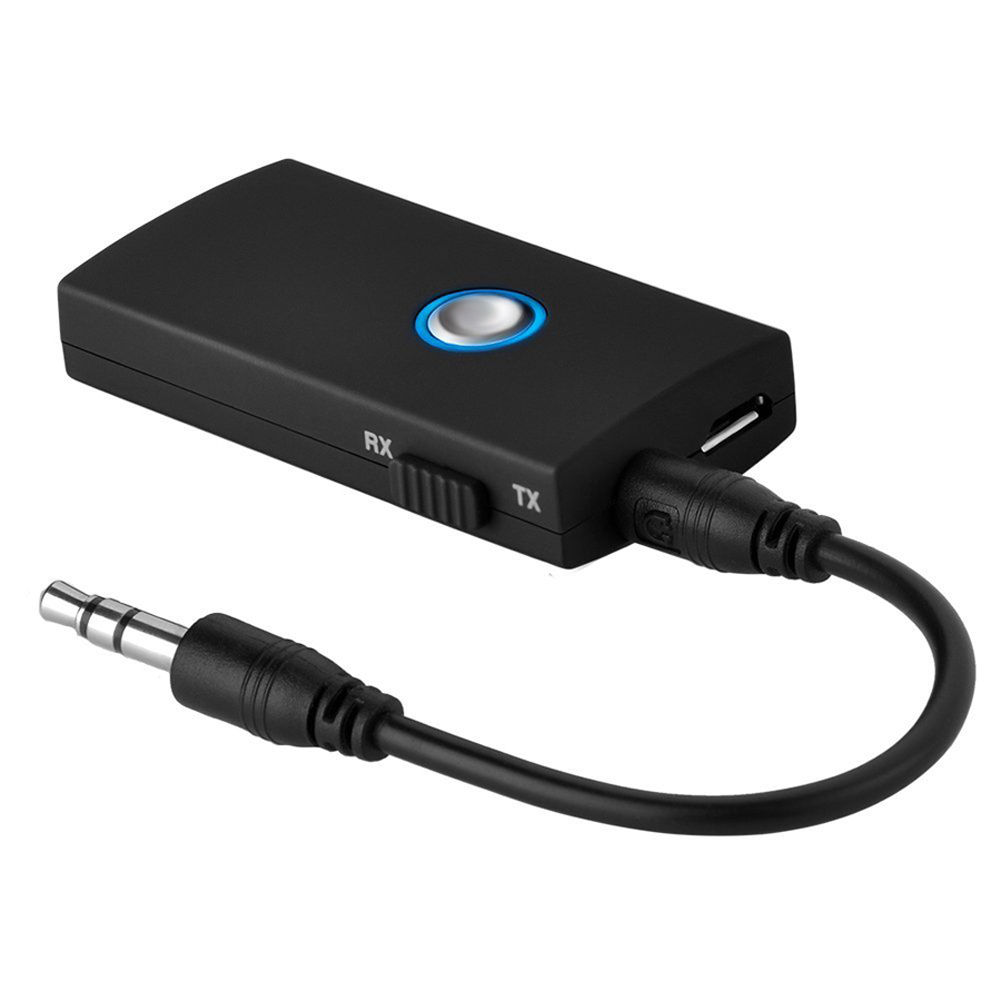
This small gadget turned out to be a very important part of the entire project. The Toshiba tablet has a rather unusual interference quirk that initially caused me hours of frustration. It turns out that significant amounts of radio noise are injected into the SDR when the tablet’s external speakers are active. One way to fix this is to plug a pair of headphones into the tablet’s line out jack, but this forces the listener to be glued to the device. The alternative is to pair the tablet with a Bluetooth audio receiving unit, such as the one listed above. It is worth noting that my other Windows tablet — a Dell Venue 8 — also suffers from this strange artefact.
Total cost: $610
Internal layout of the flight case
You’ll see that I have stacked the SpyVerter enclosure on top of the AirSpy one. As the latter can get very hot, it is essential to leave a sufficiently large gap in the foam for ventilation. It’s also worth leaving a small gap next to the tablet’s power button to prevent Windows from accidentally going into standby mode.
Software configuration
The best software to use with the AirSpy/SpyVerter combination is SDR#. It offers an impressive collection of features that many software packages and conventional radios don’t have, such as advanced noise reduction and synchronous detection with passband tuning. The following adjustments are required to make recording the spectrum a seamless experience:
Install the Baseband Recorder and File Player plugins
Baseband Recorder: this plugin enables efficient recording of very large spectrum (or “baseband”) files. Download and decompress the plugin zip file. Copy the .dll files into the directory with the SDRSharp.exe executable. Open the MagicLine.txt file and copy the first line of text into Plugins.xml file, just before the “</sharpPlugins>” line.
File Player: this plugin enables the playback of recordings made with the Baseband Recorder plugin. Download and decompress the plugin zip file. Copy the .dll files into the directory with the SDRSharp.exe executable. Open the MagicLine.txt file and copy the first line of text into FrontEnds.xml file, just before the “</frontendPlugins>” line.
Configure Baseband Recorder
Open SDRSharp.exe and check that the program reports no errors when it loads.
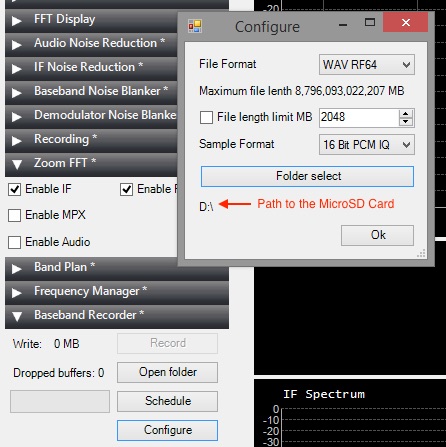
Baseband Recorder configuration
In the plugin pane on the left, expand the Baseband Recorder tab and click “Configure”. Change the File Format to WAV RF64 and make sure that the File length limit check box is not ticked. Click “Folder select” and choose the MicroSD card as the destination directory for the recordings.
Adjust AirSpy settings
Disclaimer: in this section I describe how I capture the maximum spectrum bandwidth that my tablet’s CPU can handle. It involves operating SDR# in “debug mode” and exposes some internal functionality of AirSpy, which, if used incorrectly, can damage the radio. If you choose to copy my approach, please understand that you are doing so at your own risk and follow my instructions carefully to avoid voiding your AirSpy warranty.
Open SDRSharp.exe.Config file in Notepad. Look for “<add key=”airspy.debug” value=”0″ />” line and change it to value=”1″.
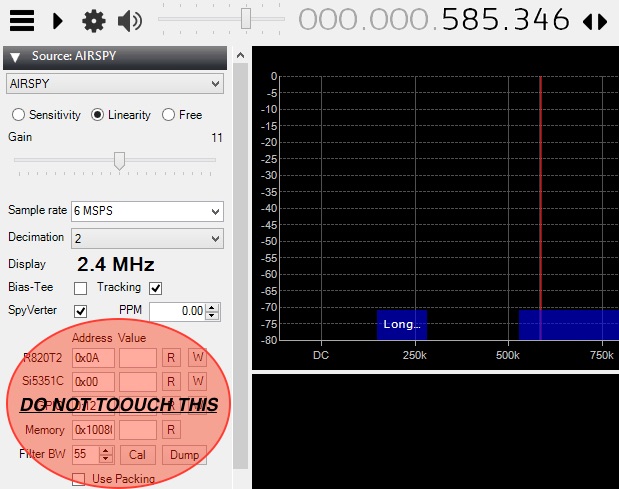
Once the AirSpy and SpyVerter have been connected to the tablet, open SDR# and select AIRSPY in the Source tab. You will see the following configuration dialog.
AirSpy configuration
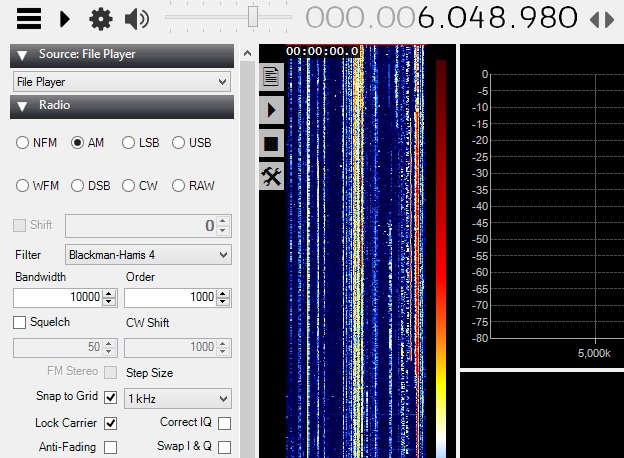
In the “Sample rate” field, type in “6 MSPS”. For the “Decimation” option, choose “2”. This setting will result in spectrum captures of 3 MHz bandwidth (although only 2.4 MHz of it will be shown on the waterfall display). To capture smaller chunks of the spectrum, increase the decimation value. Make sure the SpyVerter check box is ticked. Do not touch any of the fields or buttons under the “Address Value” line.
Make a short test recording
Press the play button in the top left corner and set the desired frequency.
In the Source tab, select the “Linearity” option. Keep increasing the Gain value by one position at a time until you notice that the radio signals suddenly become “saturated” (the waterfall display becomes full of artefacts and the signal you are listening to gets swamped with noise). Take the Gain value back down by two positions. This will ensure high sensitivity while preventing AirSpy from overloading.
In the Baseband Recorder tab, press “Record”. While recording, do not change the radio frequency and do not move/drag the waterfall portion of the display. Stop the recording after a few minutes.
SDR# FilePlayer plugin
In the Source tab, change the input to “File Player” in the drop down menu. Click the Settings cogwheel button and select the spectrum recording file from the MicroSD card. A vertical band visualising the timeline of the spectrum capture will appear immediately to the right of the plugin pane. Click on the play button and select a radio signal to demodulate in the spectrum display. Listen to the audio carefully to make sure there are no dropouts or clicks: if so, your tablet and MicroSD card are capable of handing and storing the specified spectrum bandwidth.
Keep an eye on the gain
While making longer spectrum recordings, select a weak radio signal and keep monitoring its audio for signs of overloading. If the overloading does occur, reduce the Gain value further by one or two positions.
Some example spectrum captures
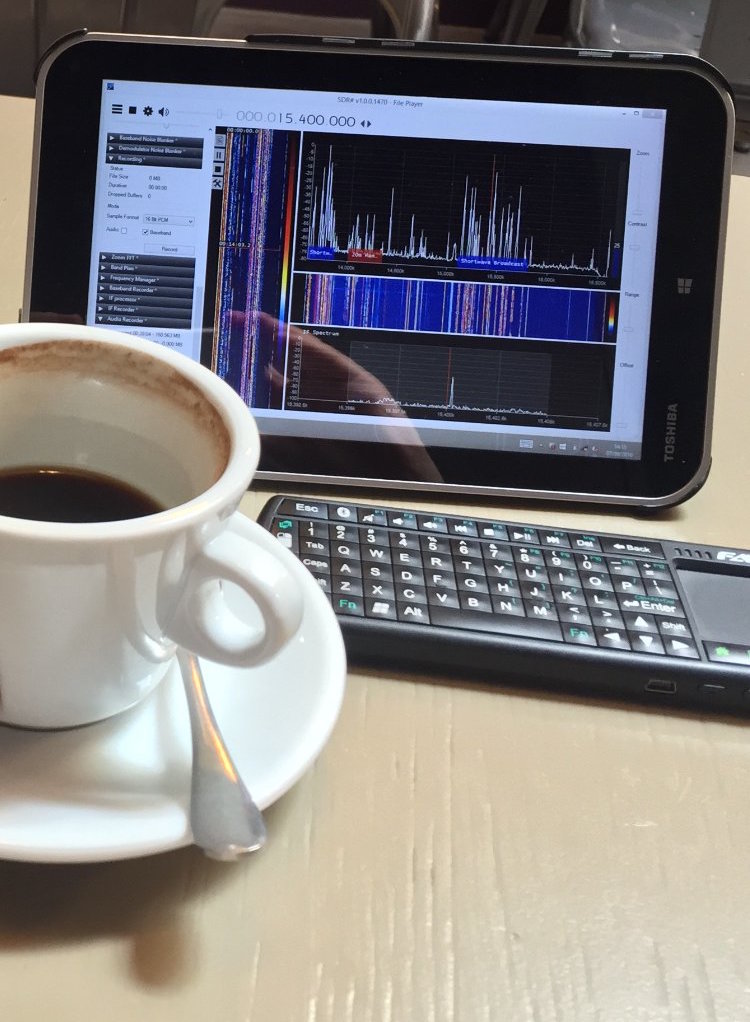
Shortwave for lunch. Playing back parts of the shortwave spectrum captured earlier in the park, inside a local cafe.
Below are some example videos in which I play back and explore the spectrum recordings I made during the trips to my local park.
Many thanks to SWLing Post contributor, Mark Fahey, who shares the following:
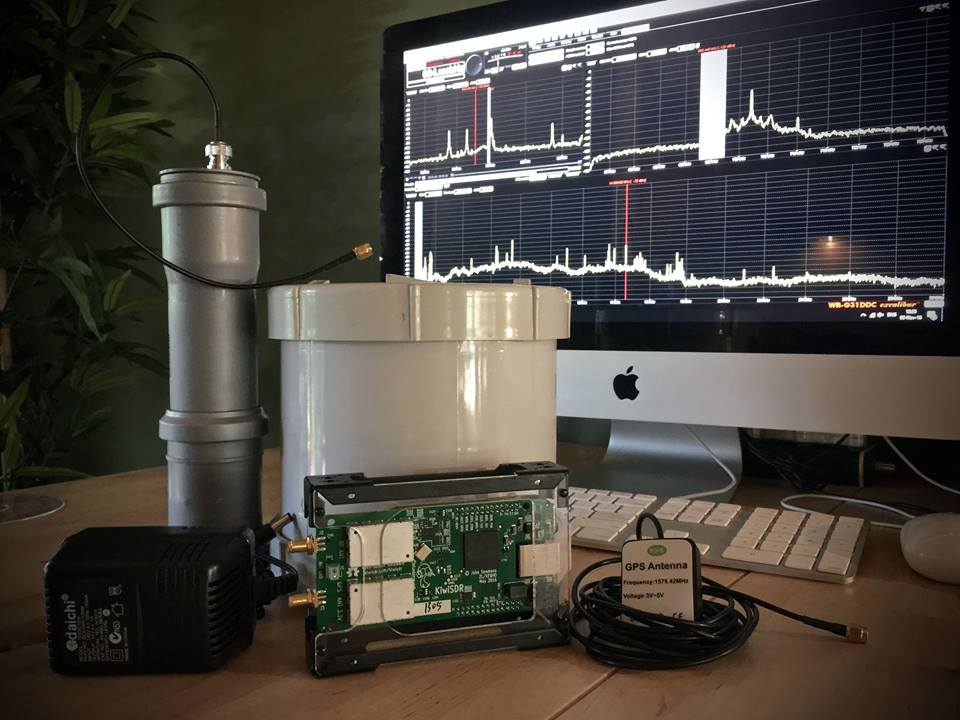
It’s been a fun weekend getting the first two remote modules for the Spectrum Project MK2 together. These modules tune into and then digitally preserve broadcasted human communication; music, discussion, culture for future generations to study and ponder.
This initial version of the hardware provides 0-30MHz with four (simultaneous) independently configured receivers that are controlled remotely from anywhere on the planet. The first of the modules will be installed near Vladivostok in Russia’s far east and the second is planned to go to one of the “stans” in Central Asia, most likely Kazakhstan.
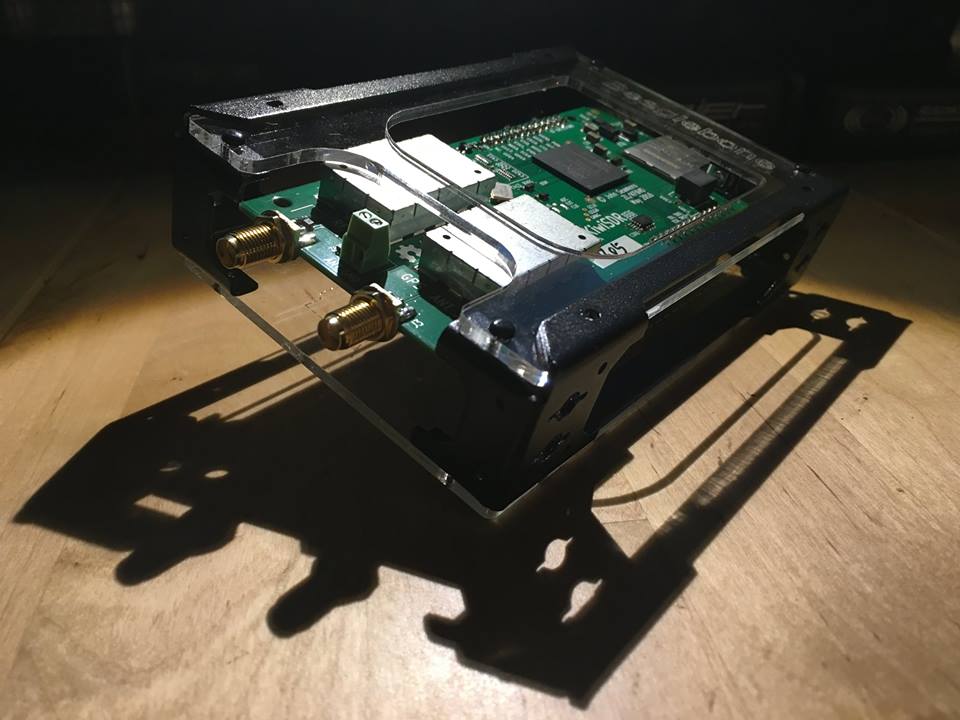
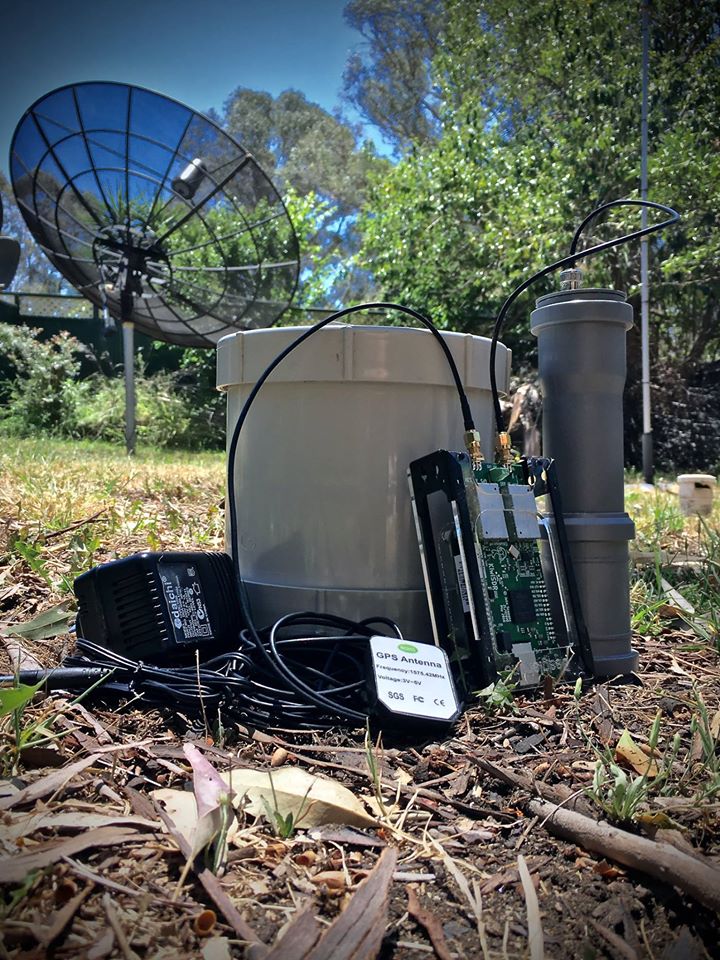
The hardware includes a KiwiSDR 0-30MHz SDR 4 channel receiver AM LSB USB CW FM plus GPS for precision timing and location information. A BeagleBone Green is the CPU and the compact 100KHz-30MHz active antennas we are using are precision built by RA0SMS in Irkutsk, Siberia, Russia.
(Note to fellow SDR geeks – the WinRadio Excalibur running on the iMac [above] is not part of the remote system – it just happens to live on my assembly bench).
Remote Module #1 prior to sealing.
This first generation is built to connect to a wired internet connection and power supply. The hardware includes a KiwiSDR 0-30MHz SDR 4 channel receiver AM LSB USB CW FM plus GPS for precision timing and location information. A BeagleBone Green is the CPU and the compact 100KHz-30MHz active antennas we are using are precision built by RA0SMS in Irkutsk, Siberia.
Remote Module #3 and later will support solar power and a 4G/ LTE connection so the devices can be located anywhere on the planet that has reasonable cell phone coverage.
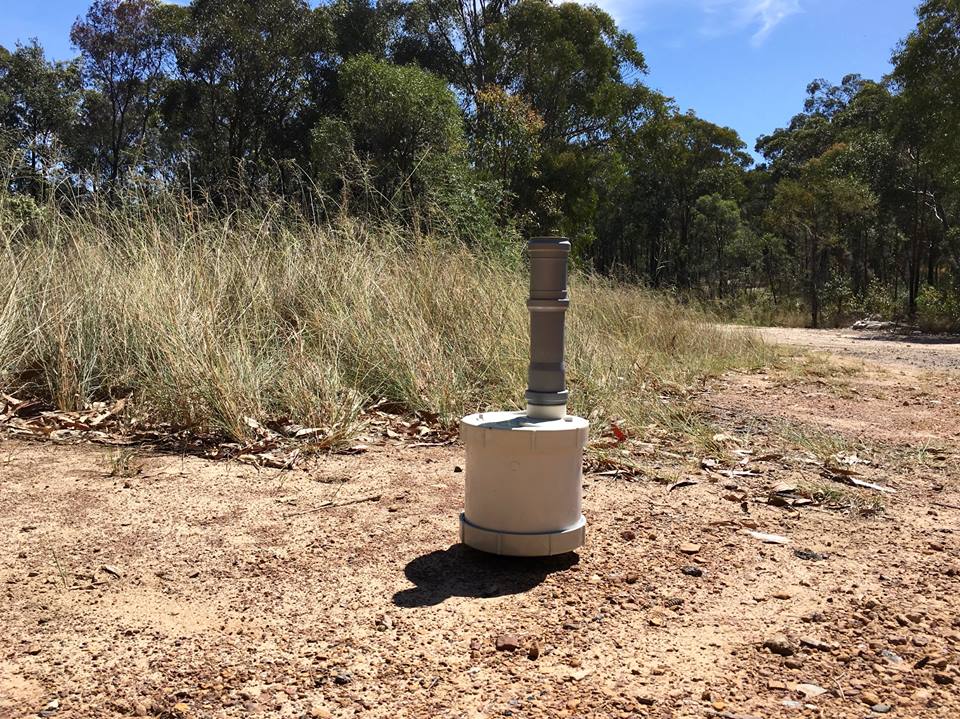
Remote Module #2
This is Remote Module #2 sealed and ready for connection to a network and power supply. The hardware includes a KiwiSDR 0-30MHz SDR 4 channel receiver AM LSB USB CW FM plus GPS for precision timing and location information. A BeagleBone Green is the CPU and the compact 100KHz-30MHz active antennas we are using are precision built by RA0SMS in Irkutsk, Siberia.
Remote Module #3 and later will support solar power and a 4G/ LTE connection so the devices can be located anywhere on the planet that has reasonable cell phone coverage.
This is simply amazing, Mark. I can’t wait to try out the receivers in your Spectrum Project MK2 once they’ve been deployed and implemented. We’ve talked about this concept before, but what I love about Mark is he simply pulls the trigger and makes it happen as soon as technology has made it possible to implement.
The Foreign Affairs Committee says BBC Monitoring is vital to the FCO’s scrutiny of developing events across the world. Highly valued by the Government, the service translates and analyses news and information from freely available media sources in 100 different languages and covering 150 countries.
Triggered by a shortfall of £4m in funding, the BBC now proposes an extensive restructure of the service, which would mean the closure of 40% of BBC Monitoring posts in the UK and 20% of posts abroad, and relocation of the service from Caversham to London.
The Government is the prime customer for the service. The Foreign Affairs Committee believes Government should restore funding for open source monitoring of media sources overseas, whether they pay BBC Monitoring or carry out the work themselves.
Chair’s comments
Chair of the Committee, Crispin Blunt MP, commented:
“BBC Monitoring is a highly regarded organisation whose work is more important than ever.
These cuts to BBC Monitoring, proposed by the BBC, are simply not in the interest of the UK Government. They will not help the FCO improve its performance in detecting trends and undercurrents overseas that have implications for UK policy – something it notably failed to do in Libya, for instance. Given the vast increase in social media output, this kind of monitoring is more important than ever.
Other countries with similar operations fund them from central Government. The principal benefit of the output of BBC Monitoring is better-informed Government policy, which is why the Government should fund it, not the licence fee payer. It’s notable that in the face of these cuts, government departments are in the process of recreating this capability internally. This should not be necessary and we should be bolstering the work of BBC Monitoring, not cutting it.”
Thanks, Jim-I wish you success in this campaign (though it appears you’ve met your base goal and are now into stretch goals).
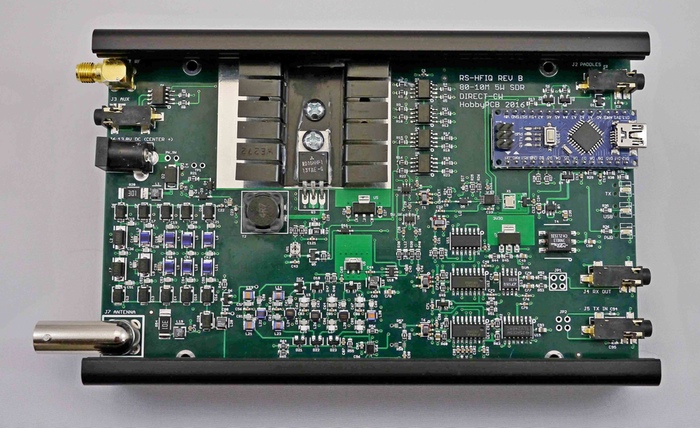
While there are a fair amount of SDRs in the $200-300 price range, there are few that are actually transceivers. I’m also impressed with the level of filtering on both the RX and TX stages and the fact that the baseband and digital section have separate and isolated grounds. The RS-HFIQ could potentially have a low noise floor and a decent front end.
If you back the RS-HFIQ, please consider sending us your review to publish here on the SWLing Post!
DXtreme Software™ has released a new version of its popular logging program for
Amateur Radio operators: DXtreme Station Log 12™.
New Features in DXtreme Station Log 12
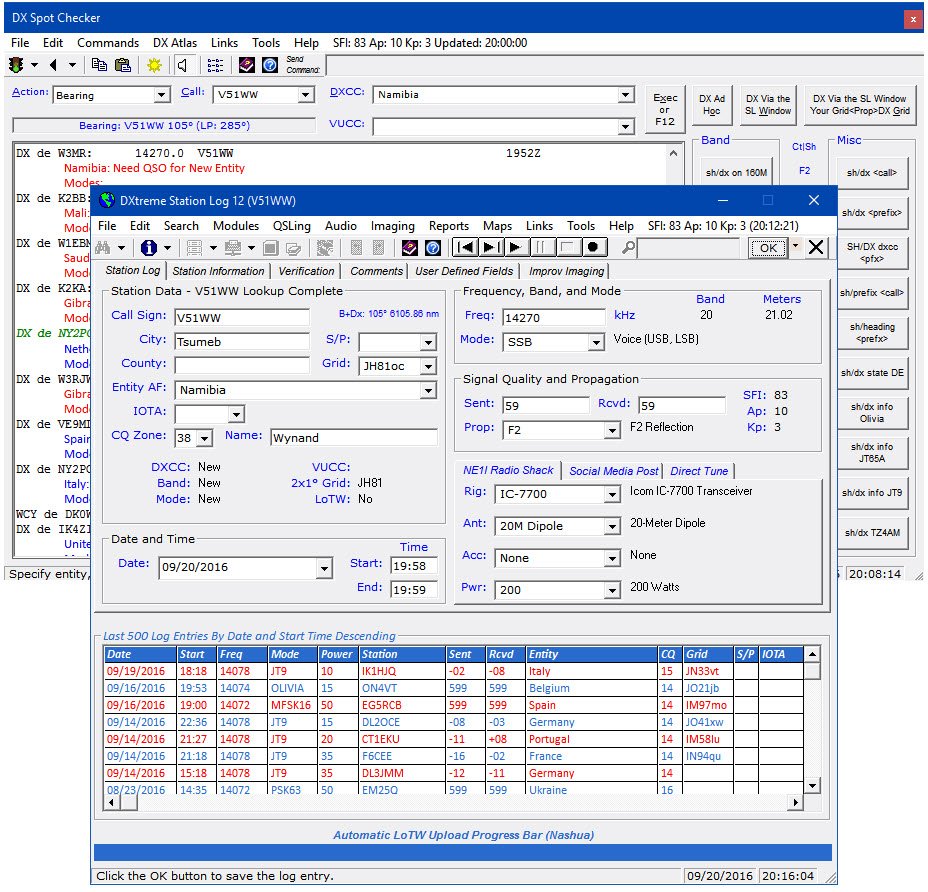
Automatic LoTW Upload —Users can set Station Log 12 so it uploads each log entryto LoTW automatically when added, capturing and saving QSO Record Status from the LoTW server as part of the process. Modified log entries can be uploaded as well. If desired, users can disable automatic uploading and can upload log entries to LoTW semiautomatically and manually in batches whenever they want to.
LoTW Reporting —Users can perform searches and run reports filtered by LoTW QSO Record Status, which indicates whether log entries areOn, orNot On, theLoTW server following upload or QSL-updating. Users can also perform searches and run reports filtered by LoTW QSL Record Status, which indicates the date of each LoTW QSL record processed by DXtreme’s LoTW QSL Update Utility.
JT65A and JT9 Contact Pre-fill —Right-clicking the New button presents a shortcutmenu that lets users pre-fill the Station Log window with log information from a JT65A or JT9 contact completed on WSJT-X or JT65-HF-HB9HQX Edition.
Afreet Ham CAP Integration Expansion — Station Log 12 now integrates withoptional Afreet Ham CAP throughout the program. Users activate Ham CAP by requesting short- or long-path propagation predictions on spotted and logged stations and entities.
Quick Find —A box on the Station Log toolbar lets users type a call sign and press Enter to search quickly for a station in their log. If the call is in the log, a list of QSOswith it appears on a popup window. If desired, the list of log entries can be loaded into the Station Log window for viewing or editing, one log entry at a time.
Improv Imaging™ —Lets users associate adhoc images with their log entries. Thisfeature is like, but separate from, our popular QSL Imaging™ facility. Users can capture, scan, or paste any image and save it as a single-page .jpg, or single- ormulti-page .tif. Improv images popular with users include signals on a spectrum analyzer or waterfall, QSOs conducted on Amateur Television and data applications, and rigs and antennas used during contacts.
Other Imaging Enhancements —The QSL image previewer on the Station Log window is larger, as is the QSL Image Explorer, which also lets users call-up, in the Station Log window, the log entry associated with each QSL image, making theExplorer act like a Search window.Improv Imaging has its own, dedicated previewerand explorer.
UX Improvements —Users can apply foreground and background colors and fontattributes to grid headings and data rows throughout the program.
Standard Features in DXtreme Station Log 12
DXtreme Station Log 12 lets hams log their contacts and import ADIF files from otherprograms. It supports major call sign subscription services, and offers the following multimedia and advanced functions:
DX Spot Checker™ —Receives DX spots from Telnet-based servers, and determineswhether QSOs are needed for new or verified DXCC® entities, band-entities, mode-entities, or VUCC grids.
DX Atlas Integration —Performs DX Atlas azimuth plots from theuser’slocation tothat of a spotted or logged station. Also creates maps for a variety of reports.
Band Master Integration —Afreet Band Master can be invoked with needed bandand IOTA lists based on the user’s Station Log 12 database.
Rig Control —Tunes/retrieves frequencies and modes from supported rigs throughintegration with Afreet Omni-Rig.
QSL Processing —Creates QSL and address labels for physical QSLs, and supportsthe ARRL’s LoTW facility, including capturing LoTW QSL records as digital images.
Audio Facility —Records and plays QSOs.
Reports —Provides a wide range of performance and station reports to let users seehow well they’re doing. Reports can be filtered and sorted. Includes DXCC® and WAS Analytics™ tools for analyzing and enhancing DXCC and WAS standing.
Operating System and Requirements
DXtreme Station Log 12 runs in 32- and 64-bit versions of Microsoft® Windows® 10,Windows 8.1, Windows 8, Windows 7, Windows Vista®, and Windows XP.
Pricing and Support
DXtreme Station Log 12 retails for $89.95 USD worldwide for Internet distribution.Reduced pricing is available for upgrading users, and CD shipment is available at a nominal surcharge. All prices include product support by Internet e-mail.
About DXtreme Software
Based in Nashua, NH, DXtreme Software produces powerful and easy-to-use logging applications for all kinds of radio enthusiasts — from short-wave and medium-wave listeners and DXers to Amateur Radio operators. For more information about DXtremeStation Log 12, visitwww.dxtreme.comorcontact Bob Raymond, NE1I, at[email protected].
DXCC® is a registered trademark of the American Radio Relay League, Inc.
Microsoft®, Windows®, and Vista® are registered trademarks of Microsoft Corporation.
Band Master, DX Atlas, Ham CAP, and Omni-Rig are owned by Afreet Software, Inc. A purchased software license for Band Master and DX Atlas are required to use them.
JT65-HF HB9HQX Edition is owned by Beat Oehrli, HB9HQX. WSJT-X is owned by Joe Taylor, K1JT.