Tag Archives: SDR

A review of the SDRplay RSP software defined receiver

The following review originally appeared in the May 2015 issue of The Spectrum Monitor magazine.


SDPlay-RSP

Good things often come in small packages.  But not all of these things are…well, affordable.

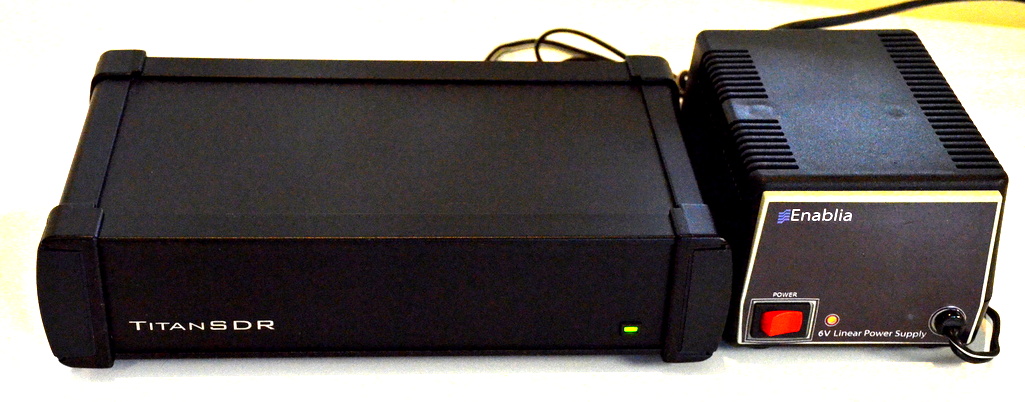
Ironically, earlier this year, just after I began to evaluate and review the superb TitanSDR Pro, a robust military-grade SDR, I was approached by the UK-based manufacturer of the SDRplay RSP software-defined radio and asked to review their receiver. I was instantly intrigued––and, truth be told, just a bit amused, considering the difference between these two receivers.  And what, exactly, separates the SDRplay RSP from the TitanSDR? At least $1350.

The SDRplay RSP is one of the recent generation of economical wideband SDRs based upon innovative, inexpensive chipsets; in the RSP’s case, based upon the Mirics MSI3101 SDR chip, and a MSI001 tuner.  Priced at a mere $149 US (plus shipping), the SDRplay RSP is one of the least expensive, yet full-featured SDRs which actually include the HF bands and below, and which require no extra upconverter. Preliminary reviews of the SDRplay RSP were quite positive, so when the folks at SDRplay requested that I review an RSP on loan, I immediately seized the opportunity.

Unboxing and connecting

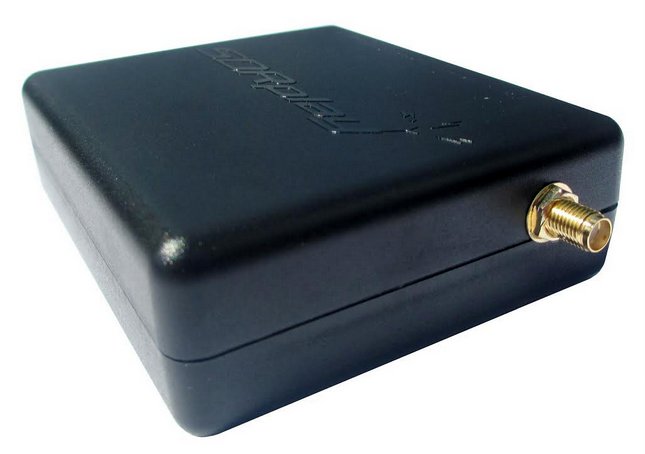
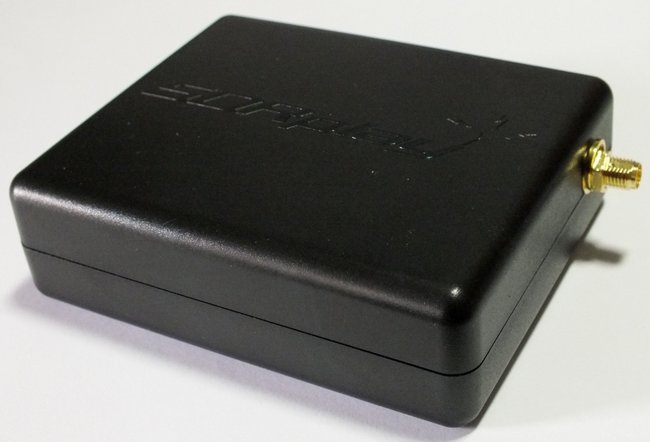
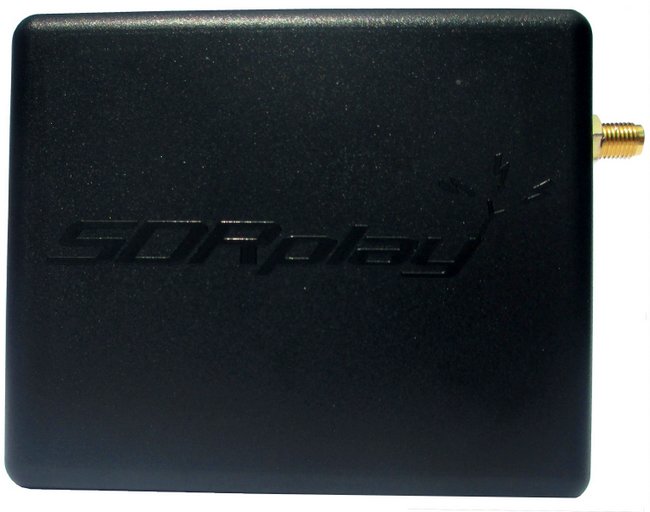
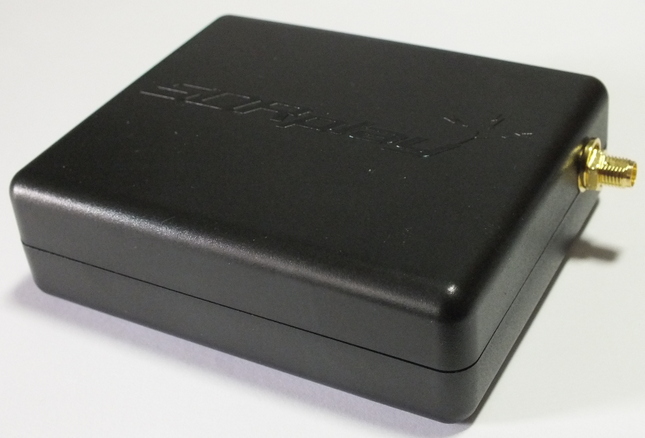
My review unit of the SDRplay RSP has blue ends caps and an F style connector. All current production units have the new back case and SMA connector.

My review unit of the SDRplay RSP has blue ends caps and an F style connector. All current production units have the new back case and SMA connector.

My SDRplay RSP arrived in a modest well-padded box. And what was inside? Only the SDRplay RSP and a small F-to-BNC adapter. You’ll need to supply a USB cord, as it’s not provided by SDRplay. If you’re like me, though, you already have a number of these around; I prefer USB cables with ferrite chokes (click here for an example).

Note that shortly after I received my review unit, SDRplay made two design changes to the RSP:

1) the F style antenna jack has been replaced with the more common SMA connector, and 2) the chassis color has been changed to black.

SDRplay-RSP-USB

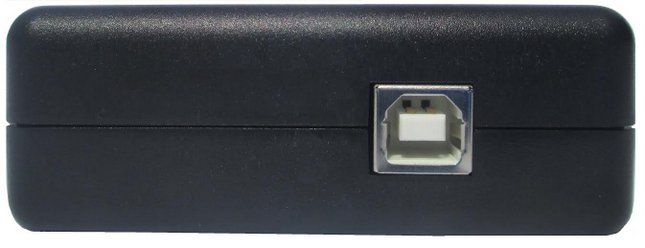
There are only two ports on the RSP: the antenna port, and on the other side of the box, a USB B-Type port (see photo above). Connecting it to your computer and antenna are a cinch.

The RSP’s chassis is made of a strong, lightweight plastic. A very simple design, and one that, I expect, would easily survive the rigors of my favorite brand of one-bag air travel to international DX destinations.

Software Installation

Unlike many of the other SDRs I’ve reviewed in the past (see the Elad FDM-S2 and TitanSDR), the SDRplay RSP does not come with a proprietary (OEM) SDR application. Meaning, the SDRplay company does not make their own SDR application that controls the RSP. Instead, SDRplay provides an API to allow application and demodulator development. There are already plug-ins for third-party SDR applications (like SDR# and HDSDR, for example); once installed, these plug-ins create an excellent compatibility bridge with the RSP.

But note that since the SDRplay RSP relies on third-party applications, the installation process isn’t exactly plug-and-play; you must typically download USB drivers, then the SDR application of your choice, and finally (typically) a dedicated plug-in for the software. Yet it’s not a complicated process by any means; SDRplay’s website has links to all of the necessary downloads (http://www.sdrplay.com/downloads.html) and installation manuals (http://www.sdrplay.com/documentation.html). No intimidation factor here.

Advantages and disadvantages of third-party applications

I should also note that I’ve always been a fan of SDR manufacturers offering open compatibility with third-party applications; in fact, when hardware manufacturers have approached me in the development stages of product design, I always suggest they leave room for third-party development.

HDSDR-SDRplay-RSP-CHU-Canada

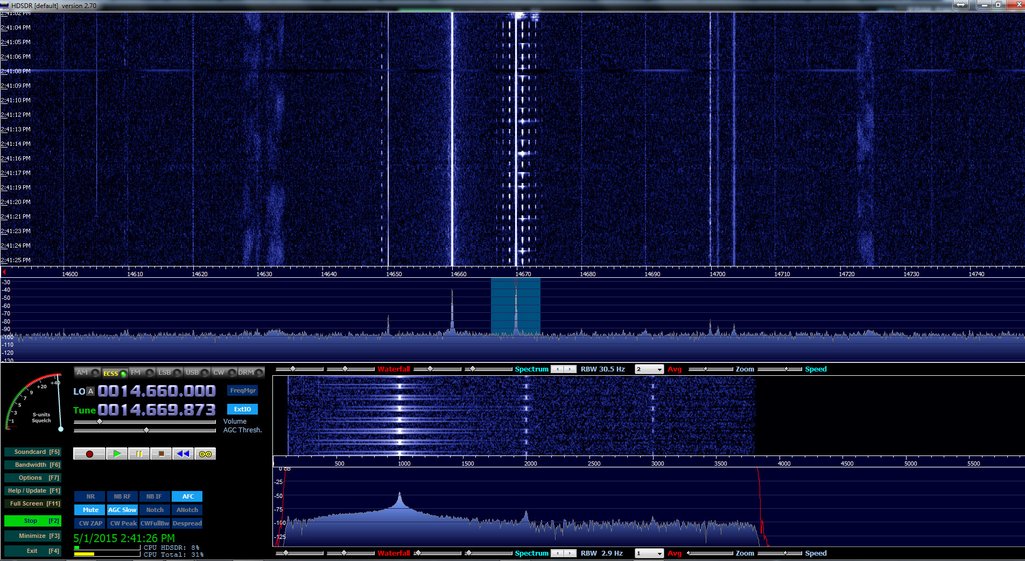
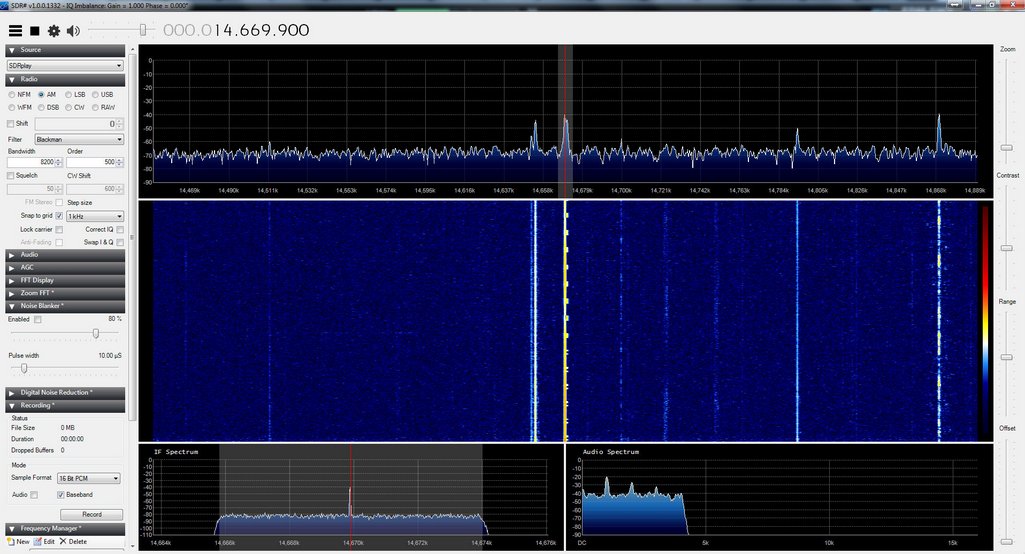
HDSDR running the SDRplay RSP (Click to enlarge.)

Why? First, as free SDR apps are so widely used in amateur, scanner, as well as shortwave radio circles, there is already a very large user-base for support when you have compatibility issues. Additionally, third-party applications often work on multiple platforms, like Windows, OSX, Linux and even Android/iOS; OEM application tend to work only on Windows OS. Secondly, if you’re already using, for example, HDSRDR to control a radio, adding the SDRplay RSP is very easy, and as a bonus, you’ll already be familiar with the user interface––there’s hardly any learning-curve involved. Finally, I find I’m much less concerned about product obsolescence when hardware is designed to work in such an open-development environment, thus indicating greater potential for forward-compatibility.

Of course, on the flip side, not having an OEM application means that troubleshooting is often more difficult. If you encounter a problem you’ll have to determine whether the problem lies with OS, computer/tablet, USB driver, SDR application, or hardware––or whether the problem is in a combination of two or more of these, or the communication between them.

Fortunately, I’ve been very pleased with the SDRplay support team; this group has promptly addressed any questions or concerns I’ve had. Moreover, the RSP also has an active forum of users (http://www.sdrplay.com/community/).

Scope of review

In most reviews, I focus the majority of my SDR review upon the pros and cons of the application’s user interface.  In this case, since the SDRplay RSP is using widely-distributed third-party applications, I can focus primarily on the SDR’s performance, instead.

The SDRplay RSP is currently compatible with the following third-party SDR applications:

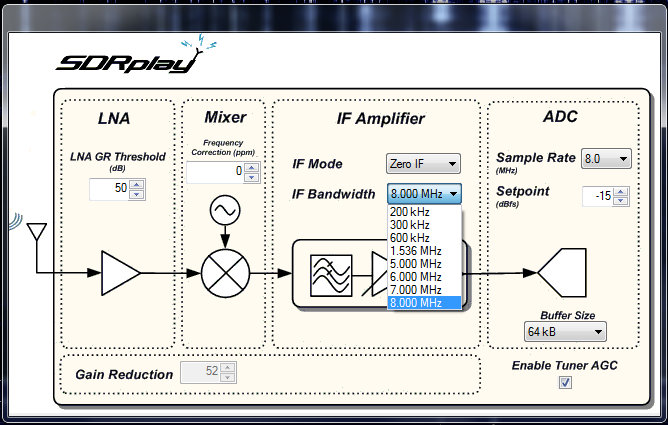
The ExtIO screen--available in your application of choice via the RSP plugin--allows you to change the RSP's IF Bandwidth/Mode, LNA GR Threshold, Mixer and ADC settings.

The ExtIO screen–available in your application of choice via the RSP plugin–allows you to change the RSP’s IF Bandwidth/Mode, LNA GR Threshold, Mixer and ADC settings.

Indeed, when I asked the SDRplay support team about a comprehensive list of supported SDR apps, they responded:

“We should be compatible with any SDR application that supports the EXTIO library––this is what we are using for SDR# and HDSDR. [We] should also be compatible with any Linux application that uses the gr-osmosdr interface library (such as GQRX and Gnu-Radio).

We have just released it and I’m in the process of writing up the installation instructions. We have also had this running on a Raspberry Pi 2.”

…A Raspberry Pi 2 application? I, for one, can’t wait to try this in the near future––!

For this review, I used two favorite apps with which I’m familiar: SDR# and HDSDR.

SDR-Sharp-SDRplay-RSP-CHU-Canada

SDR# running the SDRplay RSP (Click to enlarge.)

Wideband

I should note here that the SDRplay RSP also has an exceptionally wide frequency range covering from 100 kHz to 2 GHz, with only a narrow gap between 380 MHz and 430 MHz. With the appropriate software, you can use the RSP for a number of applications, for example, scanning, FM DXing, and possibly even radio astronomy.

Performance

So, how about receiver performance?

I’ll going to cut to the chase here: For the $149 price tag? I’m very impressed.

Keep in mind, this is the first SDR I’ve ever reviewed––or even spent more than a few hours exploring––that costs under $400. My only other experience with a low-cost SDR was a few hours spent with the Funcube Dongle Pro+––a popular wideband SDR dongle that also covers the HF spectrum. Frankly, I was disappointed with the Funcube Dongle Pro+, which I found subject to unwanted noises and even some imaging, which I assumed might be indicative of this class of SDR. Fortunately, I’ve not experienced this sort of thing with the SDRplay RSP.

In short: I fully expected $149 performance out of the RSP, but was very surprised to find performance on par with a receiver two or three times this cost.

So for comparison purposes, I chose the Elad FDM-S2 as the benchmark. I currently have three other SDRs in my shack, but the FDM-S2 is the next-lowest in price (currently listed at $539). But to be quite clear: the FDM-S2 is a pretty high benchmark, as I consider it a superb receiver for its price class.

When I first turned on the RSP and tuned through the HF bands, I was quite amazed at the relatively low noise floor of this receiver. Stations seemed to “pop” out of the static. I had assumed that the SDR# application had some sort of DSP noise reduction engaged, but this proved not to be the case––I confirmed the same low noise floor level via the HDSDR application.

SDRplay actually gave the RSP to me on an extended loan, so I’ve had the opportunity to use it both in quiet winter conditions and more unsettled, noisier conditions indicative of spring and summer here in the US. I used the RSP almost exclusively for two weeks in an effort to uncover its most notable strengths and weaknesses. But by the end of the two-week period, I began to suspect that the RSP might actually have sensitivity on par with my other SDRs.  To answer this question, I turned to A/B comparisons with the FDM-S2.

Sample audio

I believe the following is a good representative comparison between the SDRplay RSP and the Elad-FDM S2.

The following recordings are of Radio Riyadh on 15,225 kHz.  Riyadh’s signal is quite weak and voice levels are barely above the noise floor. Both the Elad FDM-S2 and SDRplay RSP (via HDSDR) were set to a slow AGC, AM sync, and a 8.2 kHz bandwidth.

First, the Elad FDM-S2:

Now the SDRplay RSP:

In this representative sample––and pretty consistently throughout all my comparisons––the FDM-S2 was able to pull voice and music out of the noise better than the RSP. In weak signal DXing, this is important, especially when you’re listening for a station ID.

So would I ever replace my FDM-S2 with the RSP? No.

Still, for a $149 receiver? This performance is most impressive! The RSP is only a little less sensitive than my much pricier SDRs.

Summary

SDRPlay-RSP (1)

Invariably, all radios have strengths and weaknesses; here is a list of my notes from the moment I put the RSP on the air:

Pros:

  • Excellent performance for price
  • Good sensitivity and selectivity
  • Low noise floor
  • Compatible with multiple open source SDR applications
  • Very wide frequency range (frequencies above 30 MHz not tested in this review)
  • Works with multiple operating systems
  • Selectable USB/LSB sync detection via supported third-party applications
  • 8 built-in switched preselectors that cover various portions of the RSP’s entire bandwidth
  • Compatible with a number of excellent third-party SDR applications (see con)
  • One of the few low-priced SDRs that doesn’t require a converter for HF coverage
  • Exceptional value

Cons:

  • No OEM SDR app (see pro) SDRuno is now SDRplay’s OEM/native application for the RSP line
  • Some moderate overloading on very strong stations (though a little tweaking of SDR applications settings can largely remedy this)
  • Via the current offerings from third-party apps, no multi-channel audio recordings SDR Console allows for multi-channel recordings with the RSP

Conclusion:

SDRplay Above PictureI walked into this product review expecting to be…well, disappointed. As I have some benchmark SDRs on my desk at all times, I hadn’t investigated inexpensive SDRs because I felt they would simply be redundant.

Fortunately, the SDRplay RSP really impressed me from the beginning with its low noise floor, variable IF bandwidth options, and relative ease of installation. Since the RSP only requires one USB cable for both data and power, it’s also an ideal portable SDR.

Up to this point, I’ve always hesitated suggesting that those interested in a beginner’s SDR invest in any sub-$200 SDR, unless they simply want to get their feet wet and aren’t interested in performance. But at $149 US––the price of a good shortwave portable radio––I can confidently recommend at least the SDRplay RSP to those readers who want to start out with a good-quality rig. Indeed, for many, it might out-perform other receivers in their shack.

I see the RSP having a place in my shack as well, especially on my portable shortwave listening adventures. If you’re looking for a quality first SDR, or, like me, are interested in a supplemental or remote receiver that won’t break the bank, the RSP is just the ticket. And at just $149, you simply can’t lose.

Meanwhile, what’s next for me? I plan try the RSP via the Raspberry PI 2 and my newly acquired Dell Venue 8 tablet.

The SDRplay RSP can be purchased directly from SDRplay via their online store: http://www.sdrplay.com/purchase.php

Resources:

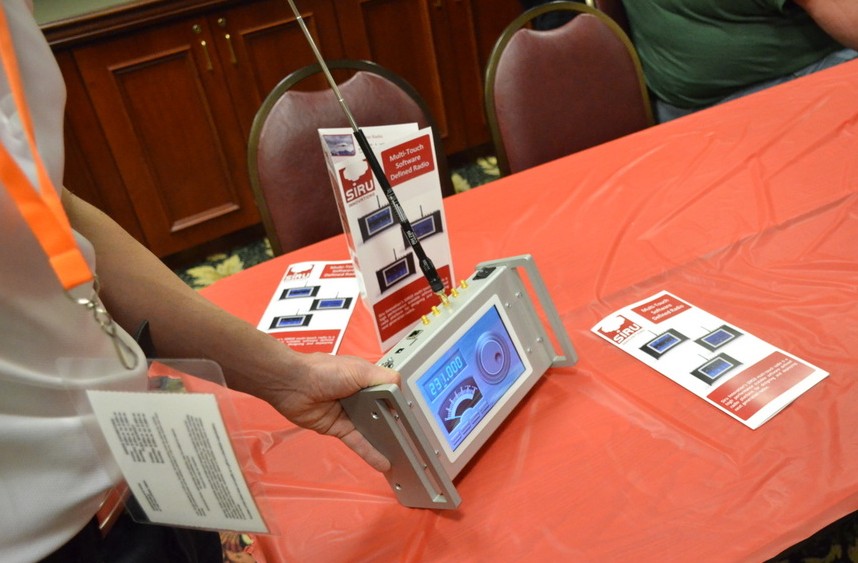
The Siru Innovatios SDR20 multi-touch portable SDR

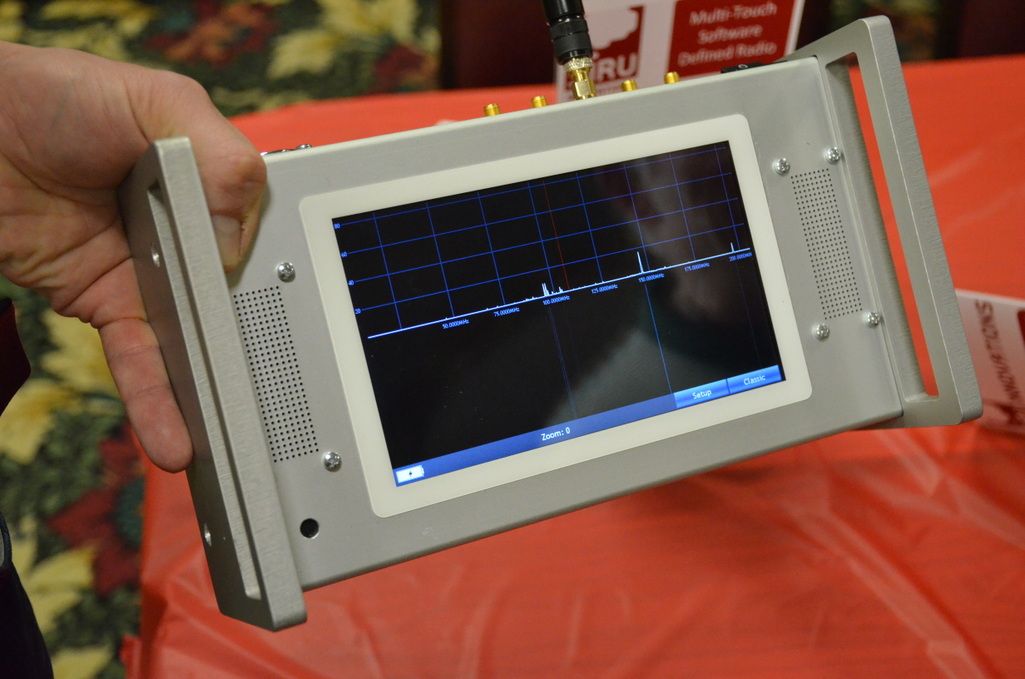
Siru-Innovations-SDR20-4

A few weeks ago, at the Four Days In May conference (held alongside the Dayton Hamvention) I met Jarkko Mäkivaara from the Finnish company Siru.

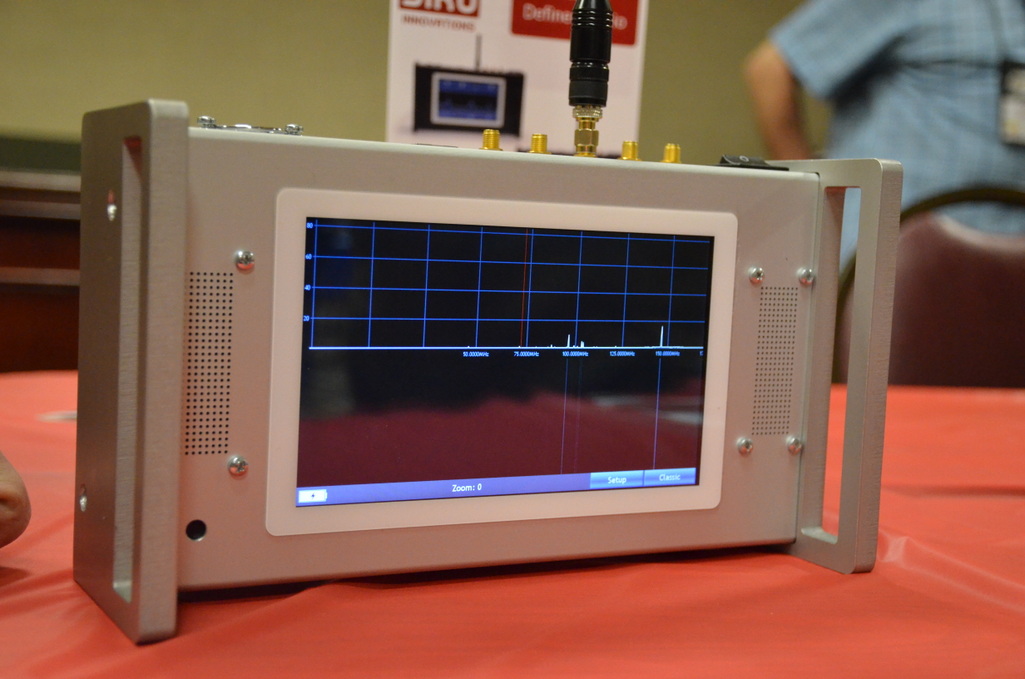
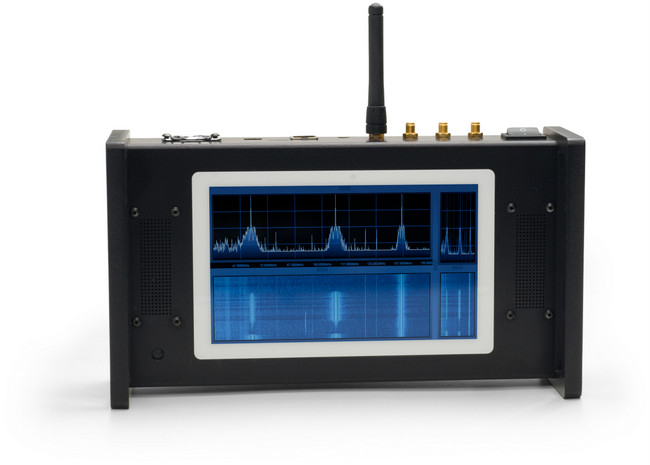
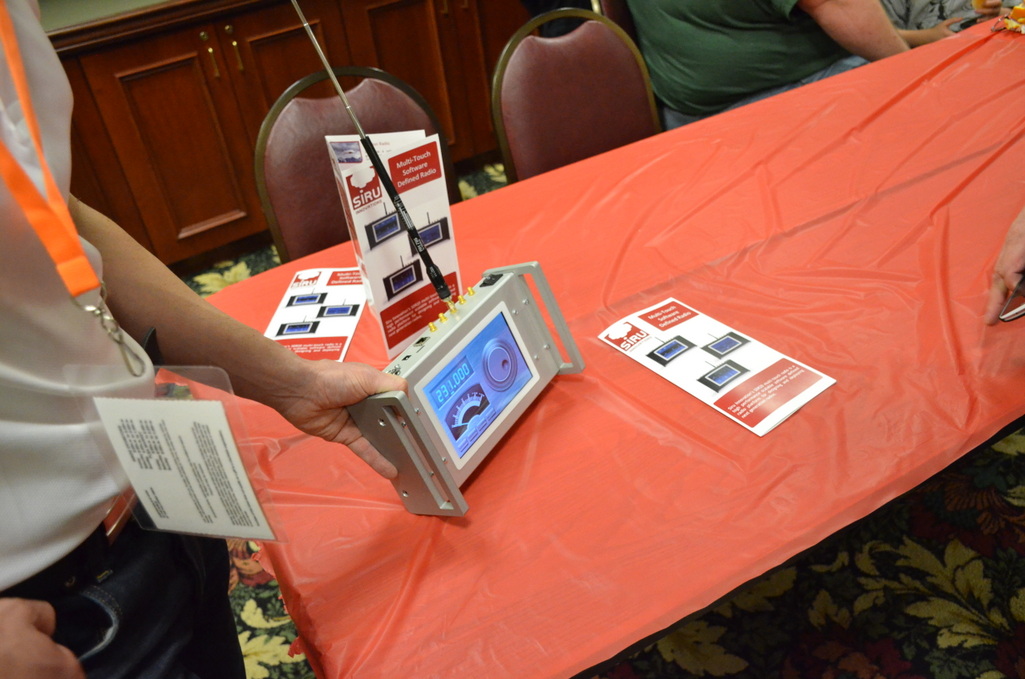
Jarkko was demonstrating the SDR20: a radio that immediately grabbed my attention from across the room. The SDR20 is a fully portable, robust, multi-touch portable SDR transceiver.

Siru-Innovations-SDR20-5

The screen on the SDR20 is as responsive as an iPad and fully developed around SDR functionality. While Jarkko didn’t have an HF signal of any sort inside the hotel convention room, I was able to play with the interface a bit, which I found rather intuitive.

(Source: Siru)

(Source: Siru)

The SDR20’s product brochure lists some of its features:

  • 2-channel transceiver operation
  • Two methodologies for implementation: IQ Mod / Demod and Direct Down and Direct Up (DDC, DUC) conversion
  • Up to 200MHz bandwidth per channel
  • 100mW transmit power. Higly efficient 1kW exciter available separately.
  • Frequency range covers DC to 2.5 GHz
  • State of the art Altera Cyclone SOC-FPGA (Including dual-ARM9 Cortex)
  • Graphics Prosessor accelerated Multi-Touch screen with a slick user interface
  • GNURadio, C++ API/Python, VHDL/Verilog/High Level Synthesis sandbox
  • High-speed ethernet interface for computer connection
  • Internal clock 20 PPS
  • Coherent operation with external clock source (GPS, Rubidium etc.)
  • Rugged and stylish enclosure / Rack mount

Of course, the SDR20 is truly designed for industrial and government/military applications, thus it carries a price tag reflective of those markets: €3,395.00 (about $3,800 USD).

Siru-Innovations-SDR20-1

Still, seeing the SDR20 gives me hope that multi-touch, portable SDRs will become more commonplace as capacitive screens, processors, DSP chips and solid state storage continue to decline in price.  Indeed, I wouldn’t be surprised if Siru is able to lower the price on future iterations of their portable SDR line.

If you would like to take a look at some of the SDR20’s specifications, check out this PDF product sheet and the video embedded below.  Of course, you’ll find even more information and updates on Siru’s website. The SDR20 has shipped to Beta testers and should begin full production in the fall.

https://vimeo.com/122629896

A review of the TitanSDR Pro software defined receiver

TitanSDRPro-2

The following review originally appeared in the May 2015 issue of The Spectrum Monitor magazine.


It’s no secret…I’m a bit of an SDR geek. Yes, after discovering the power of software-defined radios a few years ago, I’m hooked: SDR listening represents nearly 95% of my home listening and monitoring. And I love it.

As a result, I’m always looking at new SDR technologies to note advances that could improve both my at-home and on-the-road listening––not to mention, satisfy my appetite for spectrum and broadcast recordings.

A few months ago, I heard about a new military-grade SDR called the TitanSDR. Being eager to check it out, I reached out to the Italy-based manufacturer, Enablia; they kindly lent me a TitanSDR Pro for review.
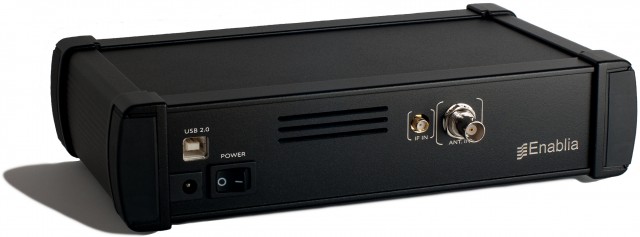
TitanSDR back panel (Photo: Enablia)

TitanSDR back panel (Photo: Enablia)

But here I must insert a disclaimer. Even though I love SDRs, I always find myself hesitating slightly when it comes to writing a review of one––simply because, when compared with tabletop and portable radios, SDRs tend to be so very complex. While I’m fairly well versed in what to expect of an SDR application, the learning curve (and sometimes even installation curve) can be formidable. And the TitanSDR seemed especially daunting: since it’s designed for heavy, full-duty, multi-channel SIGNET and military use, I expected to need a at least a few days to both install the device and, more significantly, to learn the ropes of the application which drives the SDR.

Fortunately, my fears were unfounded. The TitanSDR and I were in sync almost before I knew it, hinting favorably about an accessible user interface.

First impressions

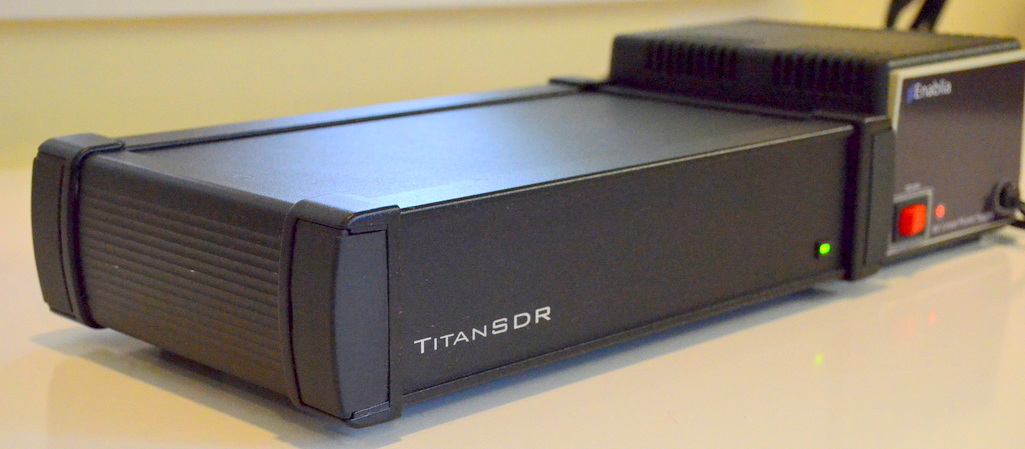
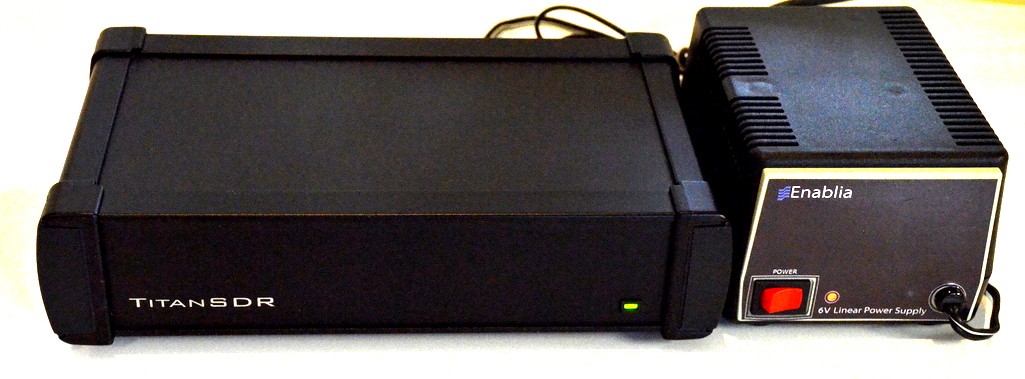
The TitanSDR ships in a box with the following components: the Titan SDR “black box” receiver, a TitanSDR installation DVD, a printed installation manual, a USB memory stick with a license key, USB cable with chokes on both ends, and a separate regulated power supply.

Not purely a plug-and-play device, the TitanSDR requires a proper three-step installation. Fortunately, the installation manual walks you through the process, which is actually quite simple. Within a mere five minutes, I had the TitanSDR installed and on the air.

The TitanSDR application

The application which runs an SDR is your interface to all of the radio’s capabilities. A top-notch SDR paired with a confusing SDR application will greatly diminish usability and, frankly, sheer enjoyment.

Fortunately, this is where the TitanSDR comes up trumps. To be clear: the TitanSDR has one of the best user interfaces of any SDR I’ve ever tested. While SDR interfaces are subjectively evaluated––some prefer a more dense, involved GUI––I always appreciate simplicity and overall usability over lots of (visible) bells and whistles.
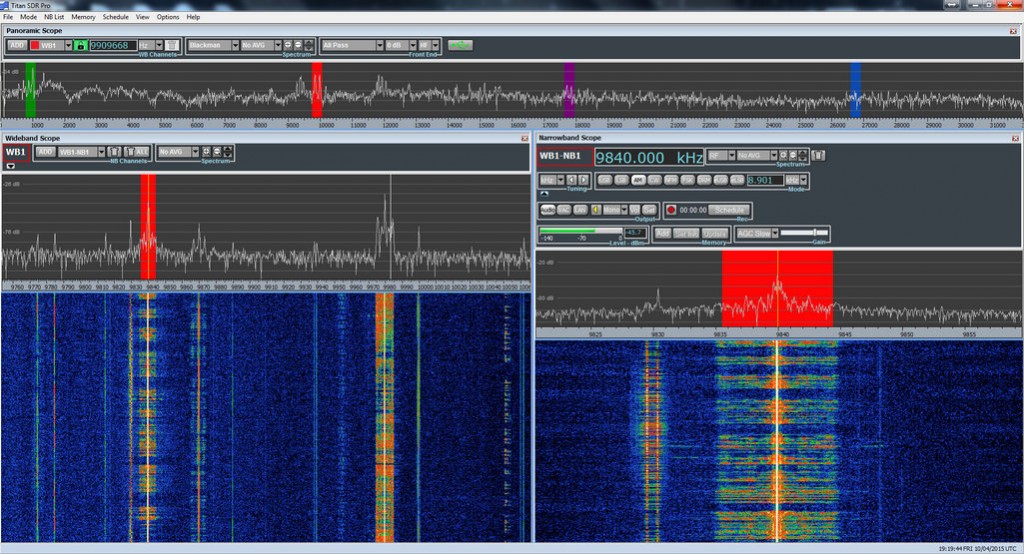
Click to enlarge

Click to enlarge

I’m especially impressed with how easily the TitanSDR app is designed to cope with multiple band windows, both wide and narrow, while many SDR manufacturers struggle with making an intuitive interface for merely one wideband and one narrowband window, each.

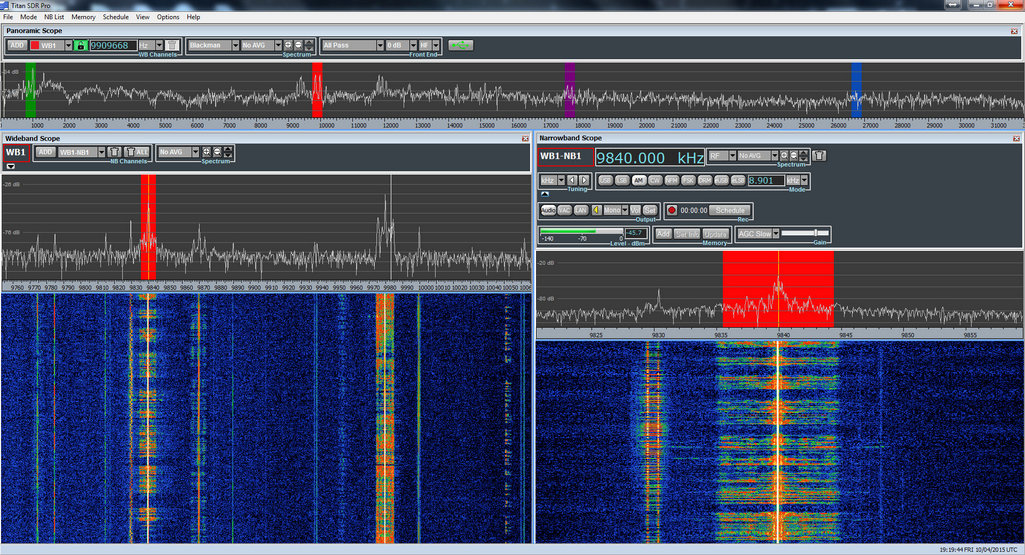
The user interface is divided into three major components: the panoramic scope, the wideband scope, and the narrowband scope. Let’s take a look at each.

Panoramic Scope

TitanSDR Panoramic Scope. Click to enlarge.

TitanSDR Panoramic Scope. Click to enlarge.

When you first open the Titan application and connect the SDR, the panoramic display, which spans the top of the window, comes to life. If hooked up to an antenna, you’ll see spectrum peaks across the display, but you’ll hear no audio because you must first select a wideband and then a narrowband window.

Wideband Scope

At the upper left portion of the panoramic scope, you’ll find a button that allows you to add a wideband selection/channel. After clicking the “add” button, you’ll need to choose the width of your wideband slice. Your choices:

  • 2.1875 MHz
  • 1.875 MHz
  • 1.5625 MHz
  • 1.25 MHz
  • 937.5 kHz
  • 625 kHz
  • 312.5 kHZ

After selecting your wideband width, the wideband scope will appear with the spectrum and waterfall in action. At this point, you’ll still hear no audio, but you’ll see a wideband swatch of frequency represented by your selection.
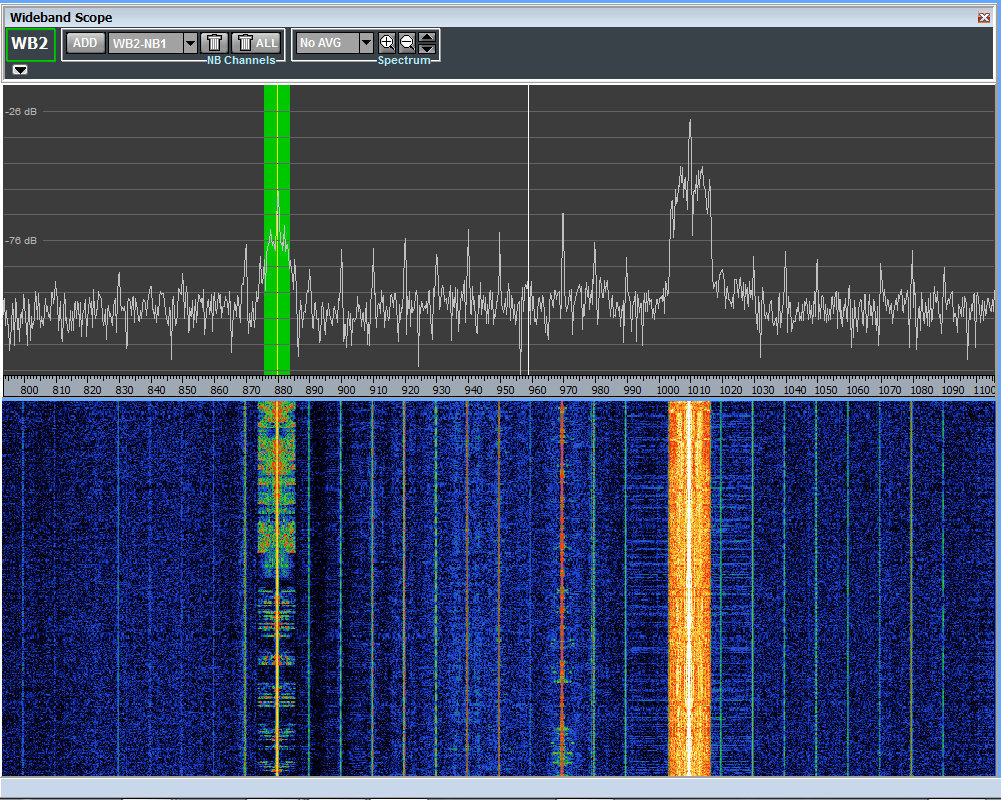
TitanSDRPro-WidebandWindow

New wideband selections default with a beginning frequency of 0 kHz. To place the wideband selection into the part of the shortwave spectrum you want to hear or record, you simply click and drag the appropriately colored wideband swatch within the panoramic display to the part of the HF spectrum you wish to monitor.
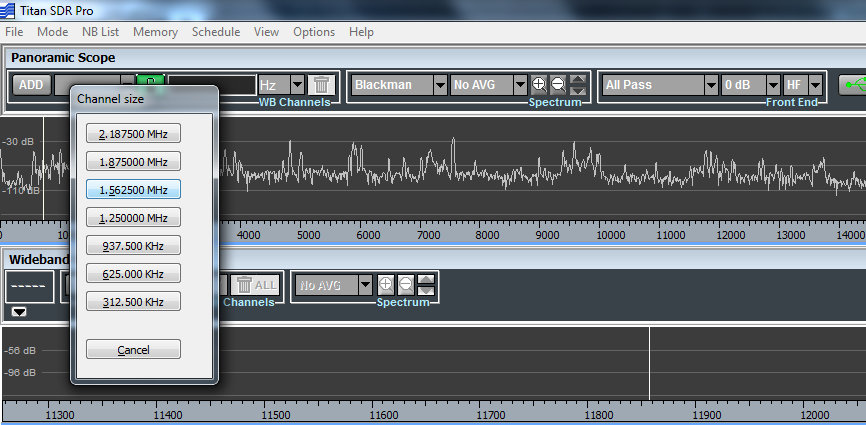
Selecting a Wideband

Selecting a Wideband channel size. Click to enlarge.

Your first wideband selection is labeled in red, the second in green, third in blue, fourth in purple. While there are limits to the number of wideband selections you can make, based on the total bandwidth of your selections [the TitanSDR owner’s manual provides a matrix of possible combinations], each is readily identifiable by color in the panoramic display.

After you’ve created a wideband selection and placed it where you’d like to listen, you’ll now need to make a narrowband selection in order to begin tuning and listening.

Narrowband Scope

Creating a narrowband channel is similar to creating a wideband channel: at the top of the wideband scope window, simply click on the “add” button, and then click within the wideband scope spectrum display to place the narrowband channel where you want it.
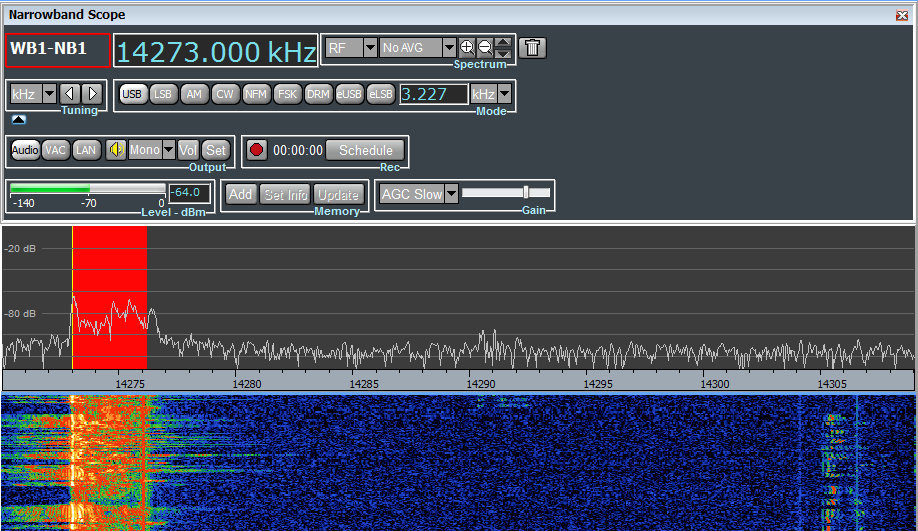
TitanSDRPro-Narrowband-USB

Once placed, this new narrowband scope will be visible in the lower right portion of the TitanSDR application window. You’ll also hear audio for the narrowband selection.

The narrowband selection defaults in USB mode, but you can quickly change modes by selecting one from the panel above the narrowband spectrum. Your choices:

  • USB
  • LSB
  • AM
  • CW
  • NFM
  • FSK
  • DRM (built-in, no separate license needed)
  • eUSB
  • eLSB

Tuning

After using the TitanSDR for only a couple of days, I found I was quite comfortable tuning through the bands. Every SDR application has its own quirks; the TitanSDR app gives you several tuning options.
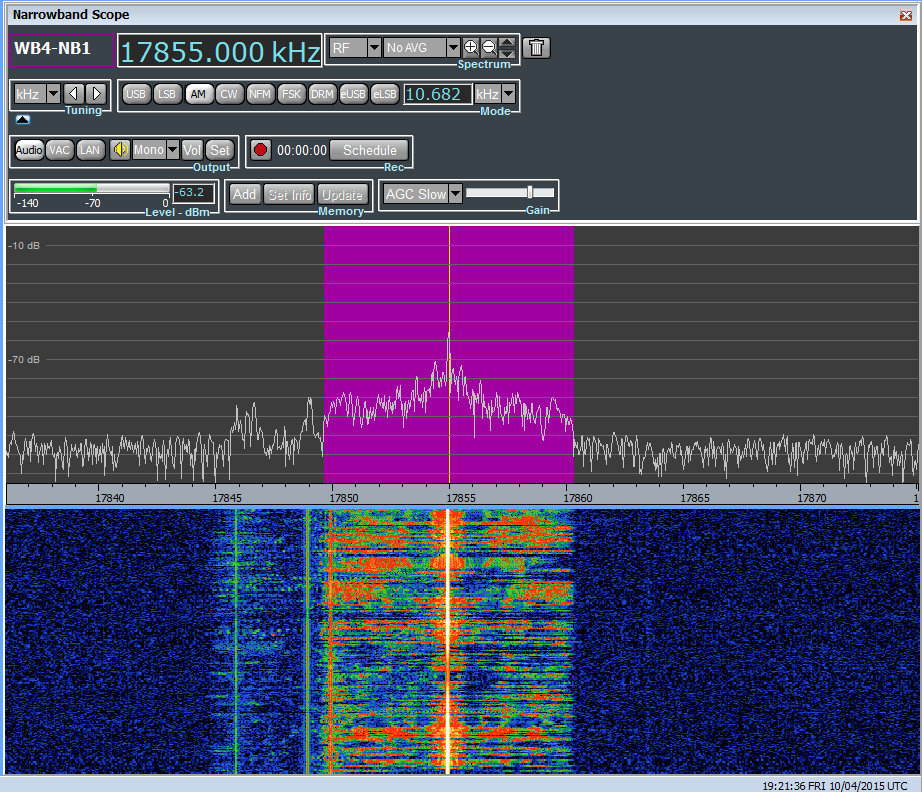
TitanSDRPro-NarrowBandWindow

Within a narrowband window, you may tune by:

  • Clicking the center of the shaded area (representing the frequency and mode you are monitoring) and moving it within the NB spectrum display
  • By manually keying in the frequency within the frequency display window
  • By placing the cursor within the frequency display and using the scroll wheel of your mouse to increase and decrease frequency increments
  • By using hot keys: “Ctrl + K” to increase frequency, “Ctrl + J” to decrease frequency

Tuning within the wideband scope is as simple as clicking and dragging the narrowband shaded area.

Of course, wideband areas can be moved to different parts of the HF spectrum by simply clicking on the shaded wideband area within the panoramic scope and moving it to a different location. But you can only do this if there are no active narrowband channels within the selected wideband channel.

With the ability to load multiple wideband channels with multiple embedded narrowband channels, you might think tuning and manipulating the various channels would get confusing. But this is just not the case. Herein lies the excellent user design behind the TitanSDR.
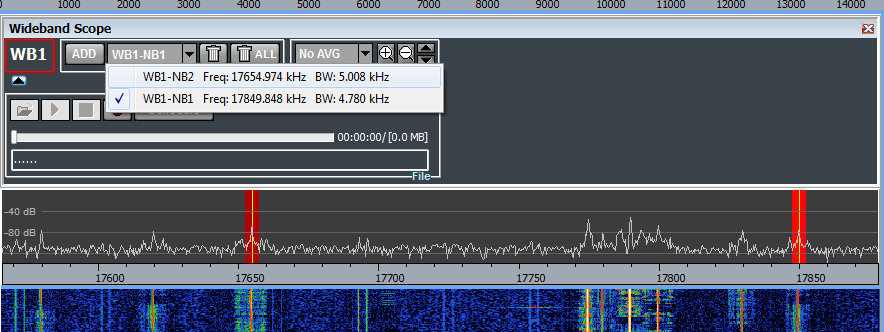
SelectingANBchannel

The software engineers at Enablia obviously put time into designing their application for users who routinely use multiple channels. Each channel is clearly color-coded across the scopes, and selecting them is a simple process: one of four wideband channels via the panoramic display, and one of many narrowband channels via the wideband display. Indeed, TitanSDR produced a brief video (http://youtu.be/XDdilGykSuY) describing how to use the TitanSDR application interface. The concept of selecting and manipulating the various channels is so easy, I actually knew how to do it prior to receiving and installing the software…and all from this eleven-minute video tutorial.

Without a doubt, the TitanSDR user interface is one of my favorites among the numerous SDRs I’ve evaluated.

Speaking of multiple channels, if you have a particular combination of wideband and narrowband channels that you like to load each time, you can save the full configuration and reload it at startup, preserving every frequency and channel. Brilliant.

Recording

For shortwave archivists (like the author of this review!), the TitanSDR is very enticing. Even the most basic version of the TitanSDR allows for 4 wideband channels and 8 narrowband channels of simultaneous recording. This means that you can record a wideband channel and as many as eight individual live broadcasts consecutively. While rarely needed, it’s an impressive feature. Quite often I’ve wanted to record as many as three broadcasts simultaneously; my WinRadio Excalibur, for example, allows for as many as three consecutive broadcast recordings, but limited within a 2 MHz bandwidth. The TitanSDR has no such limitation. You could load four wideband channels across the spectrum––say, one within the mediumwave band, one on 41 meters, one on 31 meters, and one on 10 meters––and record or listen to up to eight individual broadcasts within those channels. The TitanSDR pro will even allow for up to 40 consecutive narrowband channels of recording.
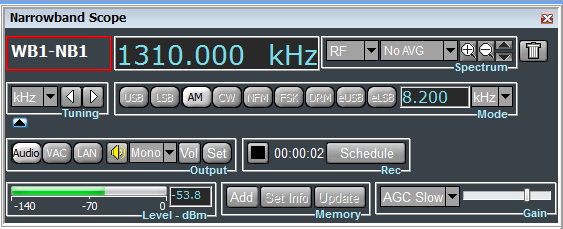
The record and schedule functions are most accessible in the narrowband scope window (above) and the wideband scope window.

The record and schedule functions are prominent in the narrowband scope window (above) and the wideband scope window.

What’s more, the TitanSDR has one of the most versatile automatic file naming systems I’ve ever used. Not only can it embed the date, frequency, and mode, but also the start time and end time. It also has a user-defined string which allows for more file name customization. And another nifty feature: the Titan can be set to embed either local or UTC time in the filename.

Yet another feature the archivist in me delights in? You can schedule narrowband and wideband recordings within the application––no need for an external program or macro.

Missing features?

As a product designed specifically for military and government applications, the Titan application currently lacks many of the features you might expect in a $1000+ software defined receiver. The version of the TitanSDR application (at time of publishing this review) lacks a variable notch filter, 90 second waterfall review, and an embedded time stamp––features one might well expect from a receiver in this price class.

Prior to publishing this review, I contacted Enablia with a list of features I thought should be included, and they agreed that these features should be added to appeal to the ham radio and shortwave listening customer base. Indeed, within a matter of two weeks, I was sent a new version of the Titan application with the addition of a number of keyboard shortcuts that I recommended. A few weeks later, I received another update which included the ability to set the maximum size of spectrum recording “chunks” to anything between 50MB and 2GB. Enablia plans to add more of the features for the radio hobbyist in time, but after this review has been posted.

If you’re seriously considering purchasing the TitanSDR, you might contact Enablia first to see if and/or when these features are to be added. I’m confident they will be added in time.

Summary
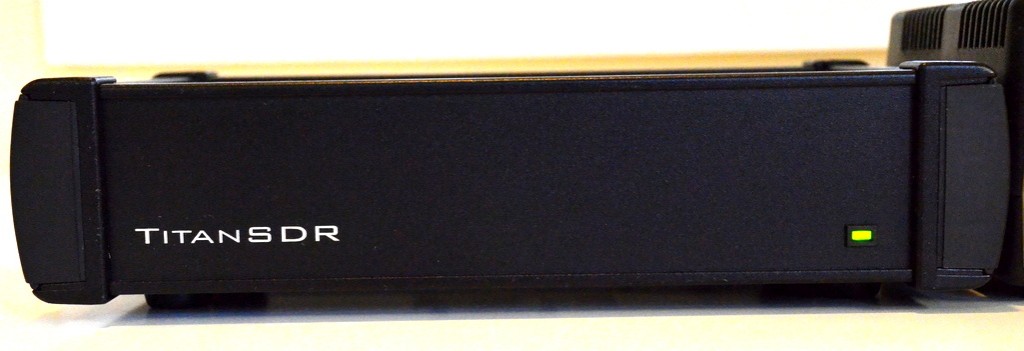
TitanSDRPro

When I begin a radio review, I keep a checklist of pros and cons as I discover them to remind myself of my initial discoveries.

Here’s my list from the TitanSDR:

Pros:

  • Superb sensitivity and selectivity
  • No less than 16 preselectors (hardware)
  • Brilliant application user interface, one of the best I’ve encountered
    • Simple controls, logically laid out
    • Effective selection system to move between narrow/wide band windows
    • Customizable waterfall and spectrum displays
    • Frequency display can be set to Hz, kHz or MHz
    • Full panel configuration with multiple custom wideband and narrowband channels can be saved and loaded in the future
  • Recording functionality
    • Up to one spectrum recording can be made, while four wideband windows may be open
    • Between 8-40 AF/Audio recordings can be made simultaneously live or from wideband recordings
    • File naming convention automatic with excellent customization options
    • Full recording scheduling in both wide and narrow bands
    • Spectrum recordings can be parsed to anything between 50 MB to 2 GB each, or left to grow to without a size ceiling; like other SDRs, recording chunks are played consecutively
  • Excellent overall build quality
  • SDR application very stable and quick to load
  • Supplied power supply is regulated and quiet
  • TitanSDR application updates are simple to install
  • Enablia support has been responsive

Cons:

  • Both the TitanSDR and TitanSDR Pro are pricey for most radio enthusiasts
  • Missing some features that would be expected in a radio of this price class (though Enablia have confirmed these features may be added in future updates):
    • No notch
    • No waterfall review
    • Neither embedded time code nor memory labeling in spectrum display
  • Windows/PC only (not supported by OS X or Linux)

Conclusion
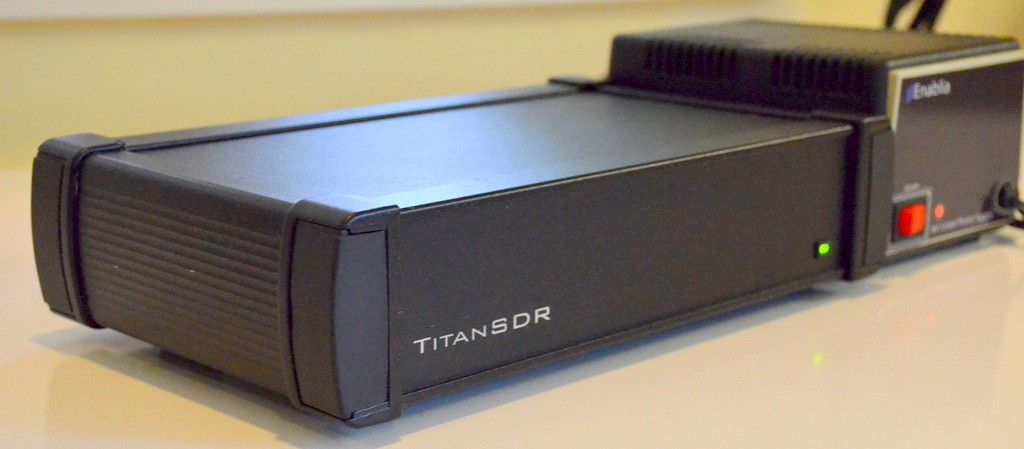
TitanSDRPro-3

No doubt, I’m impressed with the TitanSDR, performance-wise. It’s as sensitive and selective as any SDR I’ve ever tested. Serious weak-signal DXers will be pleased with this rig.

Of course, there’s the daunting price tag of the TitanSDR, which makes it clear that this was a receiver designed for government and commercial use: the basic version of the TitanSDR retails for 1380 EUR, the TitanSDR Pro for an even heftier 1970 EUR.

This pricing places it well above the Microtelecom Perseus, WinRadio Excalibur and Elad FDM-S2, all of which can be purchased for $1000 or less.

Who might benefit from the extra cost of the TitanSDR? Those who need a receiver with a very robust front end. With no less than 16 pre-selectors, the TitanSDR is a great choice for those living in the vicinity of blowtorch radio stations. If you’re looking for a stable, easy-to-use flagship SDR with a rock-solid application to support it, you might just splurge on this impressive SDR.

I always ask myself at the end of a review if I would purchase the equipment I’ve spent a couple of months evaluating. I can honestly say that if I had the money, I would not hesitate to purchase the basic version of the TitanSDR. With its four wideband and eight narrowband channels, it would more than suit my receiver needs as a broadcast archivist.

1,380 EUR buys the basic version of the TitanSDR – With four WB (Wideband) channels, eight NB (Narrowband) channels (to be allocated on WB channels) and VAC (virtual audio) interfaces to third party SW decoders, this is a solid and adaptable SDR.

1,970 EUR buys the TitanSDR Pro – With four WB channels, 40 NB channels (to be allocated on WB channels), VAC interfaces to third party SW decoders, basic LAN control and plug-in software interfaces (by LAN Ethernet) to software decoders CODE300-32 by Hoka Electronic (http://www.hoka.net/products/code300-32.html) and Krypto500 by Comint Consulting (http://www.comintconsulting.com/k500.html), this SDR can sing and dance.

View TitanSDR purchasing information and options on Enablia’s website: http://www.enablia.com/titansdr-receiver.html


Raspberry Pi 2 API for the SDRplay RSP

DSCF5072

Many thanks to Jon Hudson at SDRplay who notified me that they have released a Raspberry Pi 2 API for the SDRplay RSP receiver. Note that the API is a “pre-release” version and you’ll need to reference the included Linux installation notes.

If you have the RSP and a Rasberry Pi 2, you might consider trying the new software. The SDRplay development team are eager to hear feedback.

Click here to download.

SDRplay RSP: now $149 or £99

SDR-PLay-RSP

I just received the following tweet from @SDRplay:

We’ve been able to reduce the SDRplay RSP price to $149 or £99 (approx €149 ) + tax/shipping. See

I’ve just started reviewing the SDRplay RSP for the June 2015 issue of The Spectrum Monitor Magazine. Preliminary impressions of this SDR are quite positive–especially for a receiver in this price class. At $149 US, the SDRplay RSP is now less expensive that the Funcube Dongle Pro+. Indeed, the RSP is even less expensive than portables like the Tecsun PL-880 and Sangean ATS-909X.

Over the next two months (as I get to know the RSP better) I will post the occasional broadcast recording using the SDRplay RSP with HDSDR and SDR#.

Excellent website dedicated to the RTL-SDR

RTL-SDRSWLing Post reader, Mike, writes:

Check this website – not only does it cover RTL dongles, but others as well as Airspy…

http://www.rtl-sdr.com/

Many thanks, Mike. The depth of RTL-SDR.com is most impressive. They seem to post near daily updates on their blog.

Perhaps it’s time I jump into the RTL-SDR craze and get an upconverter as well to work HF. I’ve hesitated making this modest investment in the past because I have other top-shelf SDRs. A dongle, however, would certainly prove to be ultra-portable; especially for one bag travel.

A review of the Elad FDM-S2 software defined receiver

FDM-S2-Front

The following review originally appeared in the November 2014 issue of The Spectrum Monitor magazine.


At the Dayton Hamvention this year, I made it a special point to check out the Italian radio manufacturer, Elad.

Although I’ve known about Elad and their products for some time, and often found them intriguing, I hadn’t yet investigated Elad’s offerings simply because I was under the impression they sold and warrantied their equipment only within Europe. Indeed, this was the case…until just recently. Elad has now begun shipping–and supporting–their products within the US, via their division Elad-USA. Thus my renewed interest in Elad at the Hamvention.

Elad-Dayton-Hamvention

At their Hamvention booth in the East Hall of Hara Arena, the Elad staff gave me a superb table-tour of their array of products. Indeed, I was completely unaware of the broad scope of Elad’s product offerings, which include antenna switches, antenna splitters, test equipment, and, of course, software defined radios (SDRs). Their current SDR offerings are as follows: the Elad FDM-S1, the FDM-S2, and the newly released FDM-DUO. The FDM-DUO is actually a transceiver, while the “S” line is receive-only.

Elad-Radios

Among Elad’s SDRs, I found myself most interested in the FDM-S2 receiver; a quick demo at their booth caught my interest, as I instantly liked the GUI (graphical user interface), the features, and the specifications of this model. I requested that Elad provide the loan of this SDR for review, and they kindly complied.

Unboxing and installing the Elad FDM-S2

FDM-S2-Box

Contents of the FDM-S2 box are few and simple: the FDM-S2 receiver, a black cloth carrying bag, and a 4GB USB drive with installation software and documentation are enclosed. A standard USB cable was also included in the shipping box.

FDM-S2-Box-Contents

I found installation of the S2 to be fairly straightforward. I would encourage new owners to follow the included guide, since installation is a two-part process:

  • First, you install a C++ package on your Windows PC. When complete, this triggers the actual Elad software installation, a two-part installation that you initiate only once.
  • Secondly, you install the USB driver for the FDM-S2, found in the installation folder of the supplied software. Note: at present, the USB driver cannot be automatically discovered and installed by your PC–you must initiate this installation via the device manager. However, this is very easy: the guide takes you through the process step-by-step.

On the back of the FDM-S2 you’ll find an HF and VHF SMA antenna ports, a USB port, serial interface, and on/off switch.

FDM-S2-Back

The FDM-S2 derives its power from the same USB cable that is used for data; no separate external power supply is required–a huge plus, for those of us who like to travel.

Once I installed the software and driver, I hooked up my antenna to the HF SMA connector on the back, turned on the FDM-S2, and launched the application. The FDM-S2 clicked to life, and the application ran on the first go–very nice!

Scope of this review: application

Reviewing an SDR is challenging, especially with a third-generation SDR like the FDM-S2. There are nearly an infinite number of setting combinations for gain control, filters, demodulation, audio, even color schemes; covering all of these is beyond the scope of a basic review such as this, or indeed, virtually any review. In addition, the FDM-S2 can be used with several third-party SDR applications. Therefore, for the sake of this review, I decided to limit myself to evaluating the Elad application that ships with the FDM-S2. In addition, in this evaluation I attempted to retain many of the settings that come as defaults in the Elad application, to support new users. Finally, I limited myself to evaluating the shortwave bands.

After installing the Elad application, I spent a good hour or so familiarizing myself with the software. It’s quite a departure from the WinRadio Excalibur, SDR-IQ, and Microtelecom Perseus applications with which I’m most familiar. There is a modest learning curve involved with using the Elad FDM-S2–it took a good hour with the application to feel relatively comfortable with its functionality. But the trade-off is much more customization and functionality than one can achieve with the Perseus or WinRadio software, for example.

First impressions

Elad-FDM-S2-FrontPanel

First, let me begin by saying that new users will greatly benefit from reading the owners manual and join the Elad Yahoo group. If you’re attempting something that the owner’s manual does not cover, most likely someone in the Elad forum has already posted the answer. Elad’s engineer, Franco, also actively monitors and responds to requests on the Yahoo group.

Once on, the FDM-S2 defaults to the frequency of 0 Hz. Indeed, the Elad software uses Hz as the unit of measure for frequency, so any frequency entered must be in Hz: for example, to enter 9,420 kHz, you must key in 9420000, then press “Enter.” As a shortcut, you can enter 9420 and the “+” key on your number pad which will automatically add the trailing “000.” I found that a bit unusual in the beginning as most SDR software defaults to kHz, but after using the FDM-S2 for a few minutes, it became second nature.

There are several ways of tuning the FDM-S2:

  • Frequencies can be directly keyed in (as described above)
  • You can click on a frequency in the spectrum and waterfall windows (if the center frequency isn’t locked)
  • You can use the scroll wheel on your mouse like a tuning wheel, to scan up or down
  • You can use the arrow keys on your keyboard (left/right are defaults with up/down controlling tuning steps)
  • With your mouse pointer, you can click and drag one of the three horizontal tuning bars at the bottom of the window
TuningBars

Tuning Bars: Click to enlarge

I find it easiest to tune by using the horizontal tuning bars to move to a particular meter band, then locking the center frequency and use the scroll wheel on the mouse to scan in 1 or 5 kHz increments. This makes tuning feel like the experience I’m most used to with other SDRs. I must say that I really like the horizontal tuning bars; these make it quite easy to quickly center on a meter band.

I would also note that I’m favorably impressed with the S2’s waterfall and spectrum display; not only can you customize the colors via the settings window, but you also have the options to embed timecode in the waterfall and to display broadcaster information from the frequency database in the spectrum.

FullScreenShot-FourRX

The FDM-S2 has a total of four “virtual receivers,” labeled RX1, RX2, RX3 and RX4. Depending on the receiver configuration and bandwidth you’ve chosen in the S2’s device configuration (see below), you can use each virtual receiver simultaneously. Each receiver can have its own filter settings and modes selected–your only limitation is that each of the four receivers must be tuned within the FDM-S2’s bandwidth.

FDM-S2 receiver bandwidth configurations

The S2 currently has seven receiver configurations:

  • 1 Channel 192 kHz bandwidth
  • 1 Channel 384 kHz bandwidth;
  • 1 Channel 768 kHz bandwidth;
  • 1 Channel 1,536 kHz bandwidth;
  • 1 Channel 3,072 kHz bandwidth;
  • 1 Channel 6,144 kHz bandwidth; and
  • 2 Channels 384 kHz bandwidth.

If you set the S2 to a total bandwidth of 192 kHz in one channel, all four of your virtual receivers are limited to that 192 kHz area. This is a great configuration if you plan to listen to a single broadcaster at a time, and don’t need to see so many signals within the spectrum display. It’s also an excellent configuration to save storage space if you wish to record a relatively small chunk of IF spectrum.

FDM-S2-DeviceSettingWindow

If you choose the 6,144 kHz bandwidth, you can use each of the four virtual receivers simultaneously within the bandwidth. For example, on Saturday evenings I could tune RX1 to the Voice of Greece on 9,420 kHz; RX2 to The Mighty KBC 7,375 kHz; set RX3 to search for pirates around 6,925-6,975 kHz; and listen to the 40 or 30 meter ham radio bands on RX4. All at once! [Note: in the screenshot above, each virtual receiver is marked in the spectrum with a green, yellow, red or blue vertical marker.]

The two-channel 384 kHz option is also a powerful and unique feature of the S2. With this configuration selected, you can have two completely independent receivers with 384 kHz of bandwidth, each. Though this may be more radio than you need, each receiver has four virtual receivers of its own. That’s a whopping 8 virtual receivers!

Most of the time, I keep the configuration set to 1,536 kHz, unless I want to listen in two different meter bands at once. At 1,536 kHz, I can record spectrum and capture a full broadcast band to play back later. I’ve even recorded 6,144 kHz of spectrum, and played it back with no hiccups on my Intel i5 PC, although it did chew through a lot of storage space (roughly 2 GB of data per minute of recording). That equates to 120 GB per hour–but the result is a recording of everything between, say, 4 and 10 MHz. For shortwave radio archiving this is a most impressive capability!

DRM

While Digital Radio Mondiale (DRM) is not the most popular mode on the shortwave broadcast bands, DRM is built into the FDM-S2; there is no need to purchase a separate license or plugin as with most SDRs. If you’ve never listened to DRM, you might be surprised by the impressive listening results.

Within the first few days of using the FDM-S2, I was simply blown away by the DRM signal lock I achieved with Radio New Zealand International. Indeed, I’ve found that the FDM-S2 provides the most stable DRM decoding locks of any other receiver I’ve tested to date.

Here is a two hour audio sample of the FDM-S2 recording RNZI DRM:

[On a side note: It simply boggles my mind when I realize that this RNZI broadcast originates from a transmitter some 8,400 miles (13,518 km) from my receiver. Regardless of what one thinks about the future or utility of DRM, this is nothing short of magical in my book.]

Note that only the first virtual receiver, “RX1,” employs the DRM mode. This is important to note, as I find I’ve sometimes finished listening to a DRM broadcast, turned off the FDM-S2, then when I turned it back on later, initially wondered why I was hearing no audio on strong AM signals. I had inadvertently left the DRM mode engaged–user error only, in this case. Just something to be aware of.

DRM-Window-FDM-S2-Review

But finding a DRM broadcast is very easy with the Elad software; there is a dedicated button that appears when the DRM mode has been selected. When you press the schedule button, it will load all of the DRM broadcasts from the HFCC schedule. You can simply scroll through this list and click on a frequency to find an audible DRM broadcast. So far, on the FDM-S2, I’ve decoded RNZI, Radio Exterior de Espana, and even All India Radio from my QTH in eastern North America. Not bad!

Recordings

One of the reasons I latched onto the FDM-S2 at the Dayton Hamvention this year was that I immediately saw the potential of the S2 as a recording receiver. Besides posting recordings on the SWLing Post, I also actively make recordings for the Shortwave Radio Audio Archive, so no surprise that one of the first functions I evaluated on the FDM-S2 was its recording capability.

There are two recording modes: AF and Full Span Input Spectrum. You switch between modes in the Recording tab of the Settings window. After the settings have been saved, you simply locate the broadcast or chunk of HF spectrum you wish to record, and press the red record button located on the screen’s bottom left quadrant.

The Elad application also gives you a great degree of control for automatically naming the recorded files; mine is currently set up to embed the frequency, date, time, and device in the filename.

There are few things I’ve reported to Elad as possible improvements for recording:

I do wish that it wasn’t necessary to open the settings window to switch between bandwidth configurations and recording modes (IF or AF); my Excalibur has all of this on the front panel, which is more convenient. While there is a more direct way of opening the recording settings window–simply right click on the red record button–I think it would be preferable to at least have the option of including the information on the main user interface. Also, when you stop a recording, the receiver turns itself off; this obviously needs to be corrected. Fortunately Elad has noted these concerns and plans to address them in future software updates.

Additionally, I’ve noted that while one can record either IF or AF, both can’t be recorded at the same time, a lacking shared, incidentally, by the Microtelecom Perseus. While I probably do more recording than most SWLs, I frequently record both spectrum and an individual broadcast simultaneously on the WinRadio Excalibur. I hope Elad will consider adding this to their software, as well.

Performance

Features are always nice to play with, and the FDM-S2 is chock-full of them–but most important are your receiver’s ability to detect faint signals, block adjacent ones, as well as cope with unpredictable conditions.

Elad-FDM-S2-BackPanel

The FDM-S2 has a wide frequency coverage: 9 kHz-52 MHz, 74-108 MHz, and 135-160MHz. It’s one of the few SDRs on the market that doesn’t need a module or add-on for FM and VHF coverage. It has separate SMA connectors for HF and VHF antennas. While I have not thoroughly tested beyond the HF bands as of this writing, but many experienced FM DXers tout the S2’s abilities in their own reviews, and I don’t doubt them.

On the shortwave bands, the S2’s performance has impressed me: this SDR has remarkably excellent sensitivity and selectivity. Indeed, its performance is on par with my WinRadio Excalibur, and surpasses that of my RFSpace SDR-IQ, no mean feat. I have made many A/B comparisons with my Excalibur on weak signals; the two receivers are nearly indistinguishable. I’ve conducted blind-listening tests on weak signals (much like those described here) and found that the two recordings were nearly identical. On occasion, I might favor one receiver’s AGC over the other in a recording, but a slight tweak to the AGC settings could readily fix any discrepancies.

Herein lies the difficulty of reviewing an SDR’s performance–the user has so much power to control variables and thus shape the receiver’s function, that it’s hard to make an “apples-to-apples” comparison. But clearly, the Elad holds its own.

Noise reduction

While I’m not a great fan of digital noise reduction, the Elad software has a variable noise reduction feature that I admit to have used on several occasions. I found that by increasing it to approximately 10-20%, audio characteristics of an AM signal were mostly preserved while noise was effectively mitigated. This is where the S2 has a distinct advantage over the Excalibur which has no noise reduction feature.

AM Synchronous detection

With that said, the Excalibur has an edge on the S2 when it comes to blocking adjacent signals. At the time of review, I’m using version 1.12 of the Elad software, which lacks a selectable AM sync detector–a powerful tool to block noise, which may only be present in one sideband of an AM broadcast. Elad engineering tells me that they have this feature planned for a future software update.

Flexibility

Remarkably enough, the FDM-S2 can actually be used with a number of third-party SDR applications. The FDM-S2 comes with Winrad EXTIO Dlls compatible format: all software based on Winrad derivatives (like HDSDR and Studio1) work, and have been tested by S2 users. So if I really need sync detection, for example, I can simply find and use another SDR application to run the S2.

Indeed, flexibility may be among the most powerful features of the S2. If for any reason you don’t like the Elad application, you can simply use another one.

Summary

Invariably, all radios have strengths and weaknesses; here is a list of my notes from the moment I put the S2 on the air:

Pros

  • Beautiful, rich audio fidelity via headphones or my amplified speakers
  • Excellent sensitivity
  • Excellent selectivity (which would be enhanced with USB/LSB selectable sync–see con)
  • Low noise floor
  • Four virtual receivers: RX1, RX2, RX3, and RX4
  • Superb DRM decoding built-in, no additional license key or plug-in purchase required
  • Noise reduction is quite effective with few digital artifacts, even at low levels
  • Tasteful waterfall and spectrum displays
  • Wonderfully rapid tuning via horizontal tuning bars
  • Power derived from USB port (no external power supply needed)
  • Separate HF/VHF antenna ports
  • Ability to embed and record UTC time in waterfall display
  • Can display schedule information in waterfall and spectrum
  • ES2 supported by third-party OEM and open-source SDR applications; not confined to Elad application (as tested)
  • Small form factor/footprint, convenient for travel or limited shack space
  • Networking features for remote receiver control (not tested)
  • Iterative agility: application/firmware updates influenced by customer feedback
  • Great value–$300 less than most of its competitors

Cons

  • Recording cannot be fully controlled from the front panel; to adjust most settings, you must do so via a separate settings window
  • Receiver turns off completely after stopping a recording (Elad plans to fix this)
  • AM sync currently lacks USB/LSB selectivity
  • Elad application has steeper learning curve than other OEM SDR applications
  • Though highly customizable (see pro), changing color schemes requires patience and practice
  • Some reports from users indicate that sensitivity may be compromised if you live near a blowtorch AM station
  • IF and AF recordings cannot be made simultaneously; AF recordings cannot be made from an IF spectrum recording without a virtual audio cable application (similar to the Microtelecom Perseus)

Elad-FDM-S2-FrontPanel

While the Elad FDM-S2 has some growing to do, I expect many of these concerns may be addressed in updates over time, and I look forward to trying the S2 with other SDR applications. I’m fairly confident that Elad is serious about their products’ iterative agility, which is to say, software development based on customer input. They’ve been responsive to email and active on the Elad Yahoo email discussion group, which indicates promise. I believe they’re serious about supporting the North American market as well as they even attended the 2014 Dayton Hamvention.

Frankly, at $580 US (via Elad USA) I think the FDM-S2 is quite reasonably priced, especially considering this SDR’s performance and features. After all, it’s only $80 more than the RFSpace SDR-IQ, while it is $300-400 less than the Microtelecom Perseus and WinRadio Excalibur. That’s good value, in my book.

But with each review, I always ask myself: “Would I buy it?”

For the Elad FDM-S2, the answer is, unhesitatingly, Yes! I intend to purchase the FDM-S2 from Elad immediately following the publication of this review. I believe it will make a fine addition to the shack–I can see myself using it often for travel, future DXpeditions, and, of course, shortwave radio archiving.

As always, the proof is in the pudding: look for my Elad FDM-S2’s coming contributions to the Shortwave Radio Audio Archive in the near future. And listen for yourself.